AI image editing tools—
find the tool for your task.
Find guides for image text editing, ID photos, online background removal, and high-resolution restoration here. Daily sign-in provides a free allowance. Choose a tool to start editing.
Find the editing method that suits your task
See how it works through demos and design examples
 01
01Product images
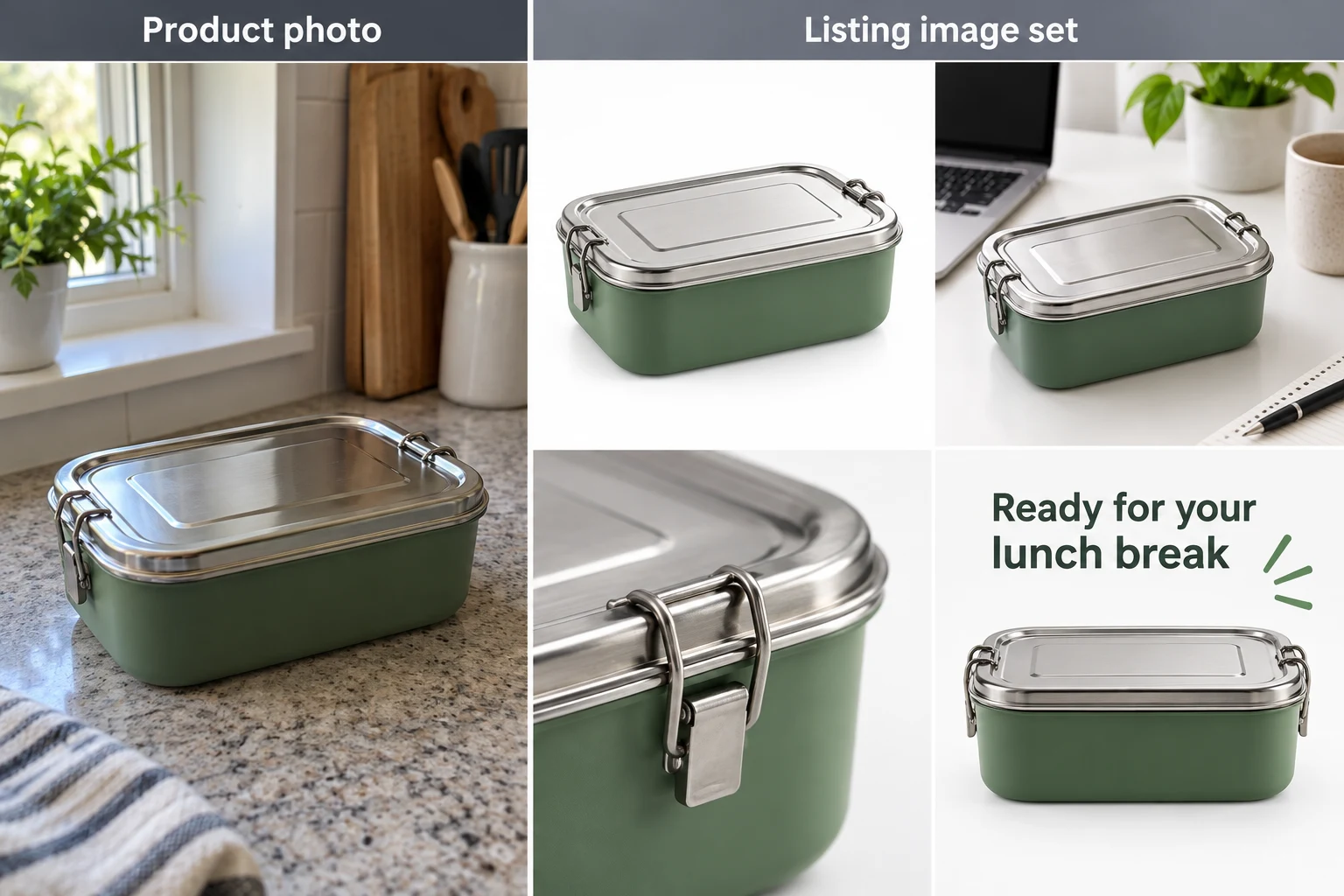
Raven AI supports product image sets, white-background listing images, feature and lifestyle images, Amazon A+ content and product detail pages, reference-based designs, and virtual try-on. Learn how to prepare assets, create images, set copy for international markets, and check the results.
Explore this feature02Product image sets
Upload product photos to Raven AI to create white-background listing, feature, lifestyle, and detail images. Learn how to allocate image counts, prepare assets, check product consistency, and set copy for international markets.
Explore this feature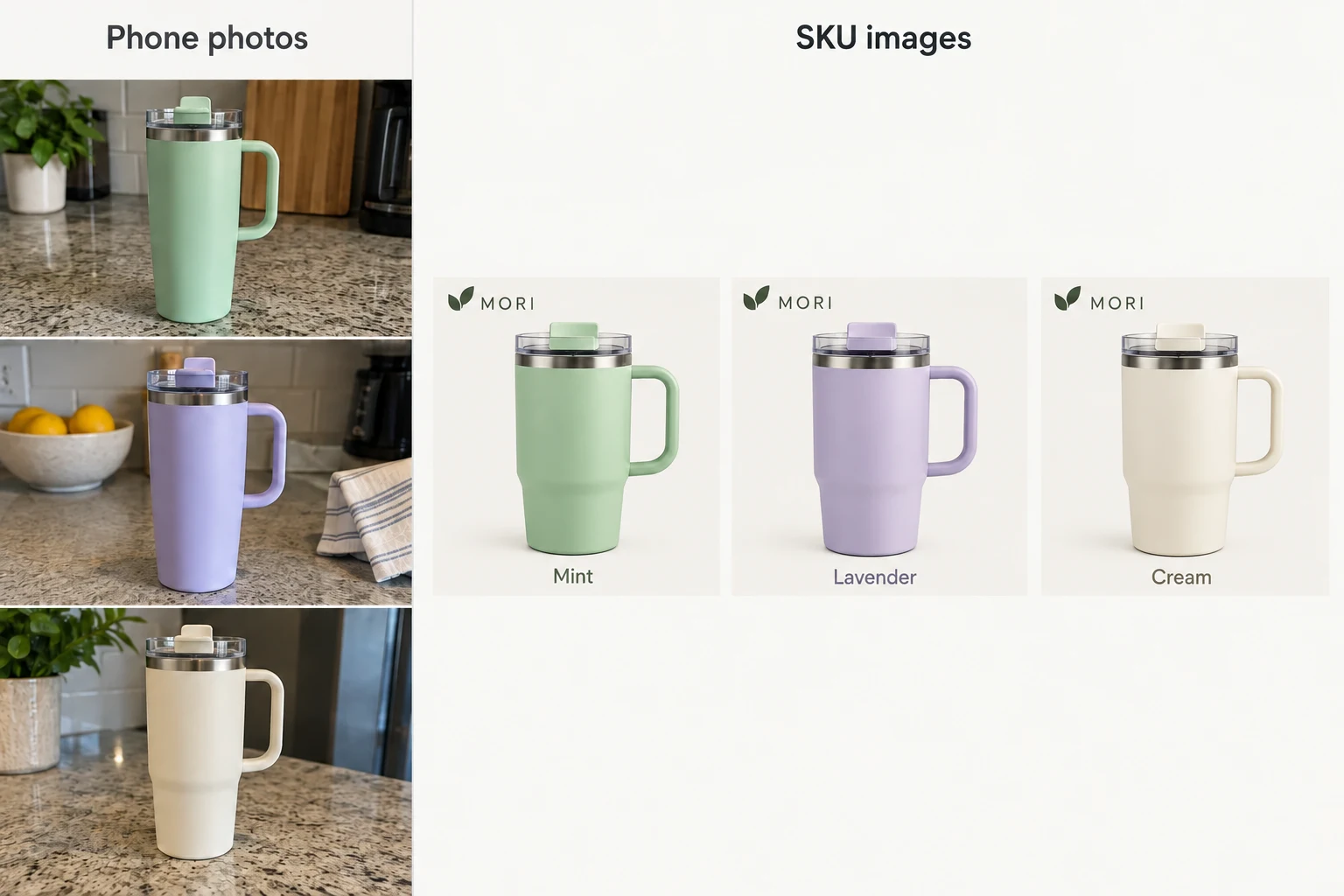 03
03SKU Image Creator
Upload the matching product photo for each SKU to create a batch with consistent backgrounds, compositions, and specification labels. Suitable for listings with multiple colors, capacities, sizes, and multipacks. The first image automatically establishes the layout, and completed results can be downloaded as a ZIP.
Explore this feature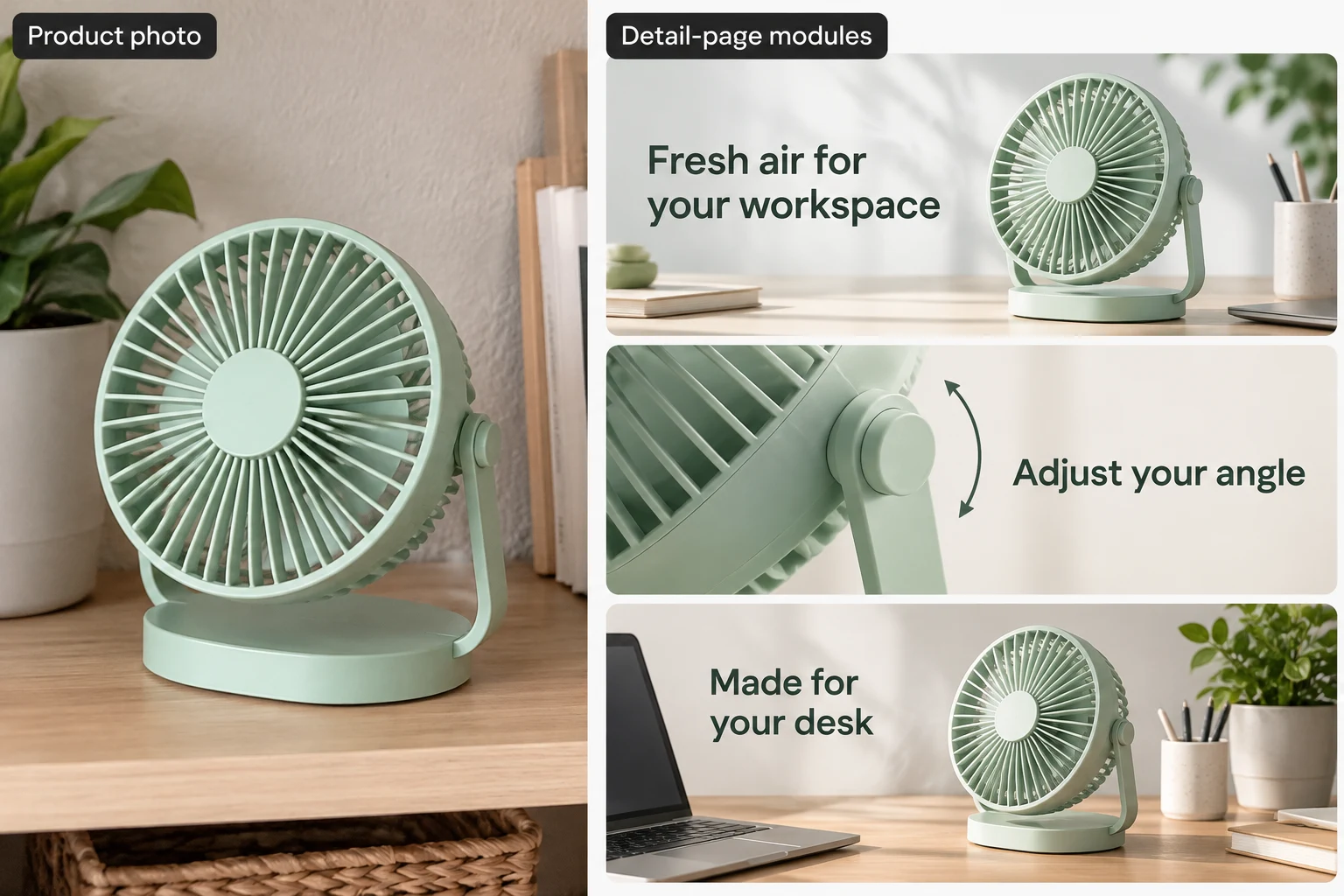 04
04A+ / detail page
Use Raven AI to create product detail pages and Amazon A+ images by module. Learn the order of hero, feature, lifestyle, and specification content, Basic and Premium A+ presets, section downloads, and mobile review.
Explore this feature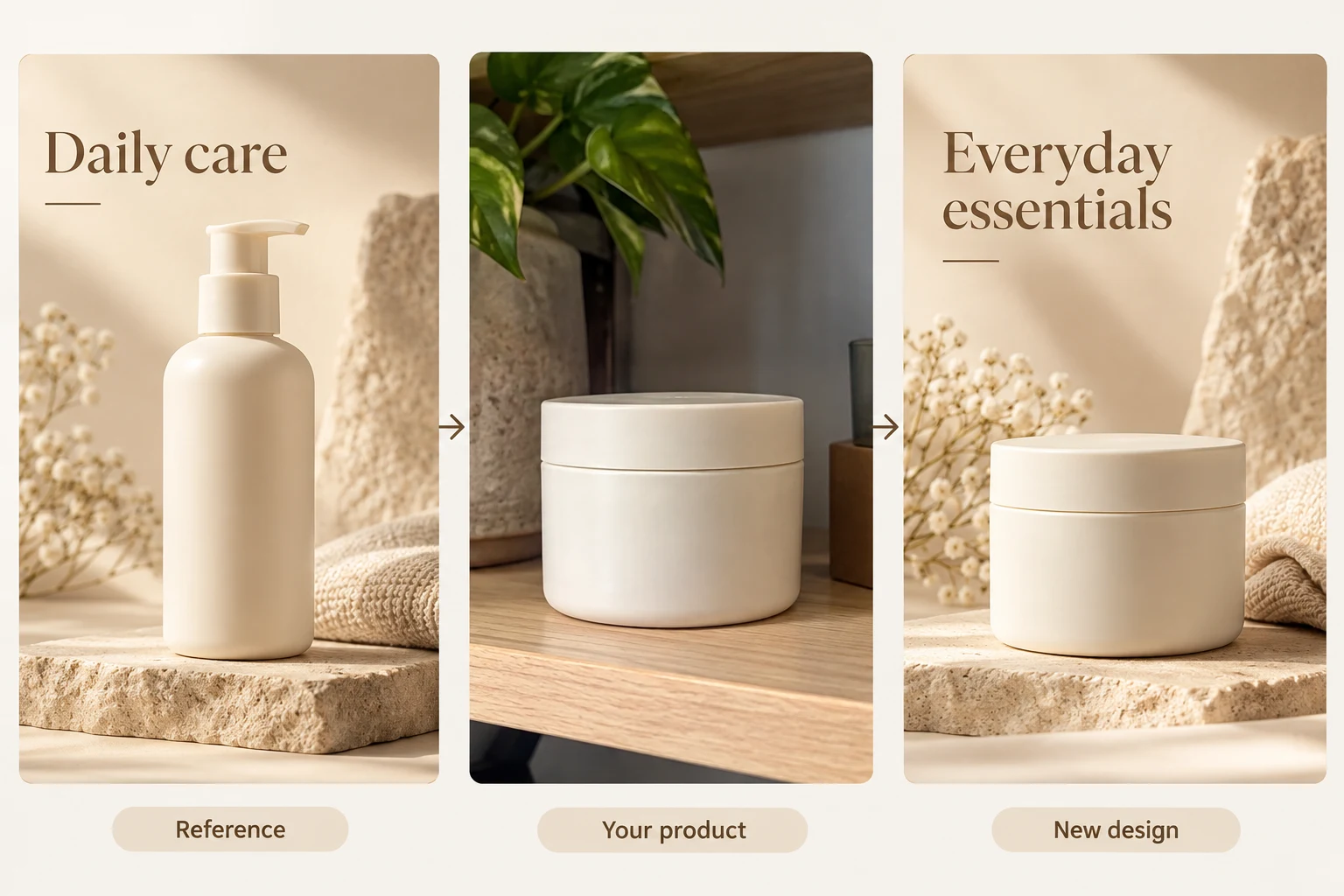 05
05Reference design
Upload a reference you own or are authorized to use, then use Raven AI to create product images based on its style or layout. Learn the difference between Style Reference and Close Recreation, how to replace products, and how to review branding, copy, and designs.
Explore this feature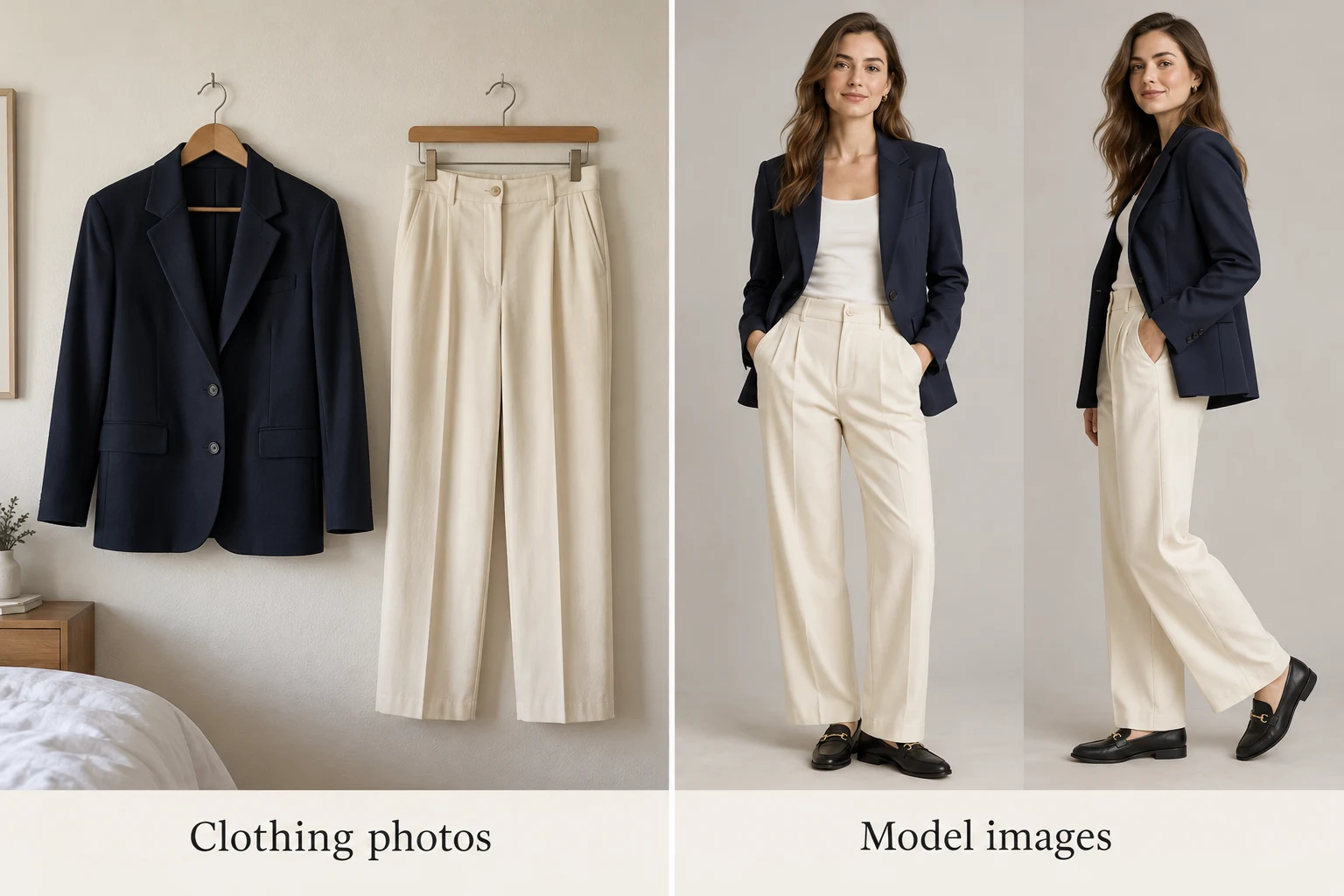 06
06Virtual outfit modeling
Upload clothing assets to Raven AI to create AI model photos and outfit images in multiple scenes. Choose a model appearance, optionally add a model reference, and select 1 to 3 poses per scene. Learn how to prepare clothing assets and check garment shape.
Explore this feature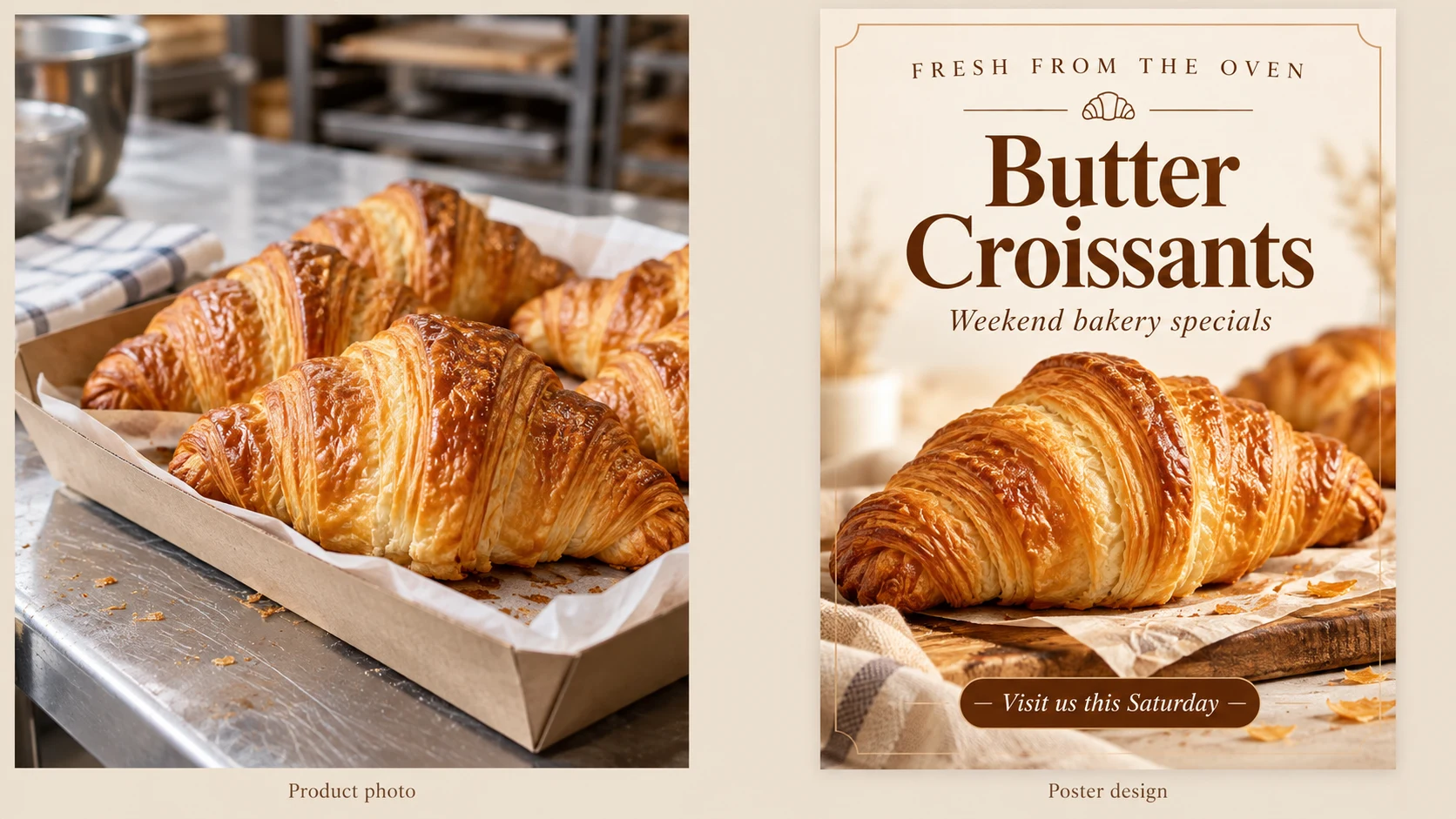 07
07Poster design
Design posters online with AI: enter a headline, event details, and call to action, then choose an industry, use case, aspect ratio, style, and color palette. Create marketing, promotional, sales, or recruitment posters, enhance existing designs, use references, or resize layouts.
Explore this feature08AI image editing
Upload a photo and describe what to change and preserve in everyday language. Explore conversational editing, reference image usage, and practical prompt examples.
Explore this feature09Edit image text
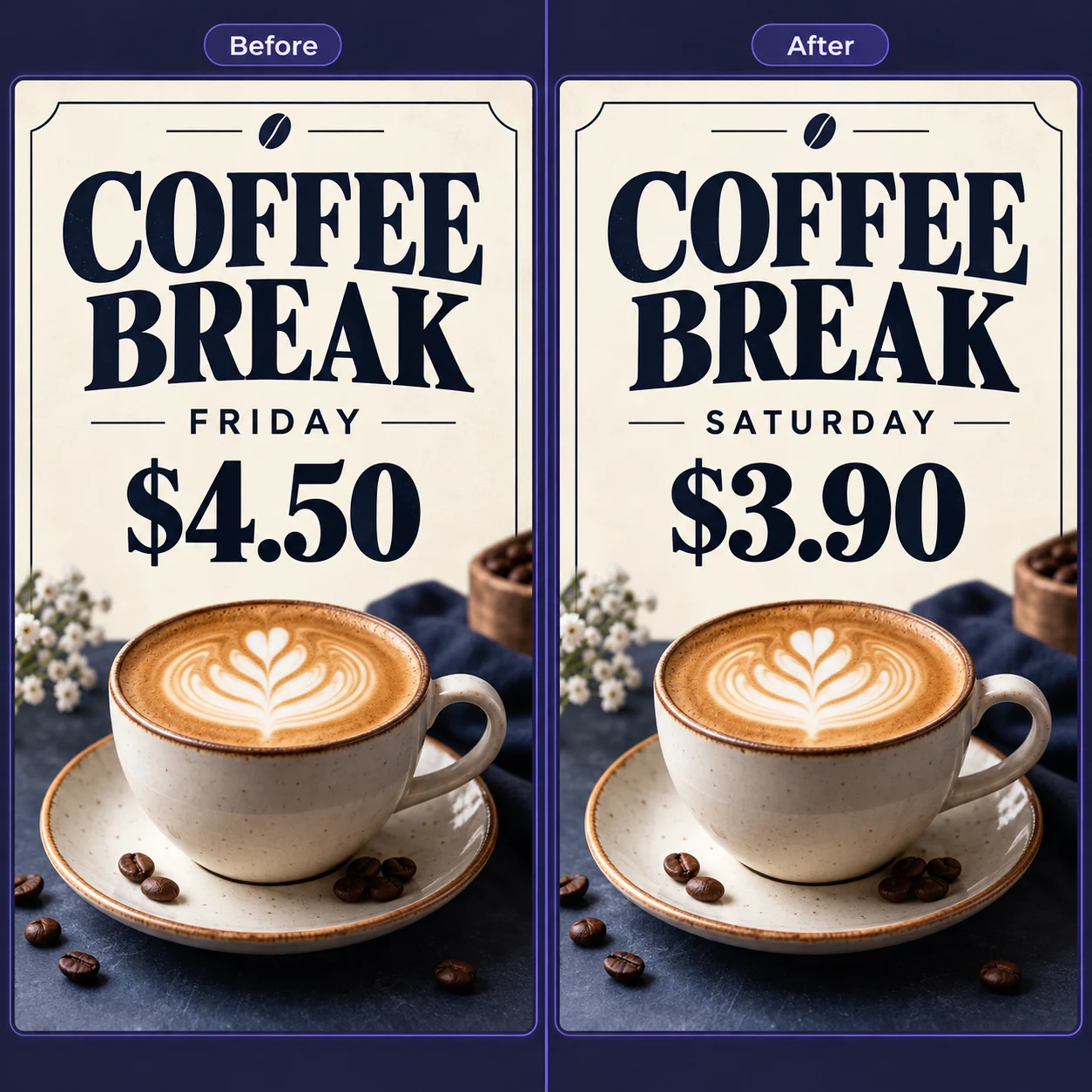
Edit image text online with free access and no software installation. Upload a poster, screenshot or product image, select the text and replace dates, prices or copy on mobile or desktop.
Explore this feature10Photo size maker
Resize portraits to common international dimensions, set custom pixels or millimeters, adjust JPG file size and prepare 4 × 6 in, A4 or Letter print sheets.
Explore this feature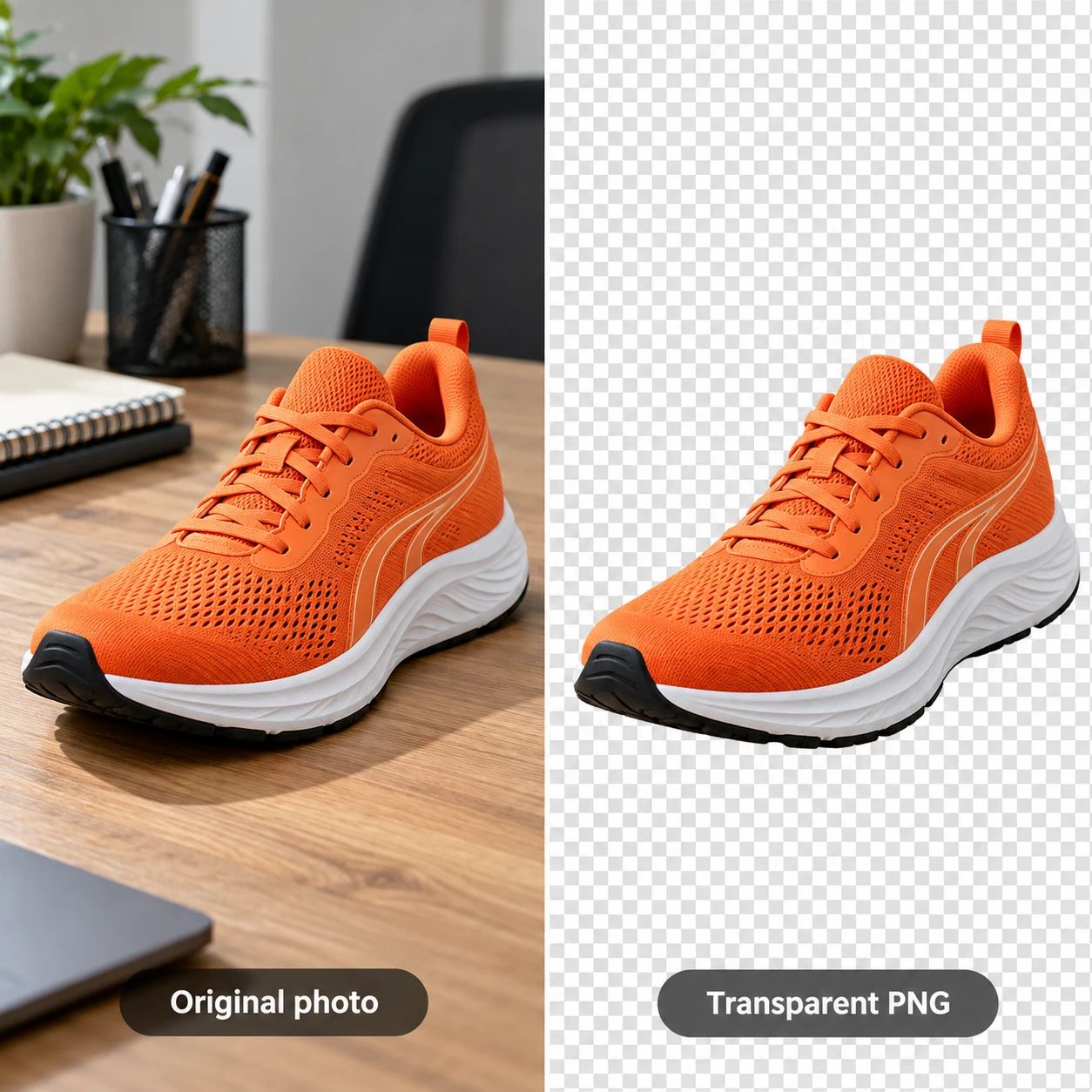 11
11Remove background
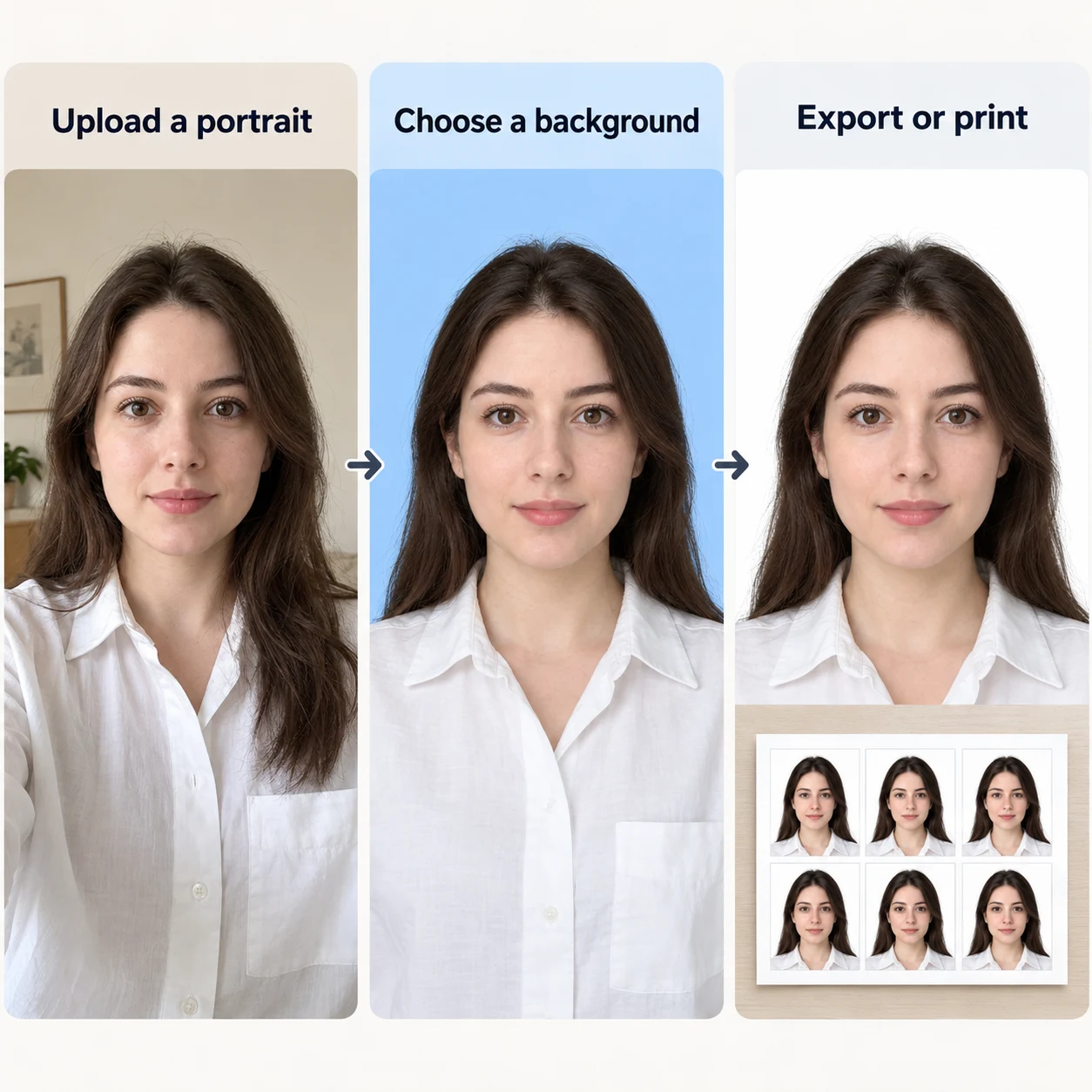
Sign in for free online background removal from portraits or product photos, then download a transparent PNG. You can also continue to create an ID photo with a new background color.
Explore this feature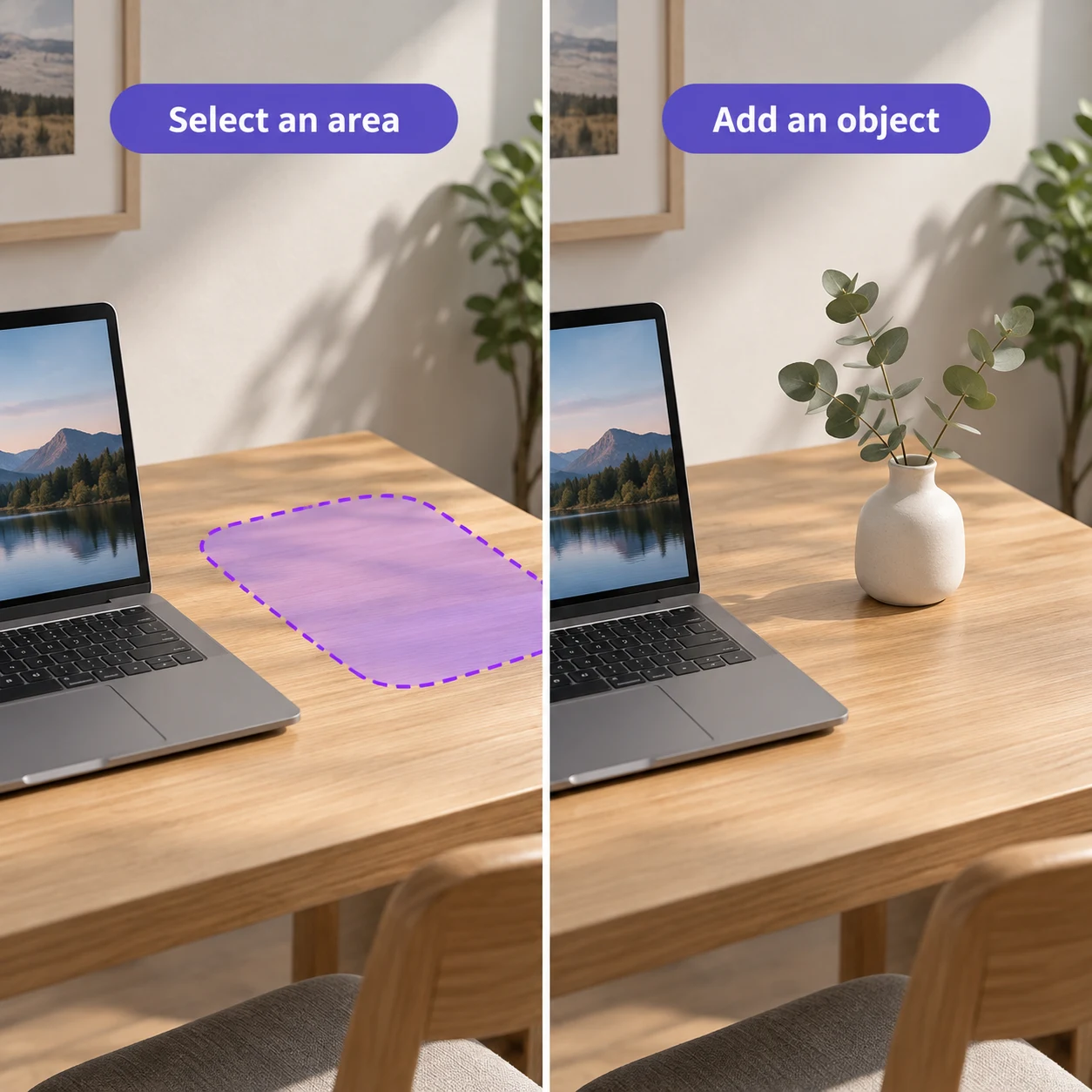 12
12Generative fill
Brush over the area to fill and enter a prompt. AI uses the surrounding image to generate matching content.
Explore this feature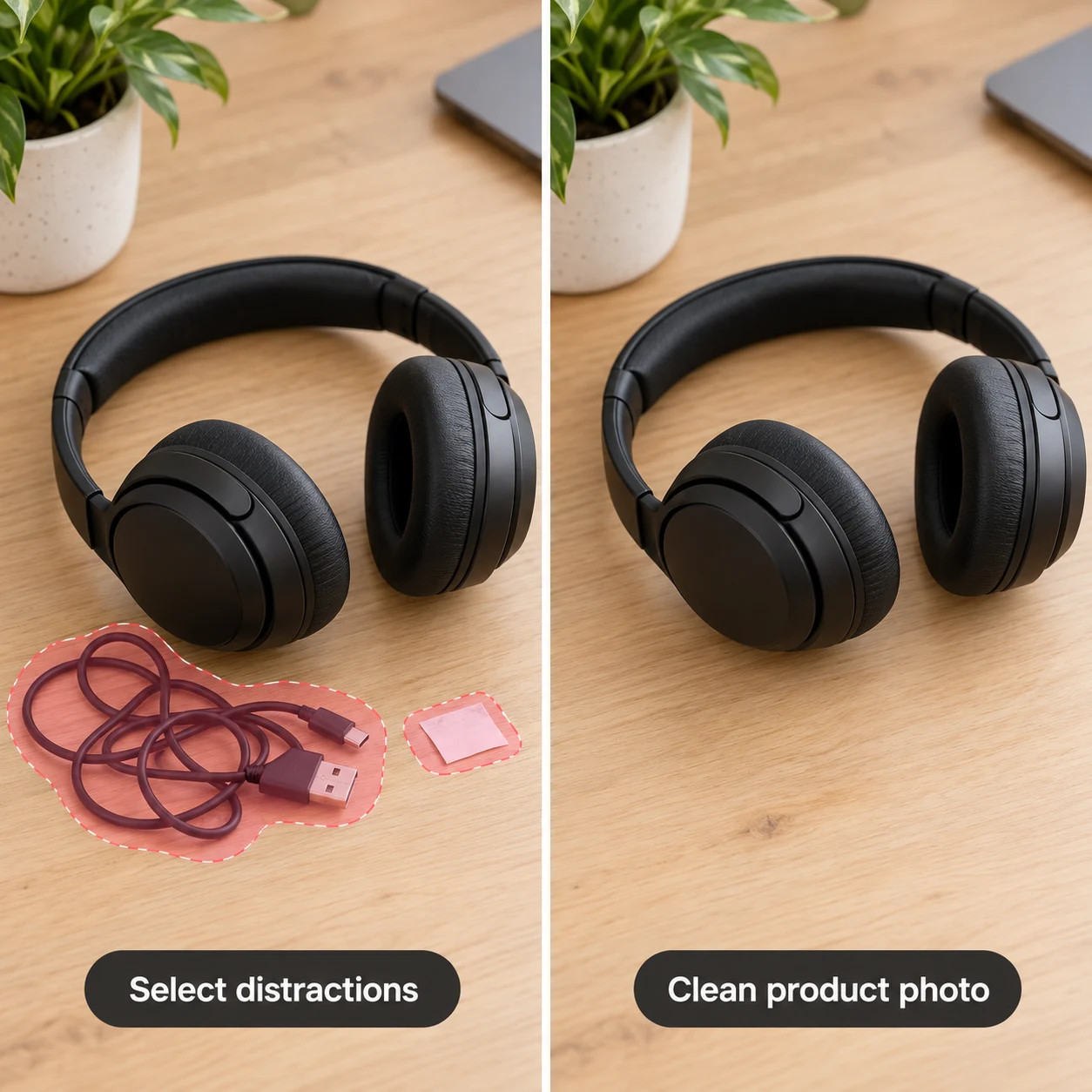 13
13Remove objects
Clean up photos with the online AI object eraser. Brush over unwanted people, clutter or objects, then repair the background. Follow screenshots, selection guidance and review examples.
Explore this feature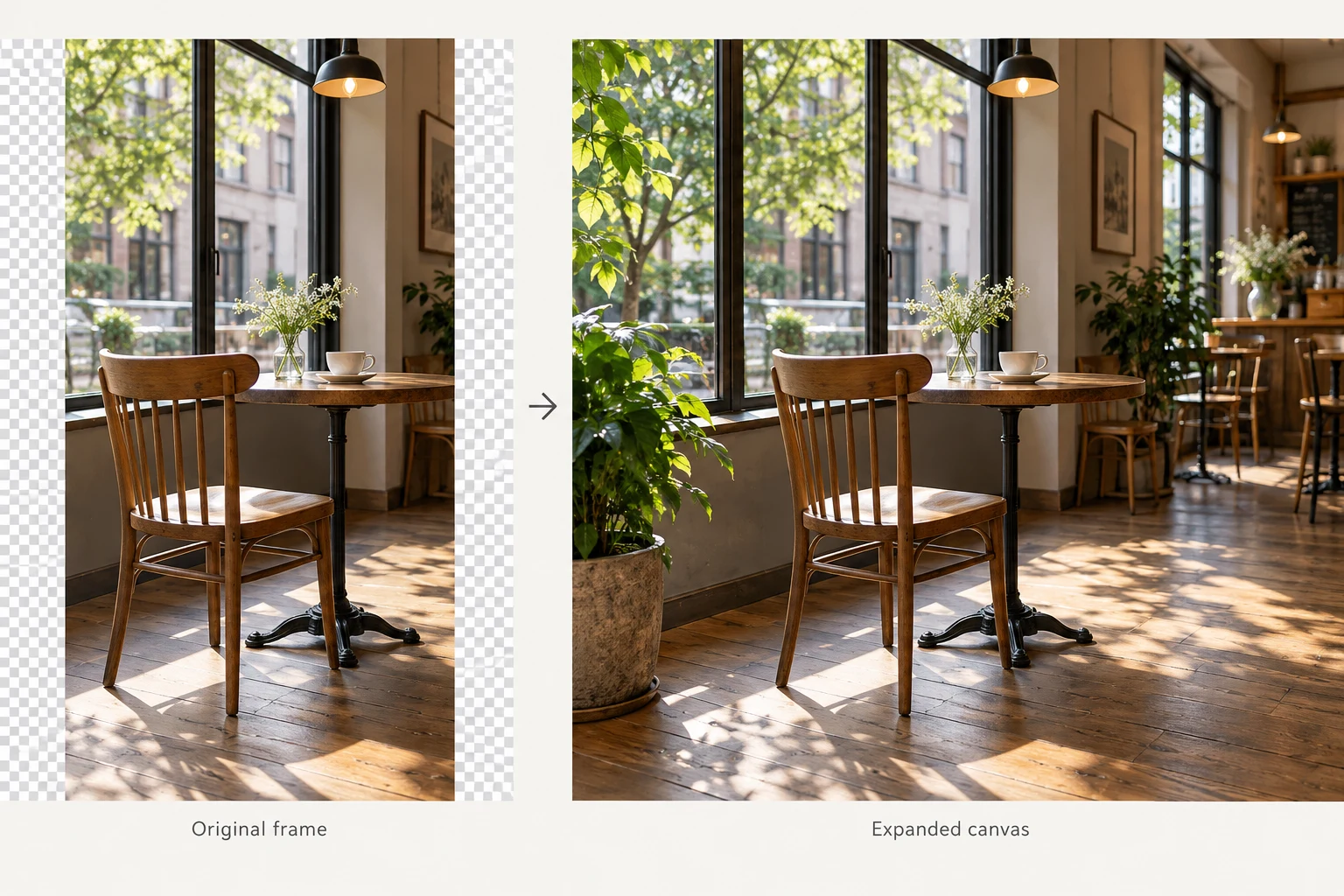 14
14Crop & expand
Crop an image or expand its canvas online. Choose an aspect ratio and dimensions, and let AI fill new areas based on the original scene.
Explore this feature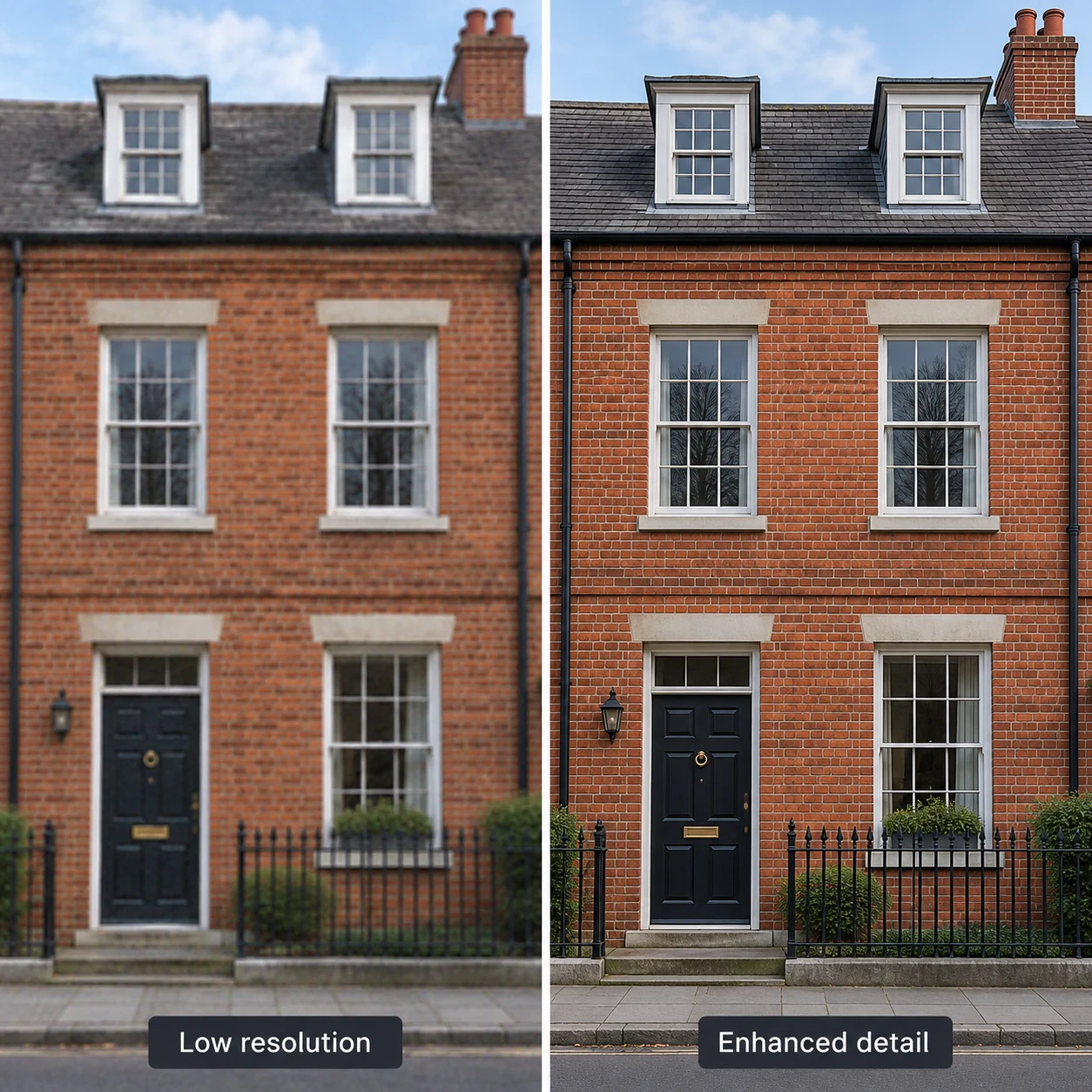 15
15Upscale images
Upload a blurry or low-resolution image and use AI HD Restoration to enhance details and reduce compression noise. Explore resolution settings, before-and-after comparisons, and examples.
Explore this feature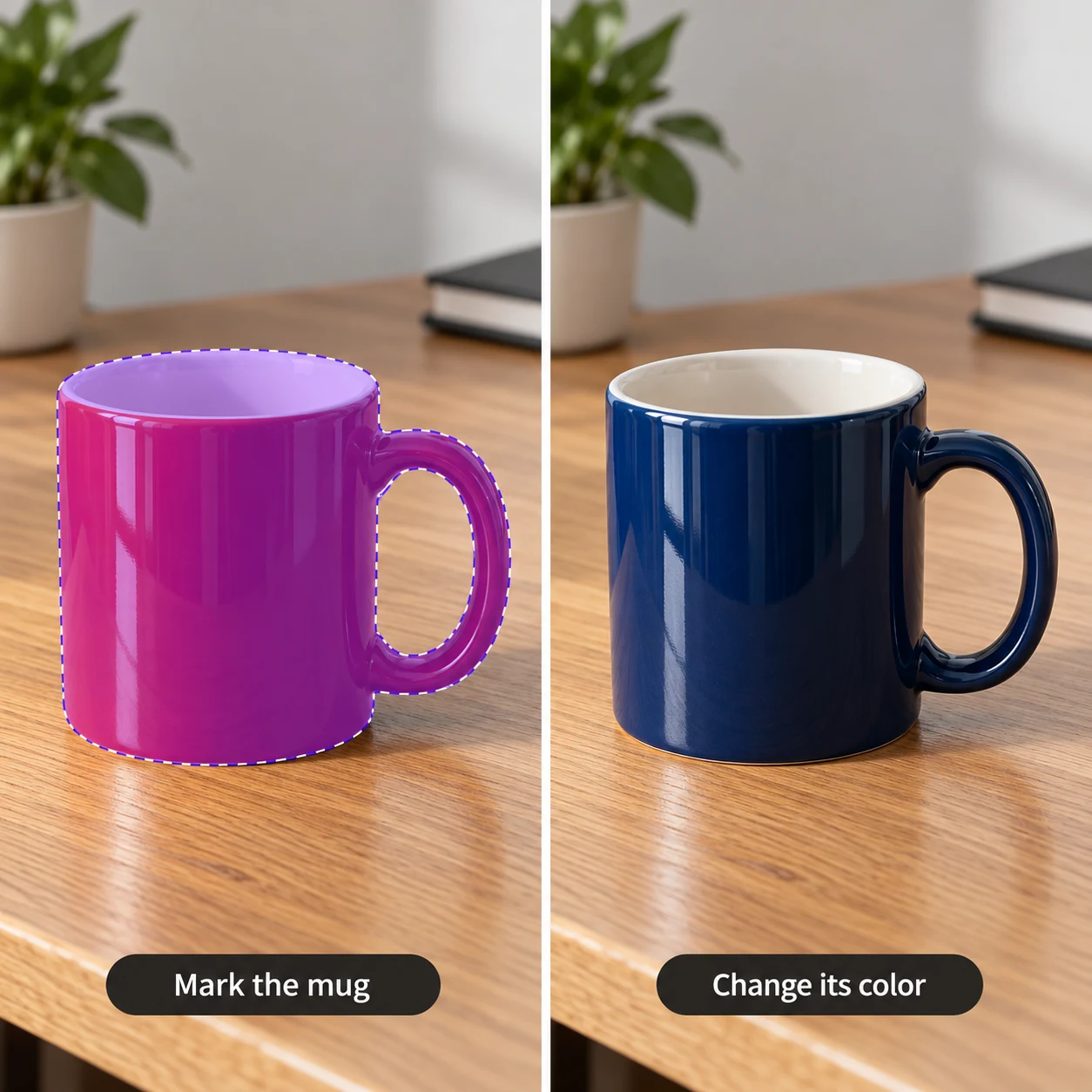 16
16Marked edits
Use brush marks, text, and selection boxes to show where to edit, then describe the change in a prompt for clearer local AI editing.
Explore this featureFree batch image watermark remover
Add up to 50 images at once. Automatically detect watermarks and repair the background in one click, without selecting regions in each image. Compare results and download them as a bundle. No sign-in is required. Images are processed locally in your browser and are not uploaded to a server.
View the batch watermark remover and illustrated guide ↗Prepare a set of images for a product launch
Give each image a clear purpose, from white-background listing images and selling-point graphics to product-detail pages. The e-commerce workspace also supports reference-based designs and clothing-on-model images for different markets and settings.
View the AI e-commerce image guide ↗Start with your task
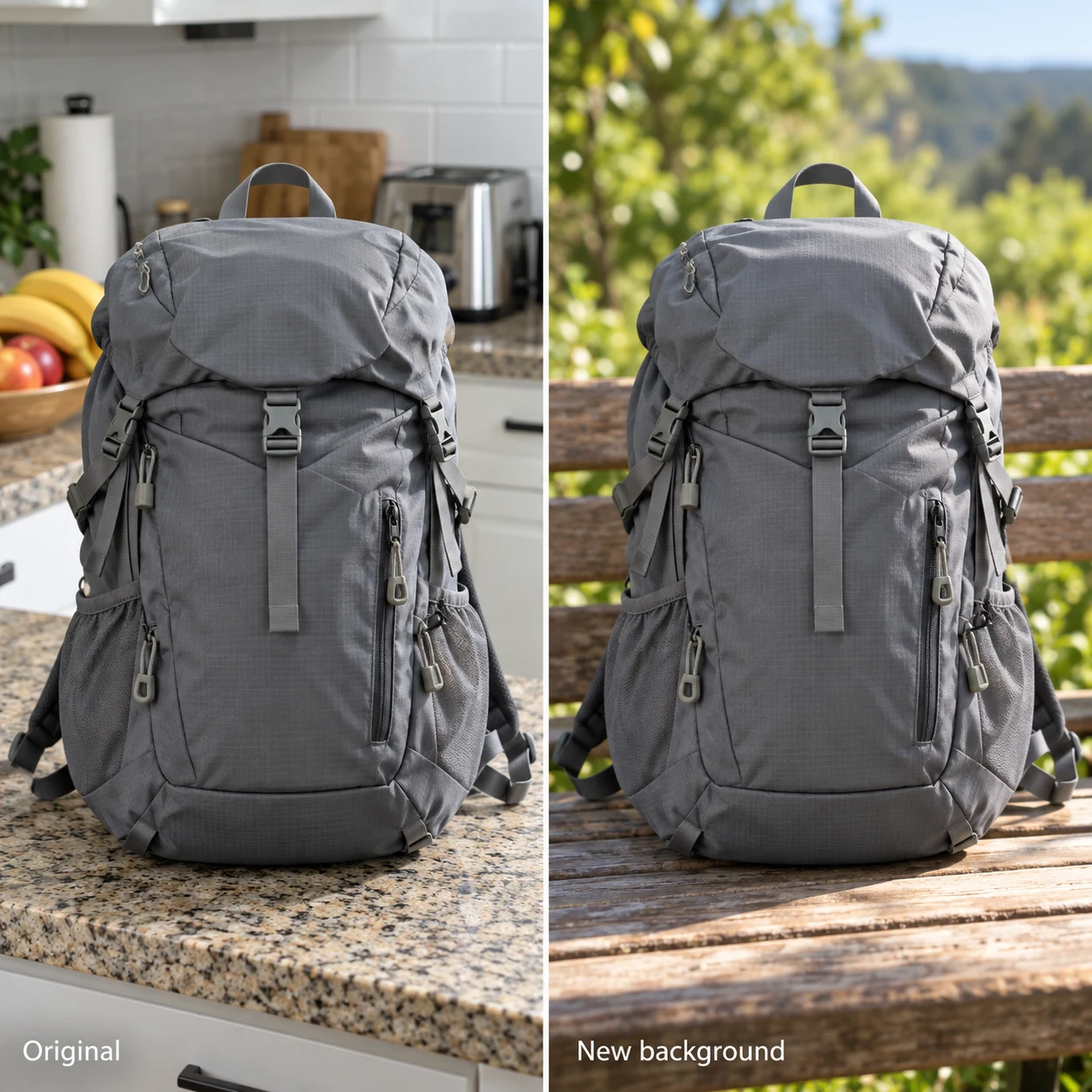
To edit an entire image with a sentence, start with AI Image Editing. For a specific area, use Marked Editing, Smart Removal, or Generative Fill. Choose Edit Image Text for text, AI Background Removal for a new background, or ID Photo Creation for application or exam photos.
Results depend on the original image quality, marked area, and prompt. Check text, faces, and edge details before downloading.
Go beyond the basic steps
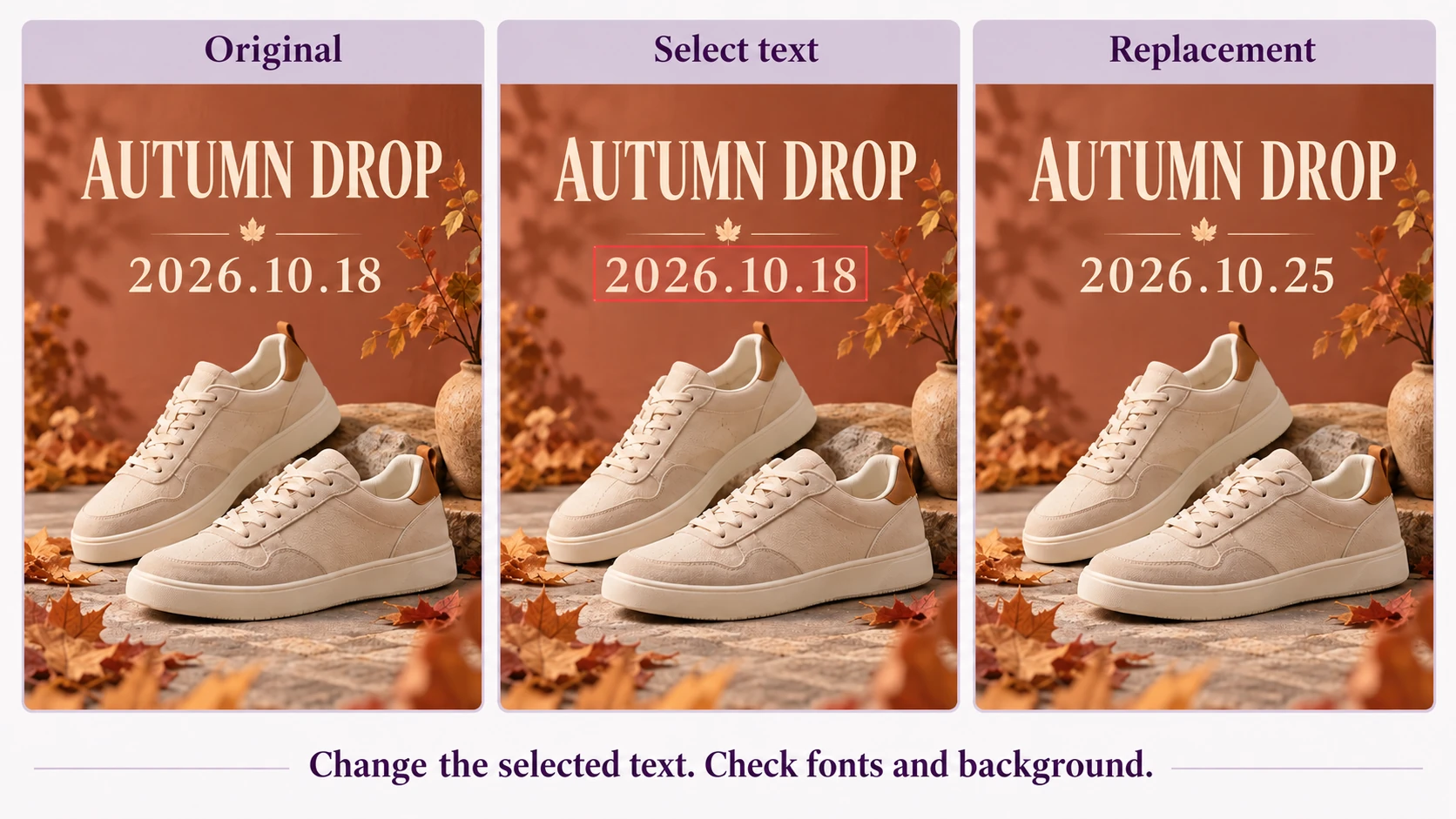
How to Edit Text in Images: AI Replacement or Layer Editing?
Choose between AI text replacement, editable text layers and manual retouching. Follow a poster-date example and learn how fonts, backgrounds, text length and device choice affect the workflow.
Read article ↗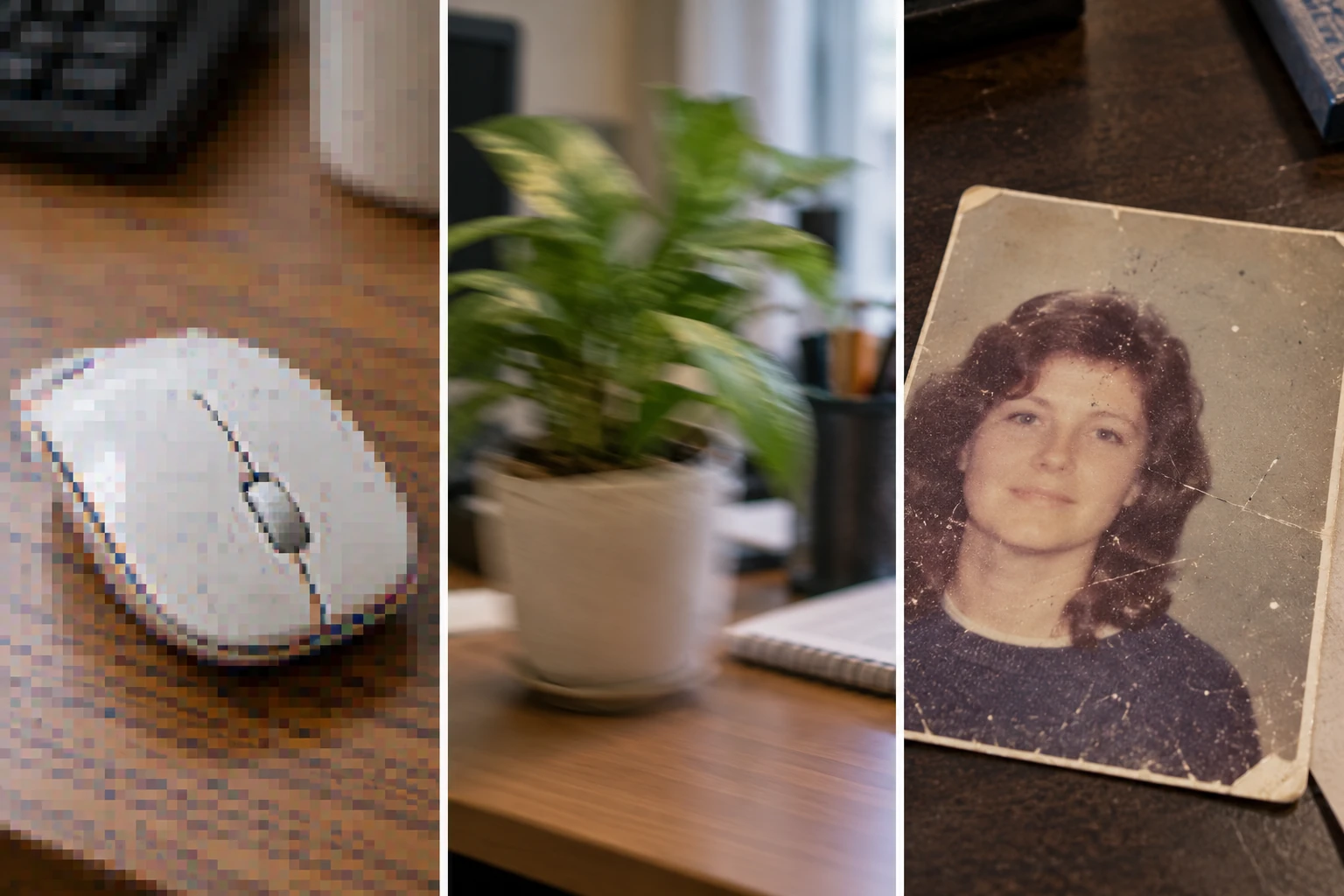
Does Photo Enhancement Help? Review Compression, Blur and Old Photos
Bigger images are not necessarily clearer. Identify compression artifacts, camera blur and old-photo damage, then use practical prompts and before-and-after checks without treating generated detail as verified recovery.
Read article ↗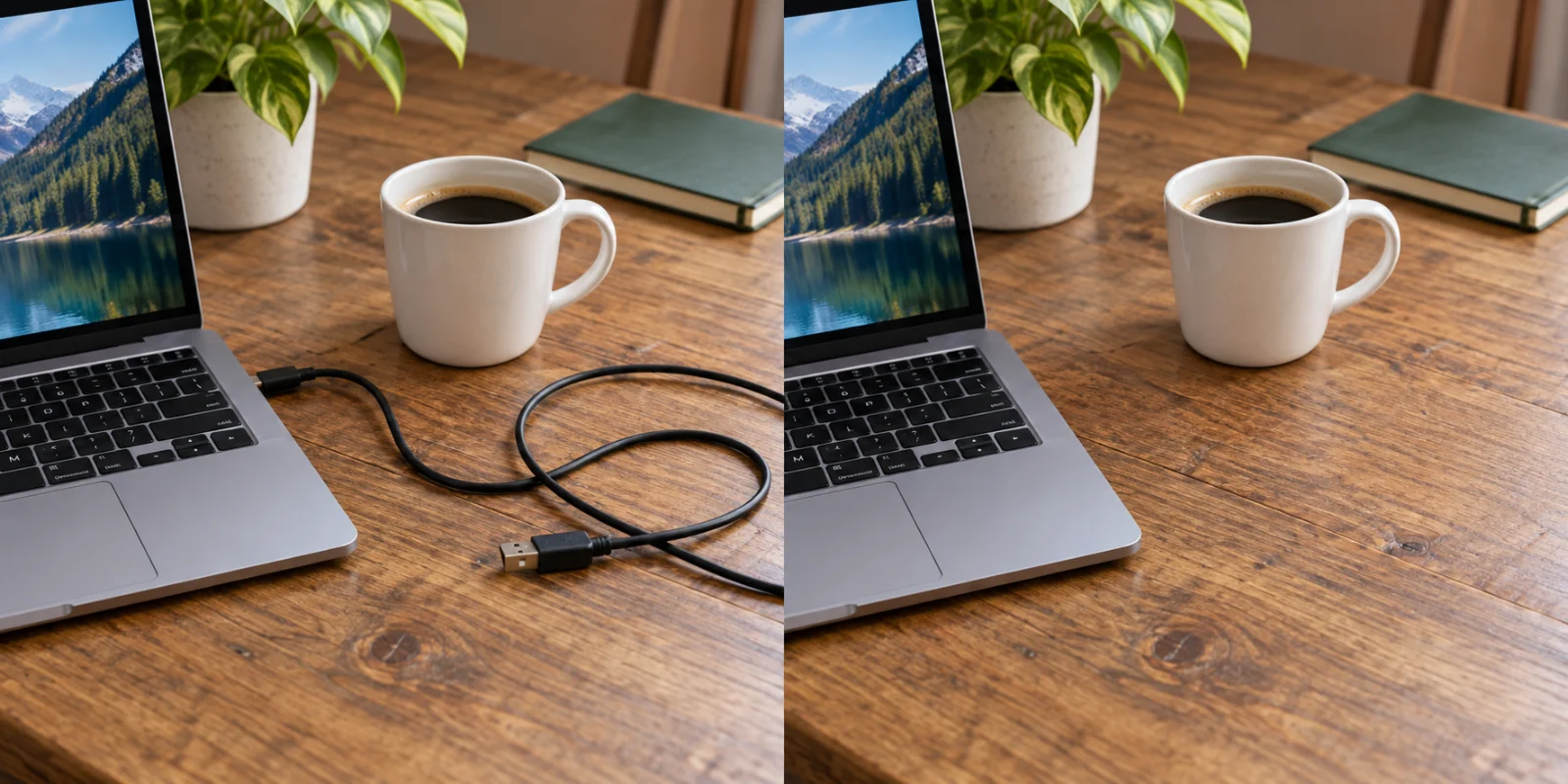
AI Object Removal Left a Trace? Check Edges, Shadows and Backgrounds
Troubleshoot leftover shadows, cable fragments and repeated texture after object removal. Use a desk-cable example to plan selections, describe the background and review local edits.
Read article ↗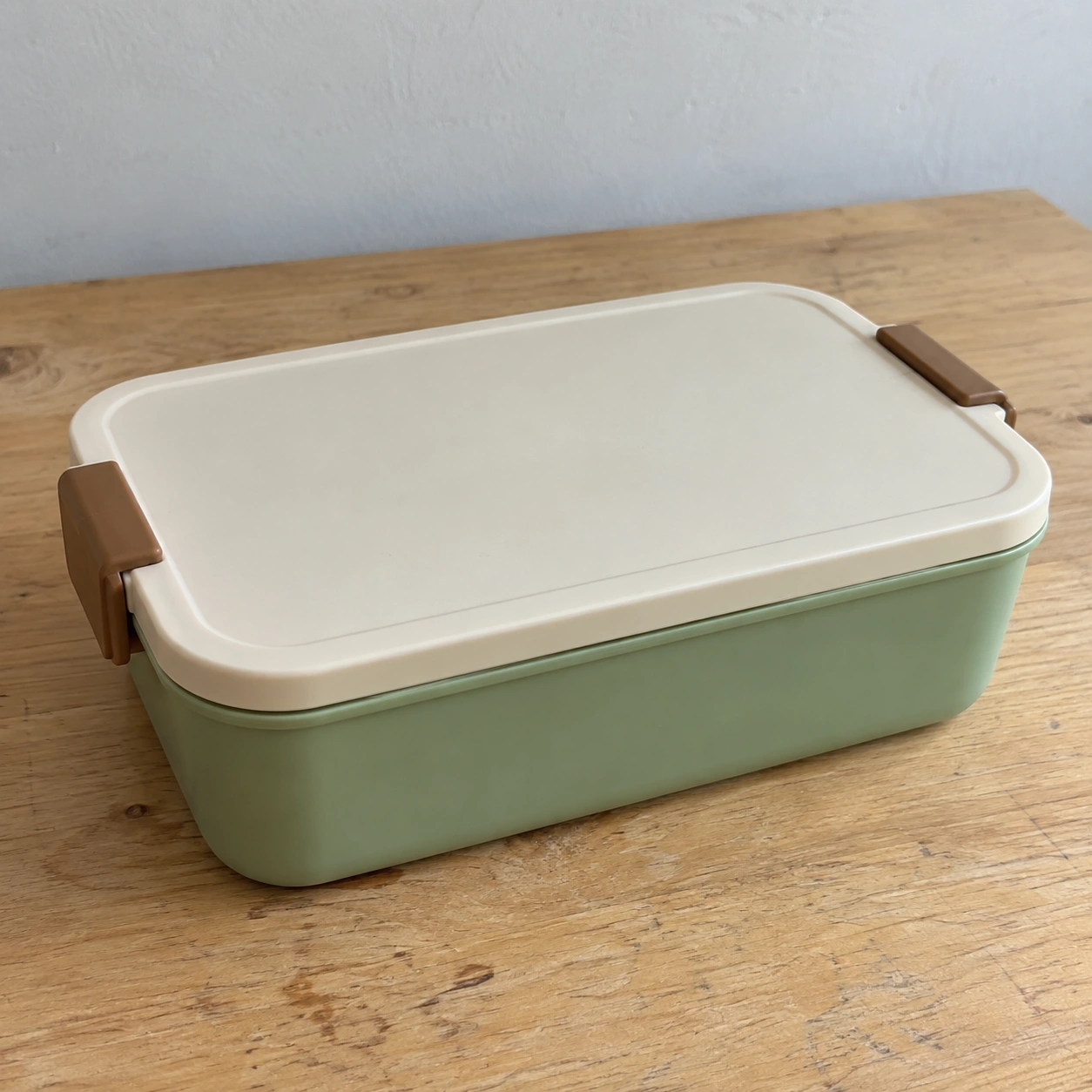
AI Product Images or Background Removal? Choose the Right Workflow
Does your product photo need a cleaner background or an entire listing image set? Use a lunch-box source to compare cutout and AI generation, with checks for structure, white backgrounds, lifestyle imagery and publication.
Read article ↗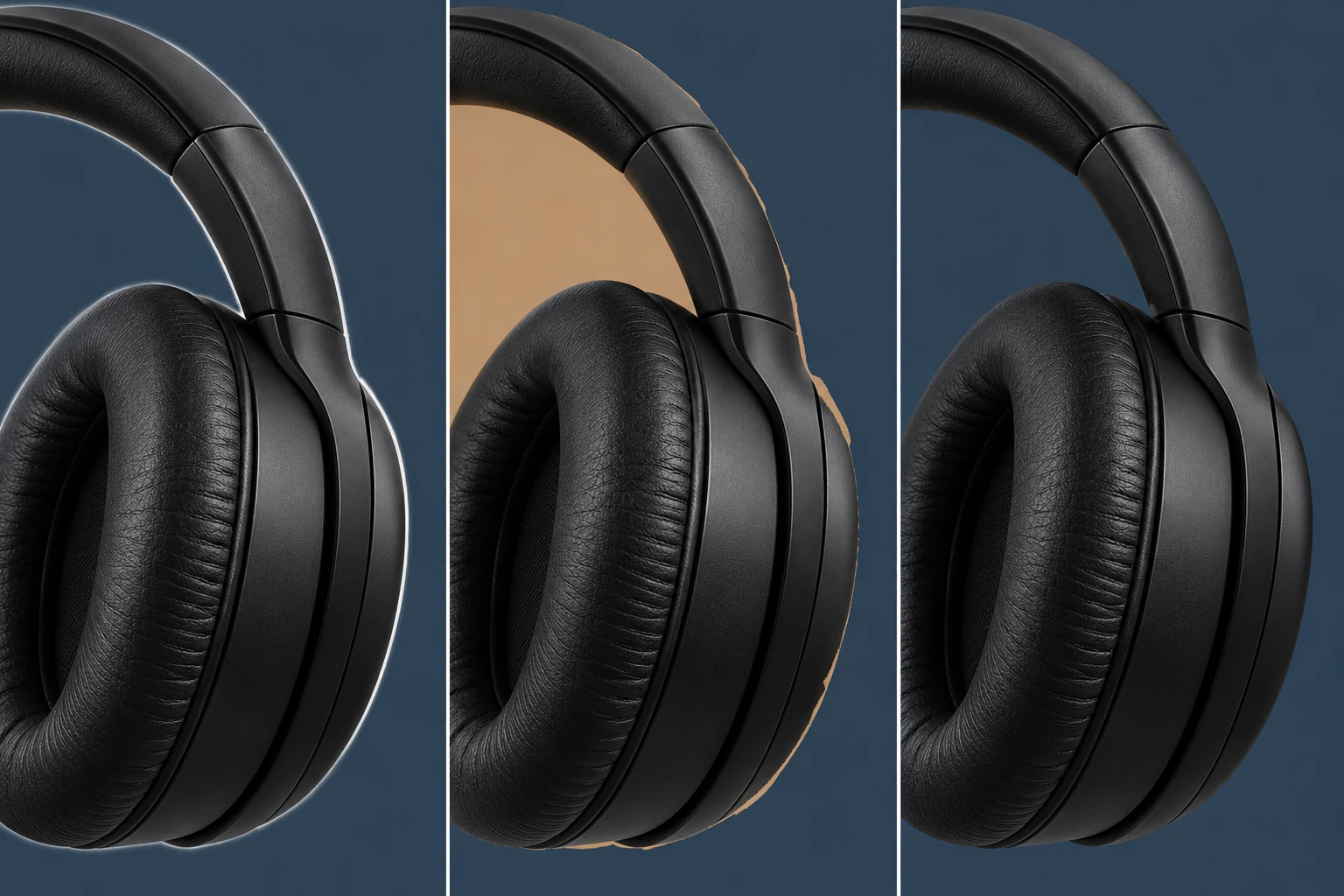
White Edges After Background Removal? Fix Halos and Leftover Background
Troubleshoot white halos, leftover background and PNGs that appear white. Follow a headphone example, free background-removal steps and practical edge checks.
Read article ↗