Marketing posters ↗
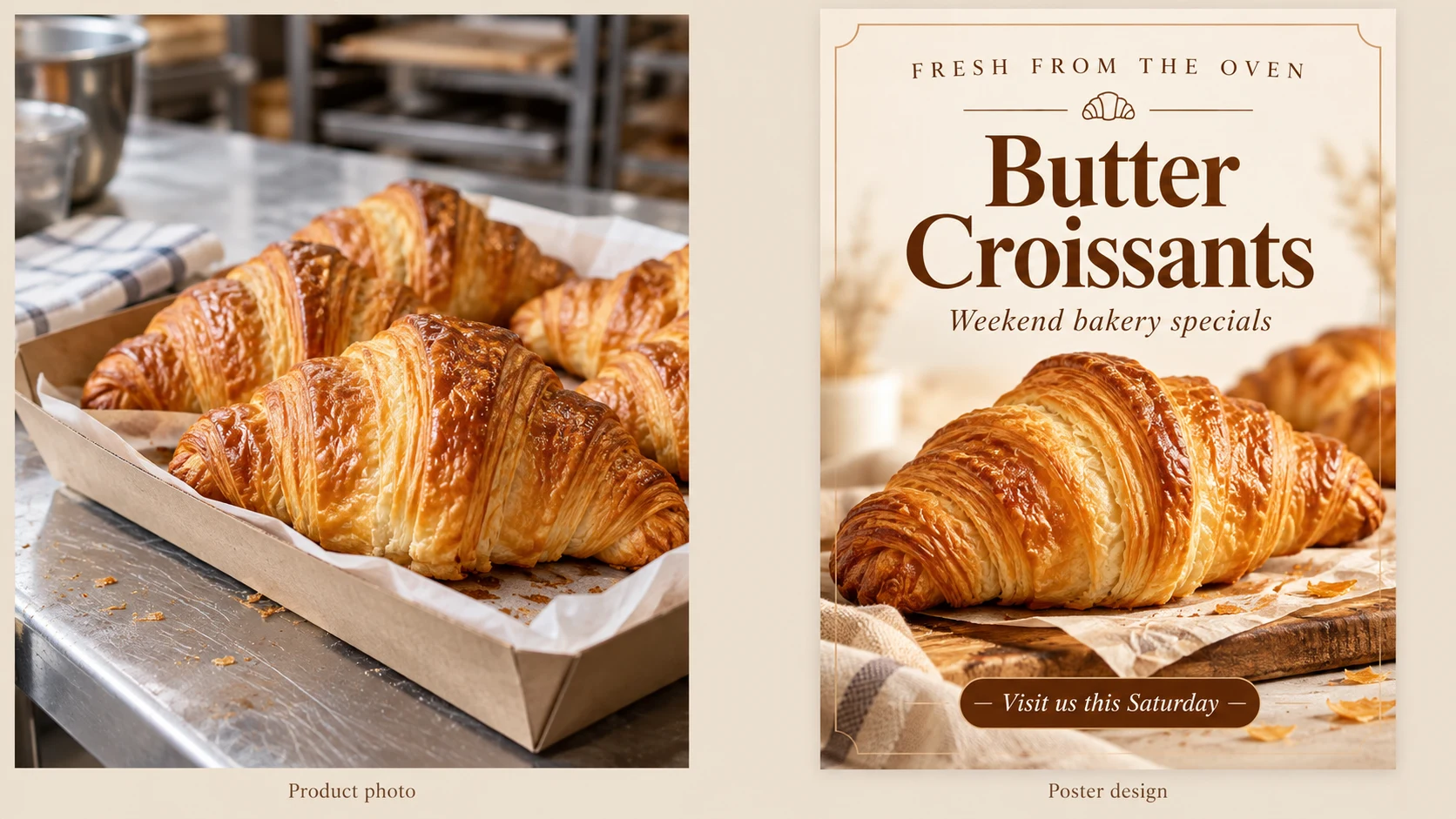
Use an ordinary product photo and four levels of short copy to give the product, selling points, and call to action their own space.
View assets, settings, and results ↓For campaigns, store promotions, or recruitment notices, first enter accurate copy, then choose an industry, use case, aspect ratio, style, and palette. You can also upload products, people, logos, or existing posters for AI layout design, enhancement, reference-based redesign, and size adaptation.
Choose a workflow for your task to control the result more easily than with a vague prompt
Online poster creation involves more than generating an image with text. Raven AI provides separate settings for text hierarchy, industry, use case, aspect ratio, palette, style, and uploaded assets. This makes requirements for marketing, promotional, and recruitment posters easier to explain and the results easier to check item by item.
Use an ordinary product photo and four levels of short copy to give the product, selling points, and call to action their own space.
View assets, settings, and results ↓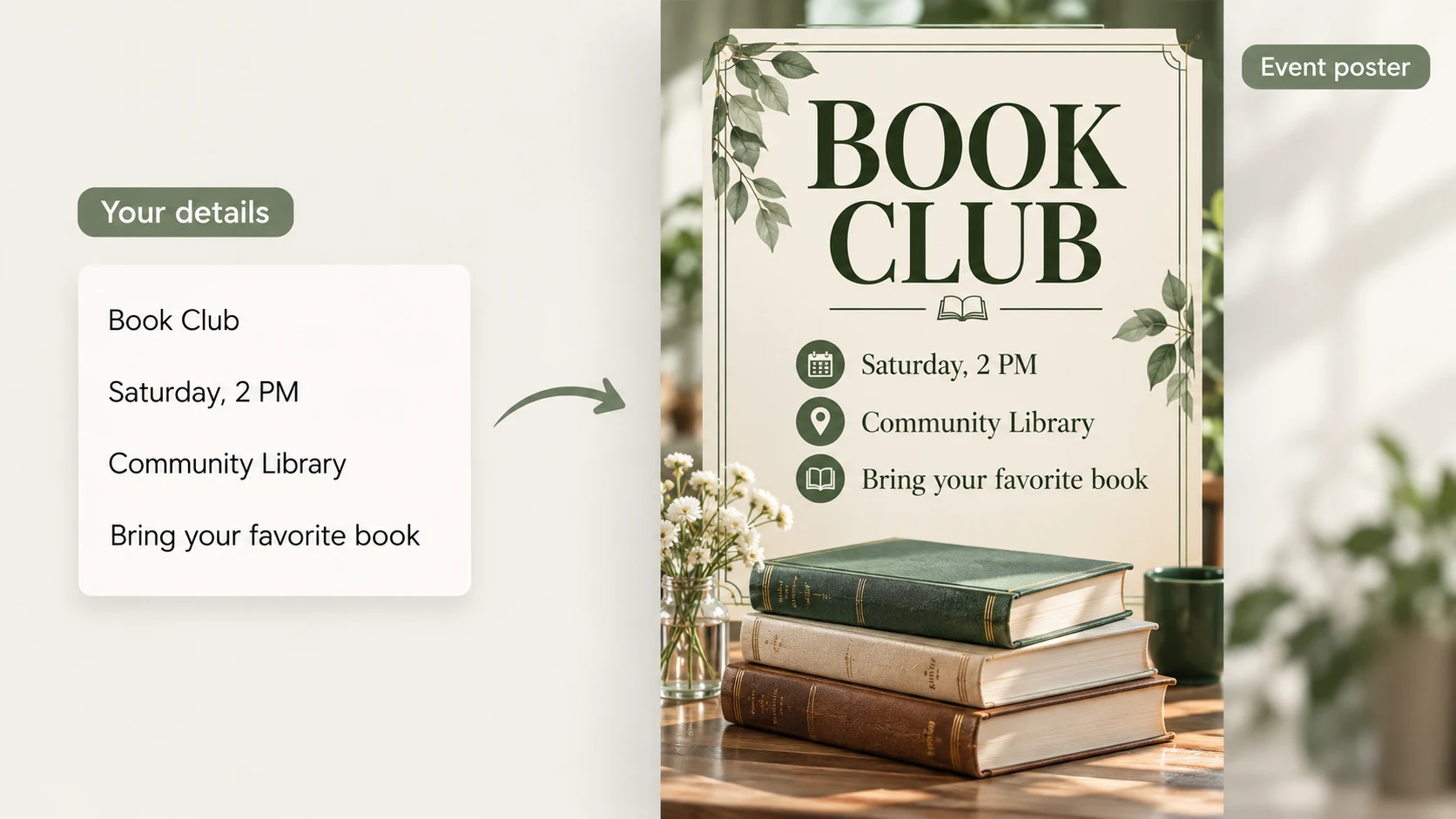
You can create this without a product image. Use clear time, location, preparation, and signup details instead of long decorative copy.
View assets, settings, and results ↓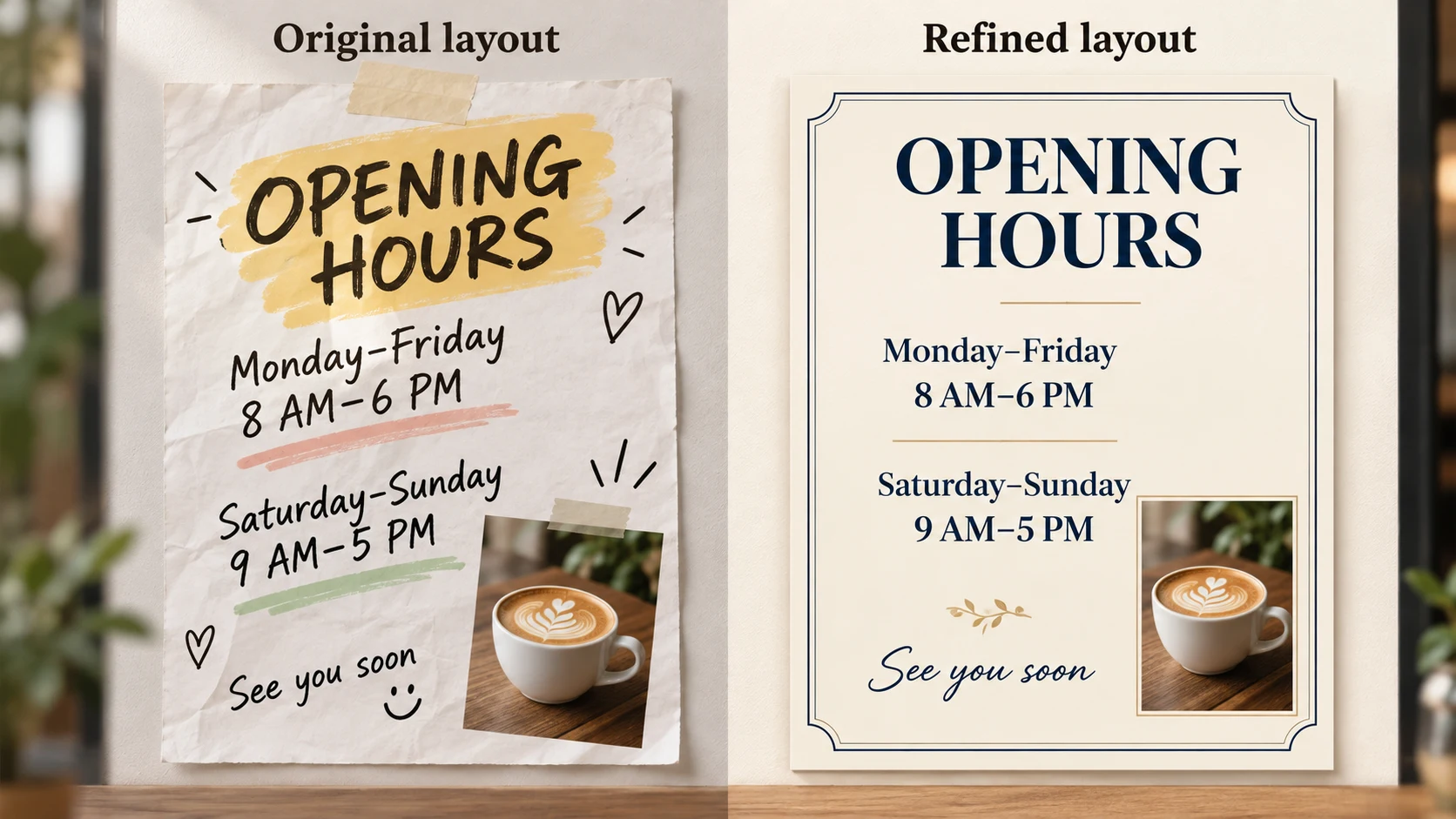
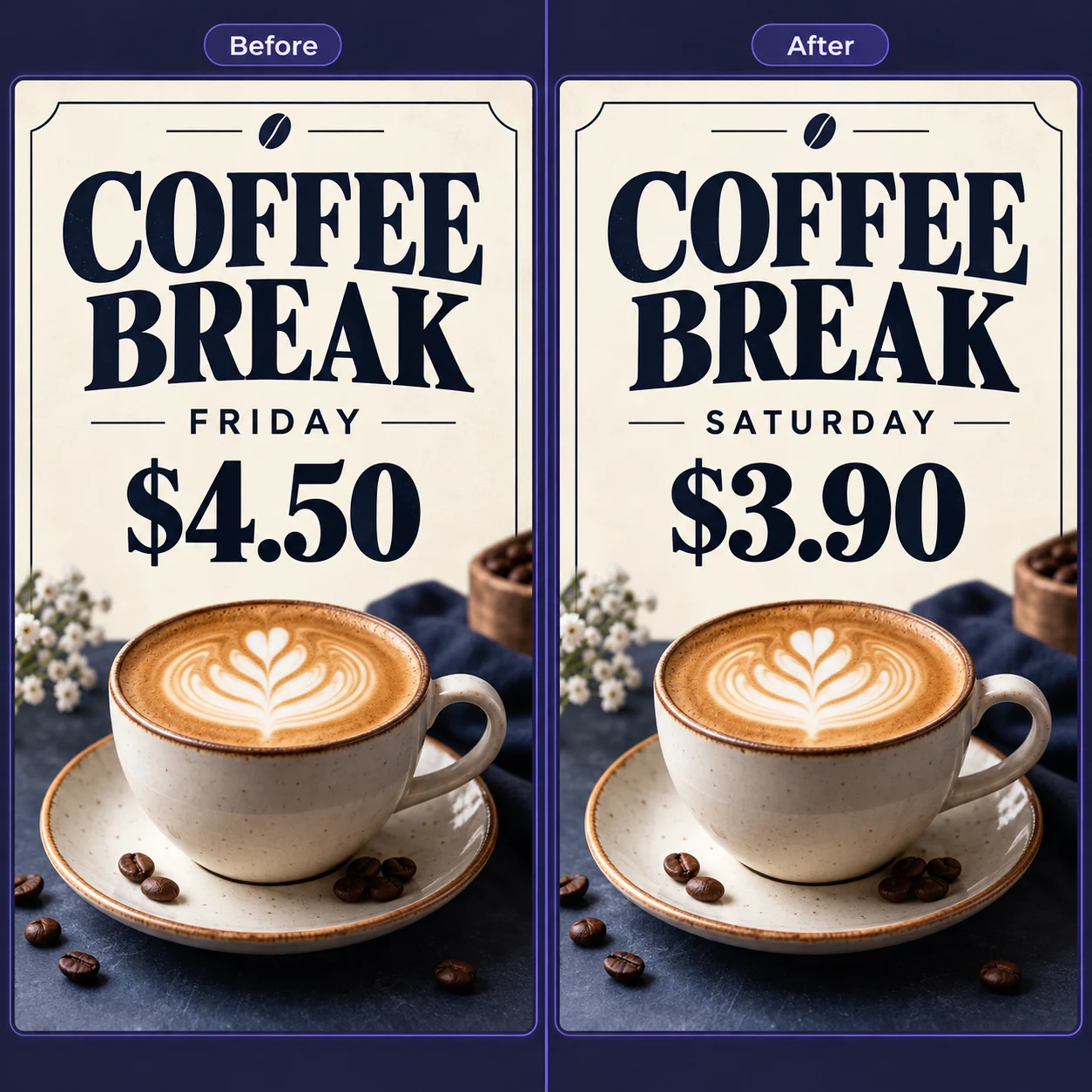
The original content is correct. Improve only alignment, type sizes, and spacing; visual enhancement should not rewrite the copy.
View assets, settings, and results ↓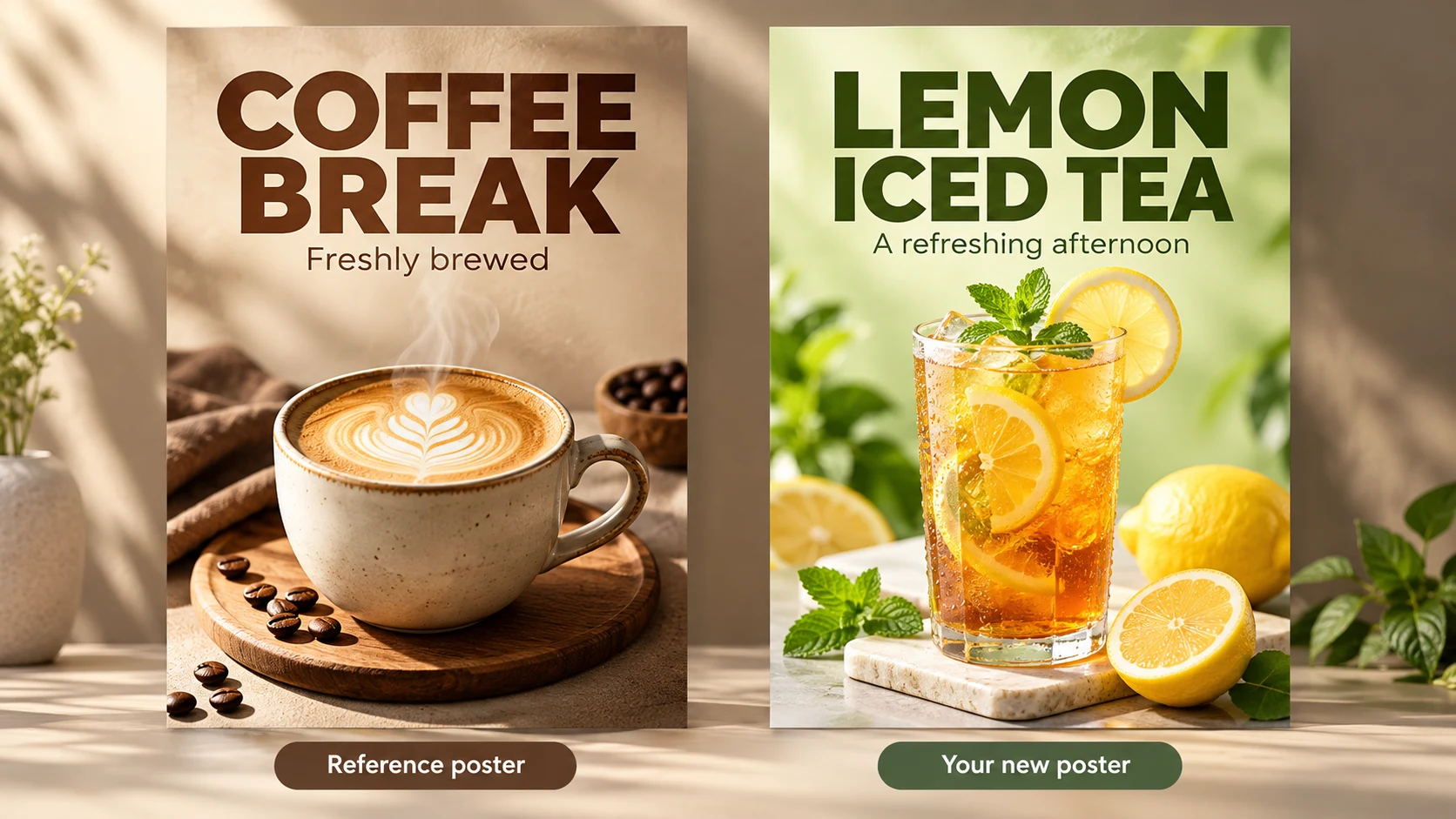
The reference guides the structure; the drink photo supplies the subject. Select two reference aspects and see how the palette and product change to your own.
View assets, settings, and results ↓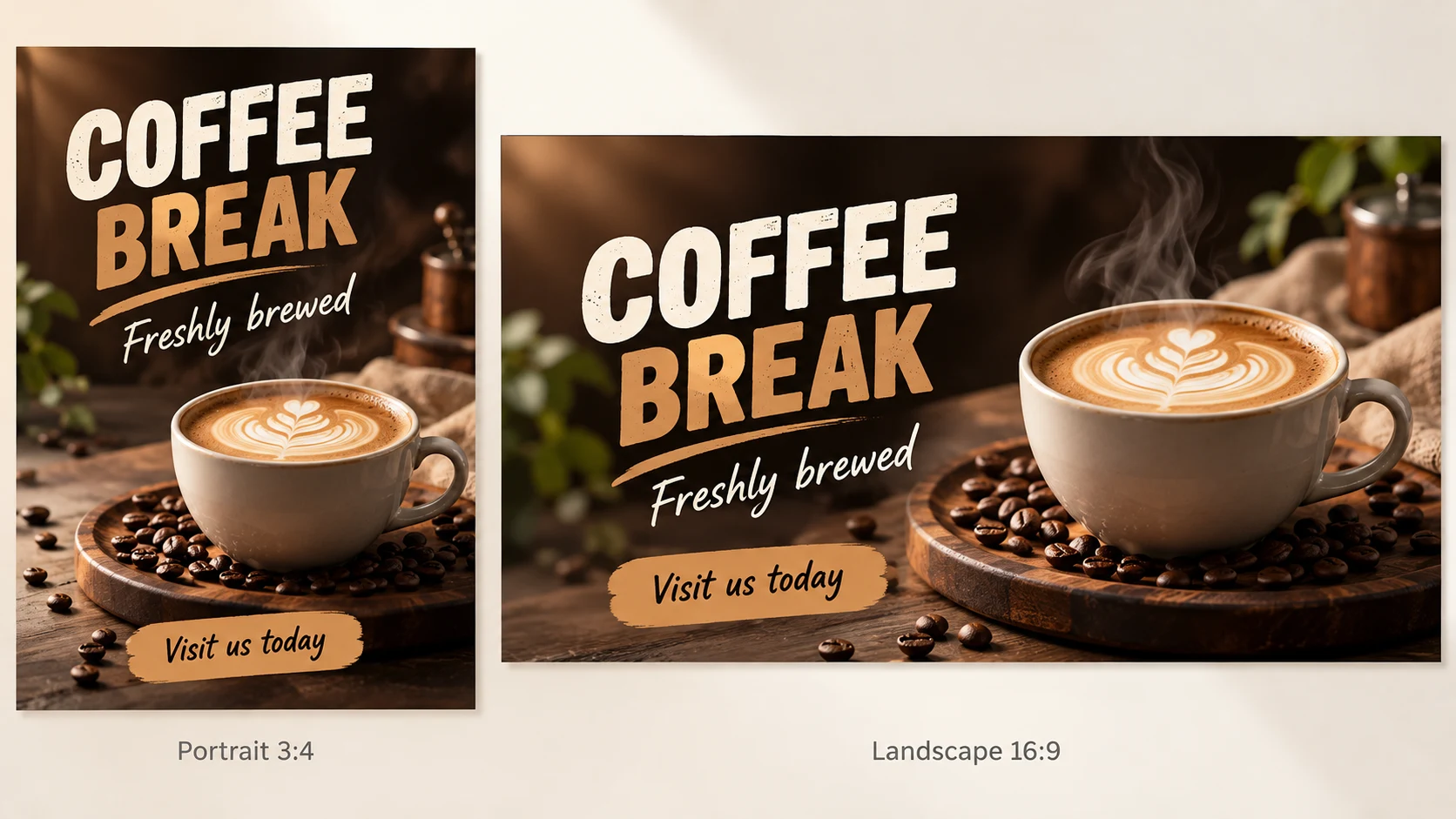
Change only the aspect ratio and layout, keeping the promotional copy. See how the portrait layout's vertical hierarchy becomes a side-by-side landscape layout.
View assets, settings, and results ↓Follow the steps from upload to download
Choose Marketing Poster, Notices, Poster Enhancement, Reference-Based Design, or Poster Resizing, then upload the assets required by that workflow.
Enter the headline, subtitle, body copy, and call to action, then set the industry, use case, target aspect ratio, visual style, and palette.
Confirm the image count and estimated credits before submitting. Check dates, prices, contact details, and brand information character by character, then download when satisfied.
AI can arrange layouts and visuals, but it does not verify facts. Use final, approved prices, dates, addresses, QR codes, contact details, and event terms, and check them carefully before publishing.
After processing, view the current canvas in the editor, compare before and after, and download the result as needed.
Prepare approved headlines, dates, locations, prices, event terms, and contact details, plus product, person, logo, or background assets you have permission to use. Poster generation requires sign-in and credits. Follow the displayed cost for the current model, resolution, and image count.
Turn a casual croissant photo into a clear bakery promotion. Keep the product prominent and limit the poster to confirmed copy.
Upload your own clear, authorized materials. Replace sample copy with your confirmed information. Review the model, quality, size and estimated credits shown in the tool.
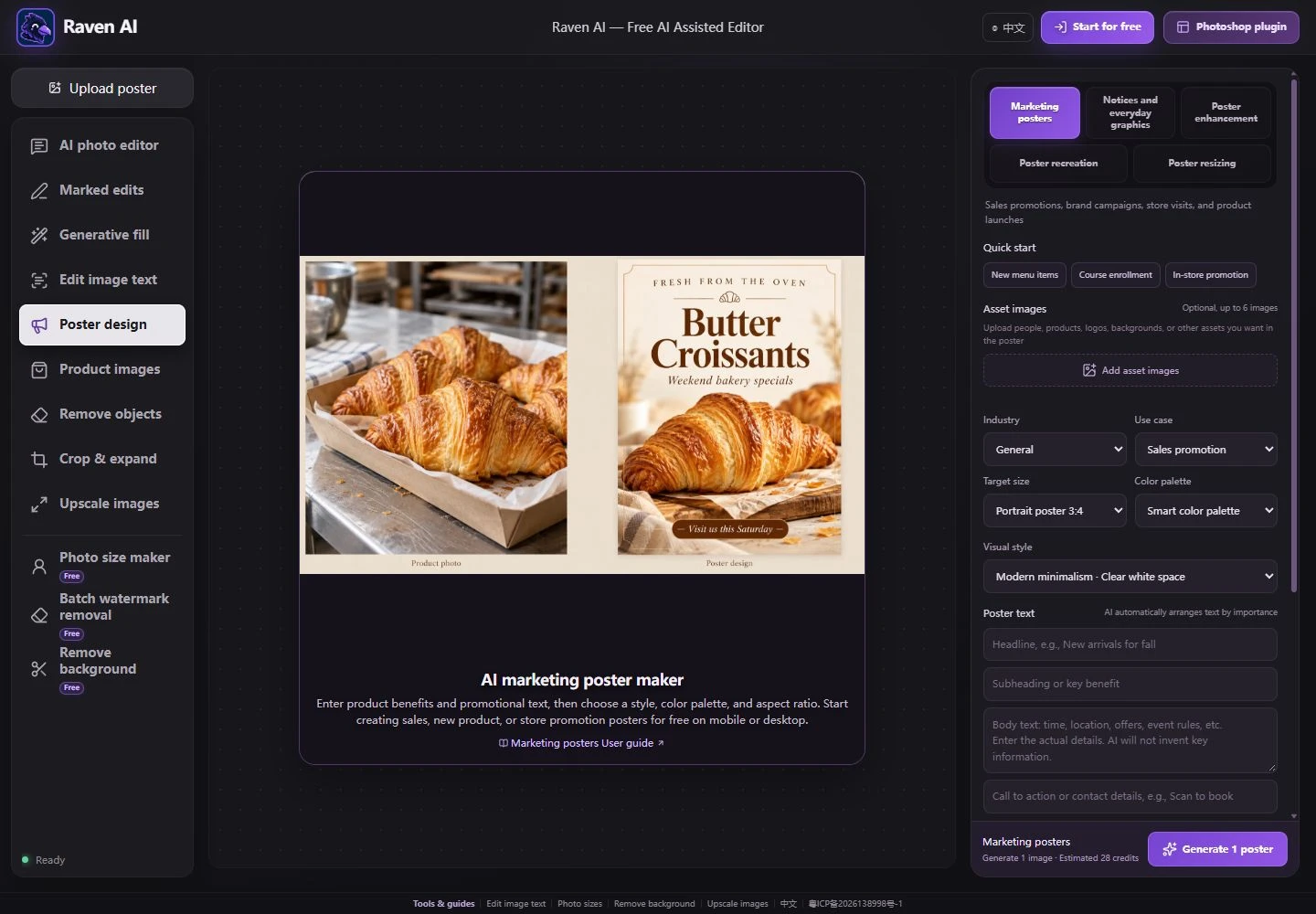
Headline: FRESH FROM THE OVEN
Subtitle: Butter Croissants
Details: Weekend bakery specials
Call to action: Visit us this Saturday
Extra: Use the supplied croissant photo. Keep natural golden pastry texture. Use cream and warm brown, readable type and generous margins. Do not invent prices, addresses or nutrition claims.
Use the notice workflow when the details matter more than a product photo. Put the topic, time and place in a readable hierarchy.
Upload your own clear, authorized materials. Replace sample copy with your confirmed information. Review the model, quality, size and estimated credits shown in the tool.
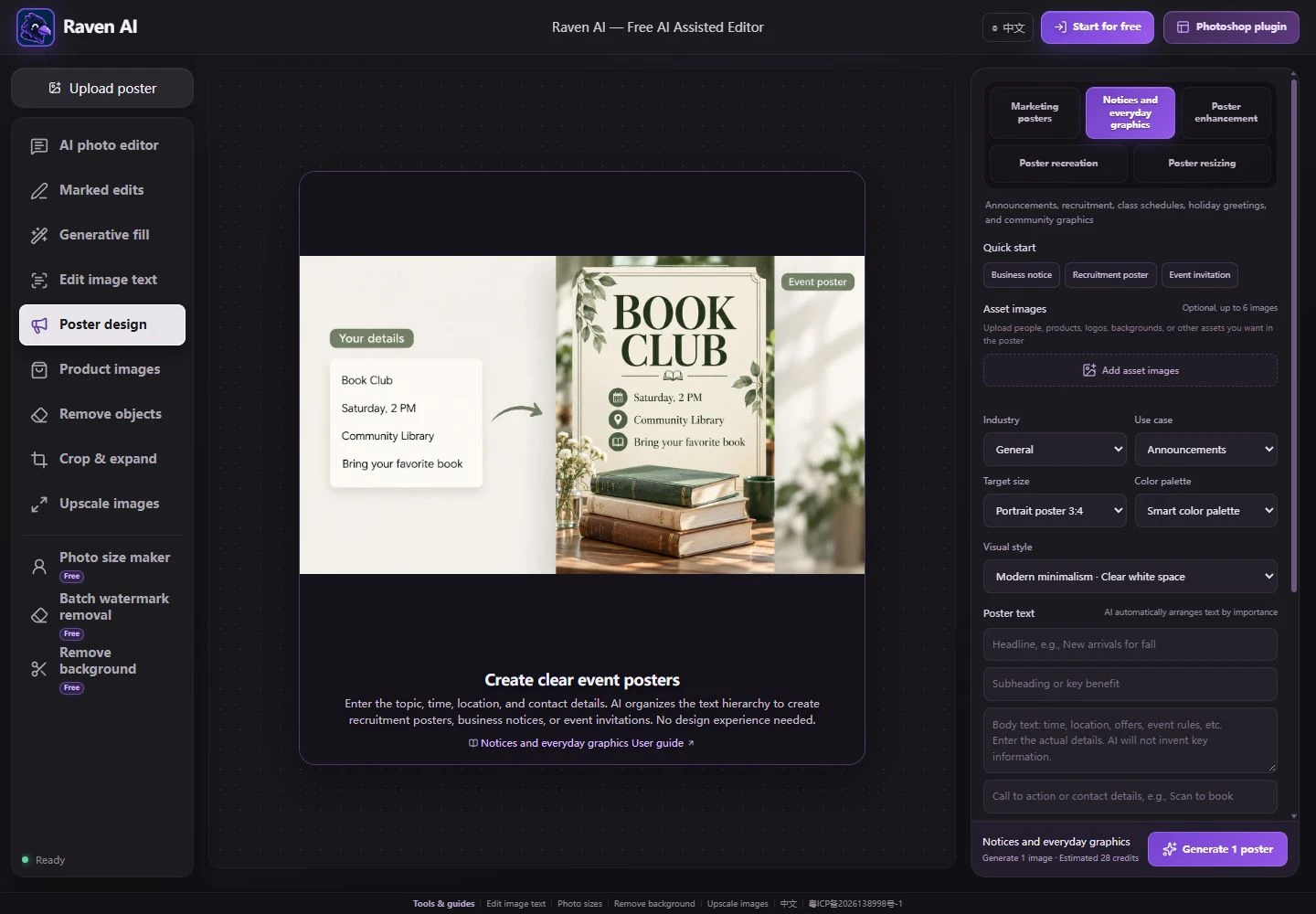
Headline: BOOK CLUB
Details: Saturday, 2 PM
Community Library
Bring your favorite book
Extra: Use a green-and-cream palette, simple book imagery and clear spacing. Show only the confirmed details. Do not add a ticket price, contact number or attendee count.
Upload an existing notice and ask for stronger hierarchy and alignment. This task improves design, not business information.
Upload your own clear, authorized materials. Replace sample copy with your confirmed information. Review the model, quality, size and estimated credits shown in the tool.
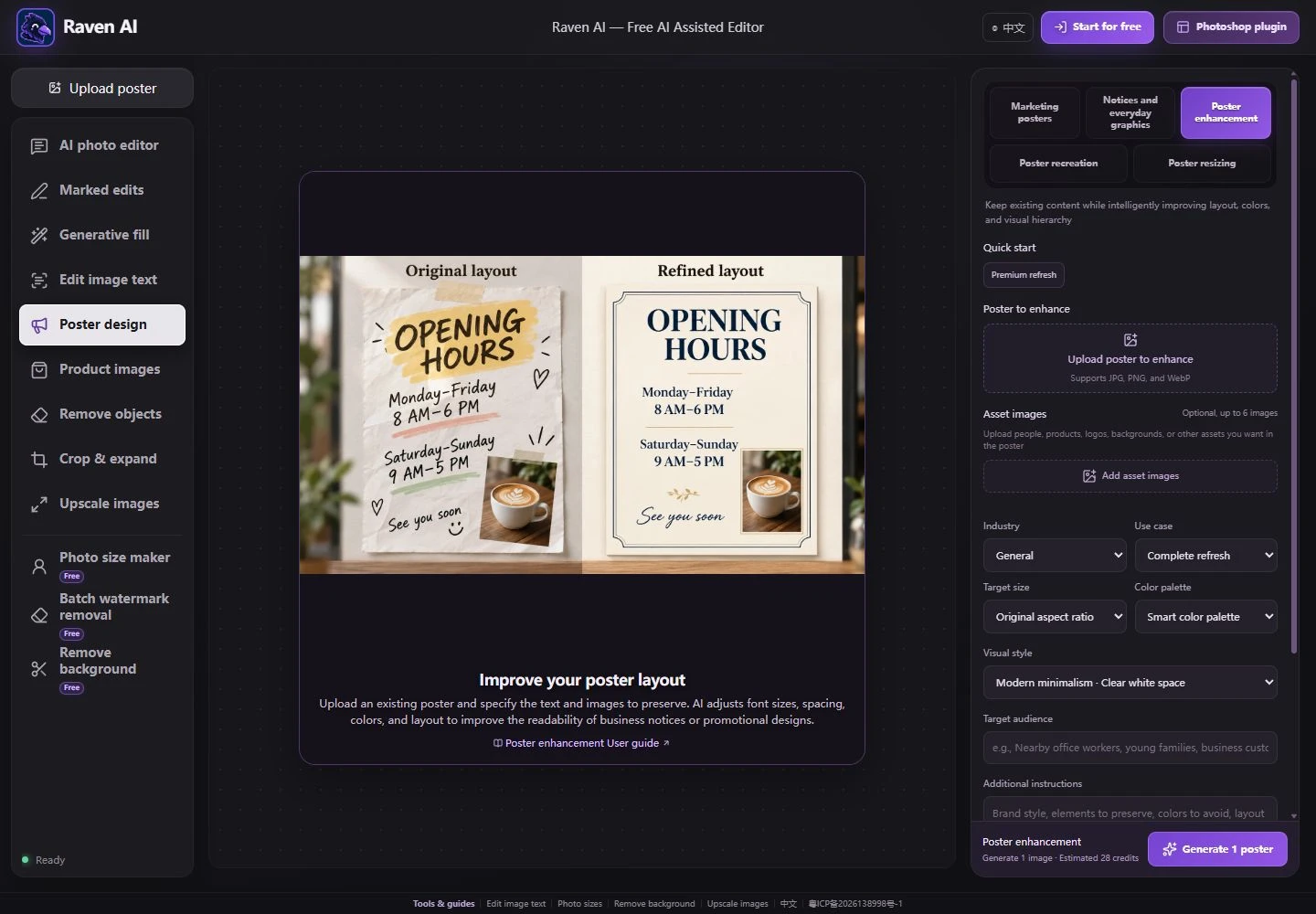
Preserve all text from the original opening-hours notice exactly. Keep the same opening days and times. Improve alignment, contrast, type sizes and spacing using navy and cream. Do not add or rewrite business details. Check every time and day against the original before publishing.
Reference a permitted coffee-poster layout, then use your own iced-tea photo and English copy.
Upload your own clear, authorized materials. Replace sample copy with your confirmed information. Review the model, quality, size and estimated credits shown in the tool.
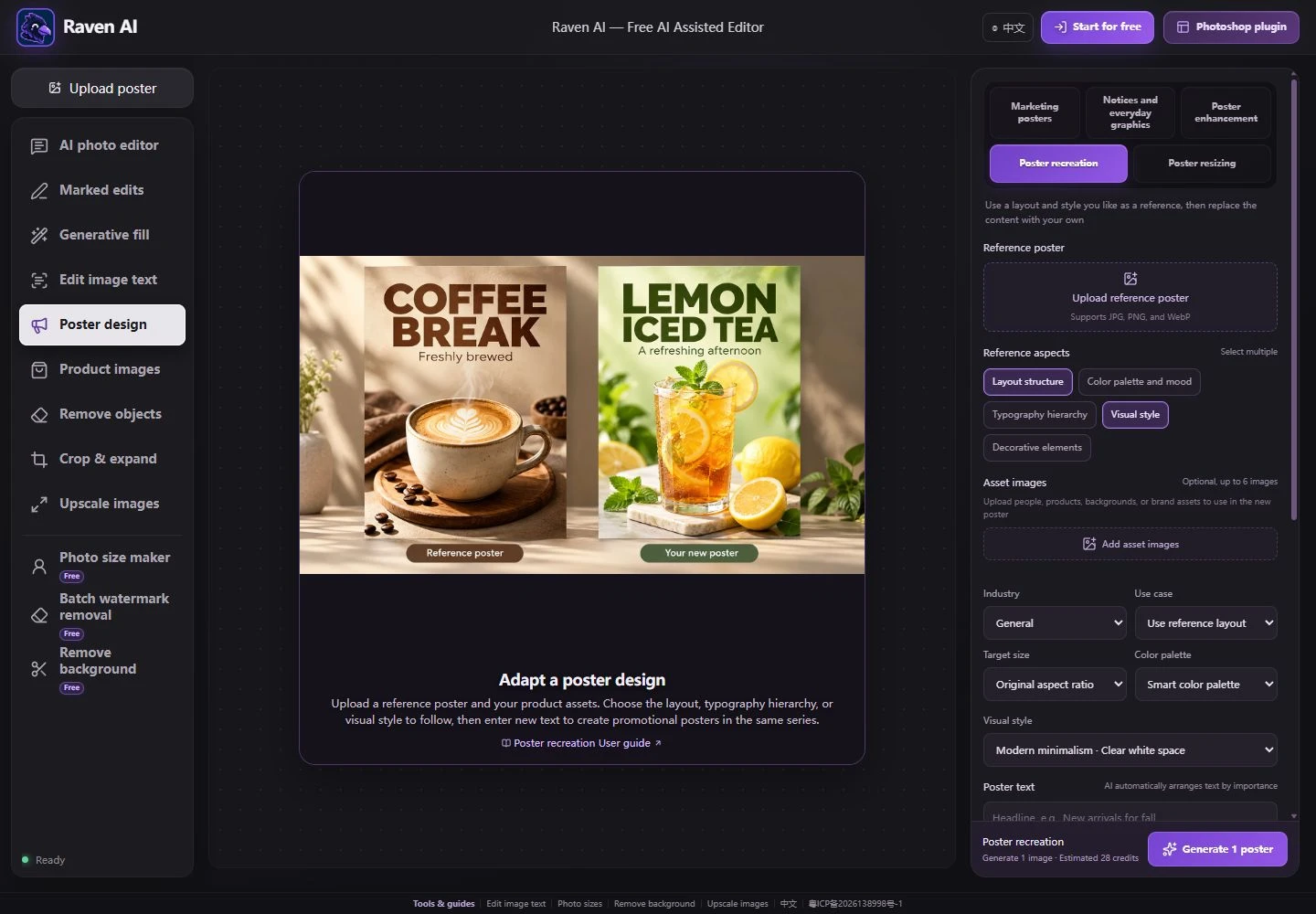
Headline: LEMON ICED TEA
Subtitle: A refreshing afternoon
Extra: Borrow only the reference’s headline hierarchy and product placement. Use my iced-tea photo and a green-and-cream palette. Remove the coffee product and old copy. Do not copy the old brand, price or protected artwork.
Use smart resizing rather than stretching the image. Reposition text and product while preserving the original message.
Upload your own clear, authorized materials. Replace sample copy with your confirmed information. Review the model, quality, size and estimated credits shown in the tool.
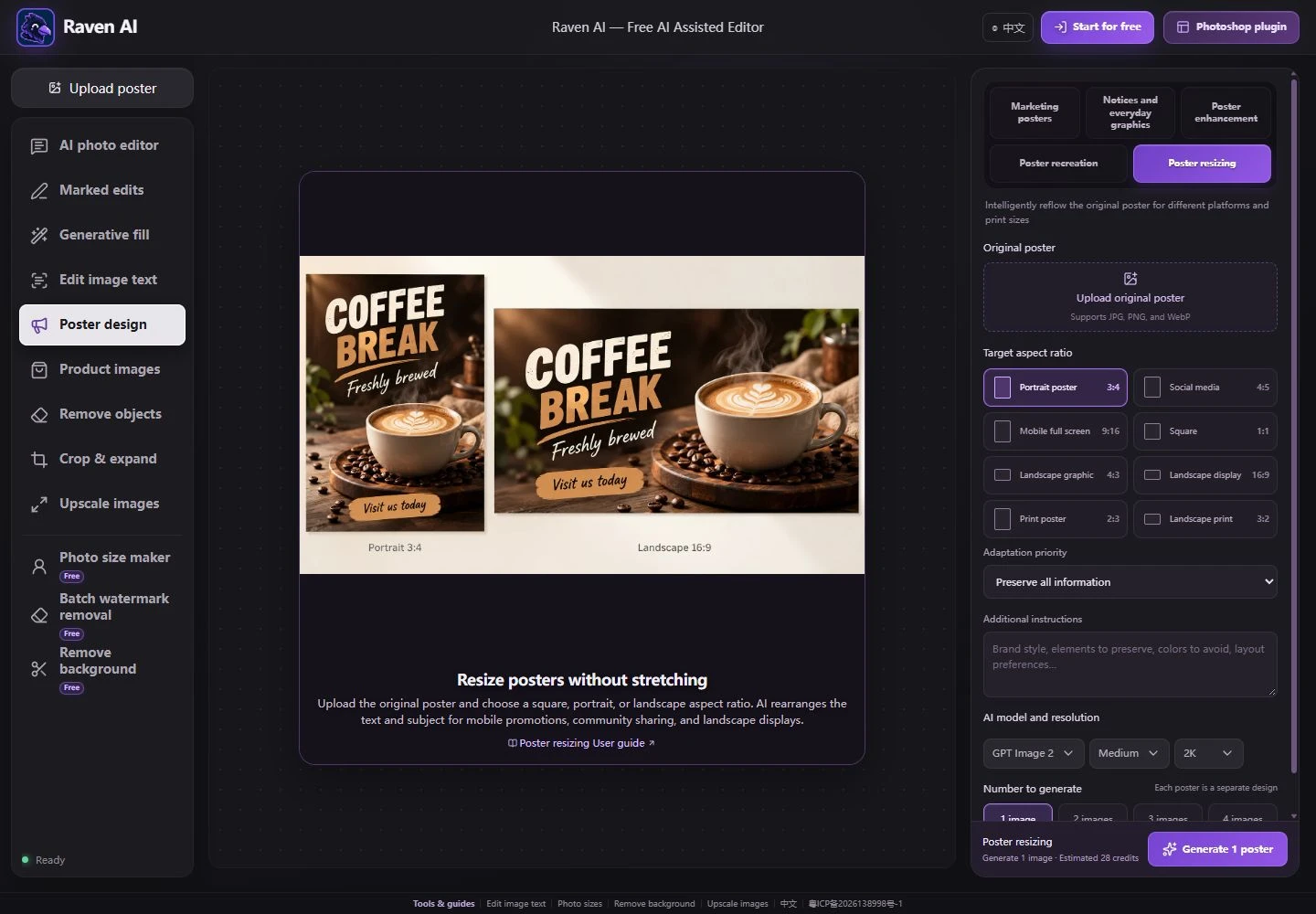
Adapt this portrait coffee poster into a 16:9 landscape banner. Preserve “COFFEE BREAK”, “Freshly brewed” and “Visit us today” exactly. Place the text on the left and the complete cup on the right. Extend the background naturally. Do not stretch the cup, crop words or invent new copy.
The industry and scene describe the job; style and palette set a visual direction. Ratio controls the output canvas. Reference remakes need a permitted reference poster; improvements and resizing need the existing poster. Resize mode focuses on layout adaptation rather than adding new copy.
For any poster, check names, dates, prices, addresses and contact details before publishing. Generated text and visual details may need correction.
Open the poster maker ↗Choose the closest match from Marketing Poster, Notices & Everyday Materials, Poster Enhancement, Reference-Based Design, and Poster Resizing. Marketing and notices can start with text and assets. Enhancement, reference-based design, and resizing require the corresponding original poster first.
To change a single date or headline, use Edit Image Text directly. For white-background product listing images or product detail pages, E-commerce Images offers more suitable workflows.
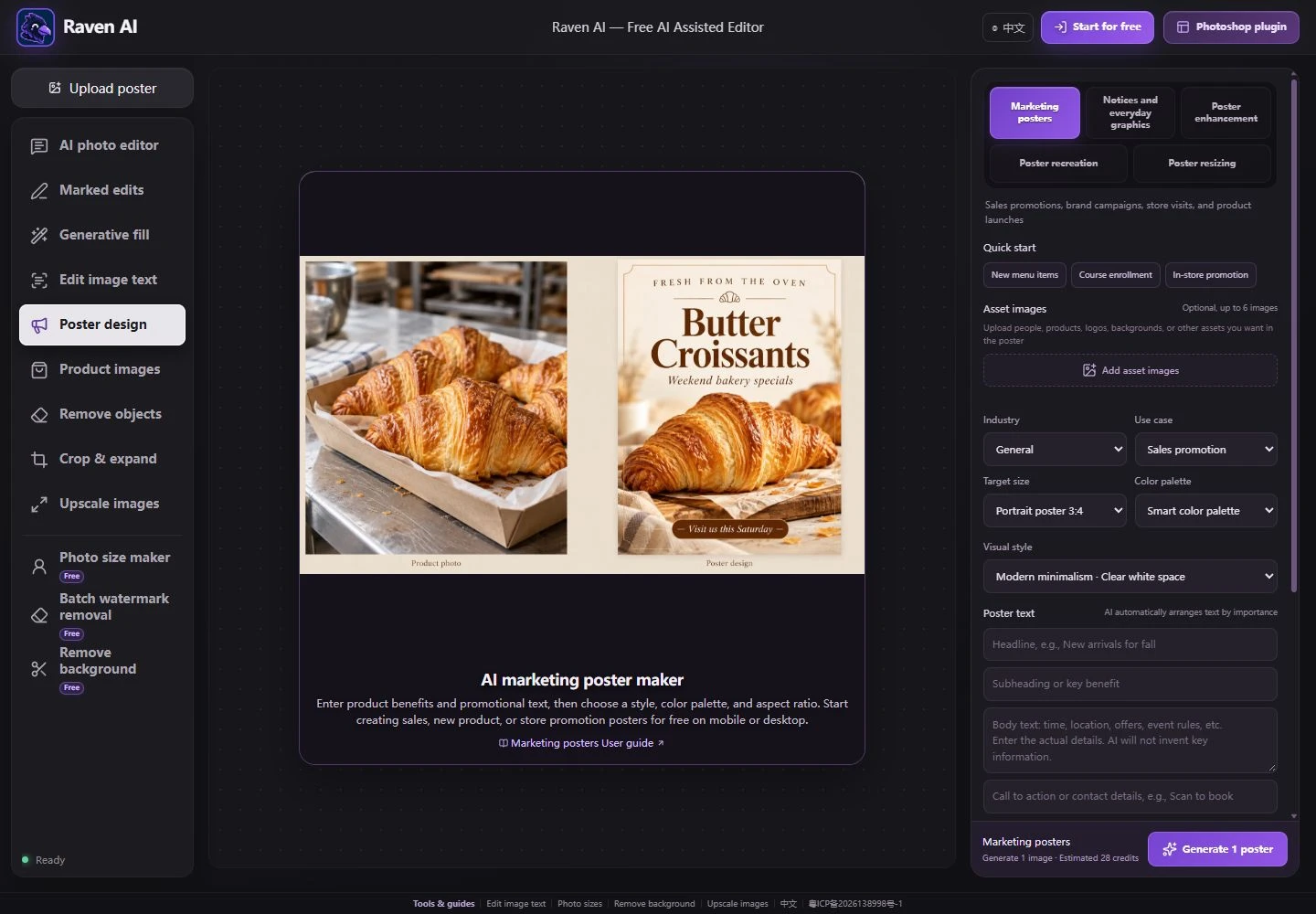
Use one theme in the headline and the main selling point in the subtitle. Put time, location, offers, and event terms in the body. Use a next step such as “Book now” or “Scan to inquire” for the call to action. Separate fields help AI establish visual hierarchy.
Avoid vague requests such as “Make a premium-looking poster,” and do not let AI invent prices, dates, offers, or contact details. Review and approve unfinished copy outside the tool first. Field character limits are not recommended lengths; more text makes posters harder to read on phones.
Upload up to 6 product, person, logo, background, or decorative images in the asset area. Process different colors, variants, or campaigns separately to avoid AI merging multiple subjects.
In Additional Requirements, specify product colors, logo text, people’s identities, and brand colors to preserve. You can also list colors to avoid, where to leave space, and layout preferences. Use a logo with crisp edges and a clean background.
Portrait promotions commonly use 3:4 or 2:3. Try 4:5 for social feeds, 9:16 for full-screen mobile, 1:1 for square content, and 16:9 for landscape displays. Always follow the actual platform or printer’s requirements.
Use Poster Resizing to change an existing poster’s aspect ratio. Prioritize complete information, the subject, text readability, full-bleed visuals, or safe margins. The tool rearranges the layout rather than squashing or stretching the entire image.
Generate 1–4 separate designs, then click a result to view it on the canvas. First check the headline, numbers, dates, address, phone number, event terms, and QR code, then inspect the logo, product shape, hands, and background details. A good-looking design still needs text review.
If Chinese characters, numbers, or small text are wrong, generate again or switch the result to Edit Image Text. To adapt it to another aspect ratio, use an approved version in Poster Resizing. Changing copy and layout together makes verification harder.
Text in AI images is not automatically proofread. Shorten the copy and regenerate, or use Edit Image Text for local corrections. Carefully verify all text before publishing.
Remove unrelated assets, use clear front-facing product or logo images, and specify the colors, shapes, and text to preserve in Additional Requirements. Check each important brand asset in the result.
In Poster Resizing, choose Preserve All Information or Prioritize Text Readability. Shorten the headline if needed, and check safe areas at the new aspect ratio before downloading.
Start with the Marketing Poster workflow when you need to turn product assets and campaign copy into posters for product launches, store openings, holiday sales, livestream announcements, or membership drives.
Use Notices when you have complete details for recruitment, meetings, course enrollment, opening hours, or community announcements but need a layout. For an existing poster, choose enhancement, reference-based redesign, or smart resizing.
Marketing posters suit sales, product launches, brand promotion, store openings, holiday campaigns, livestream announcements, membership drives, and exhibitions. The headline states the theme, the subtitle supports the main selling point, the body explains time, location, offers, and terms, and the call to action gives the next step.
Upload product, person, logo, and background assets, then choose an industry, audience, aspect ratio, style, and palette. Use only assets relevant to this poster to reduce subject confusion and incorrect use of brand elements.
Notices, recruitment posters, course enrollment, invitations, meeting announcements, opening hours, holiday greetings, and community check-ins should make information easy to understand at a glance. Headlines can be prominent, but decorations must not obscure times, locations, roles, or registration details.
Prepare approved copy first, then choose Business Professional, Modern Minimalist, or another suitable style. Do not let AI invent job requirements, course prices, or event terms. Check readability at phone size after generation.
If an existing poster has correct information but a loose layout, inconsistent colors, or unclear hierarchy, upload it and choose Full Refresh, Layout Optimization, Color Upgrade, Text Hierarchy, or Visual Polish. Specify the logos, text, images, and brand colors to preserve in Additional Requirements.
Enhancement is a generative redesign, not pixel-level editing. People, products, QR codes, and small text may change. For a single text change, Edit Image Text usually offers more control.
Upload a reference poster you have permission to use, then choose layout structure, color mood, typographic hierarchy, visual style, and decorative elements. Upload your own products, people, or logo and enter the new headline and event details.
Do not reuse the reference image’s brand name, products, prices, people, or event terms. If you only want its style, avoid also asking for the entire layout to be closely preserved. Clear requirements make results easier to assess.
Upload the original poster to convert between 3:4, 4:5, 9:16, 1:1, 4:3, 16:9, 2:3, and 3:2. Prioritize preserving all information, the subject, text readability, full-bleed visuals, or safe margins.
Resizing rearranges the design for a new canvas rather than stretching the original. When changing portrait to landscape, check headline line breaks, cropped people or products, QR code clarity, and whether platform interface overlays cover key information.
Yes. Choose a poster type, enter the headline, body copy, and call to action, then set the industry, use case, aspect ratio, style, and palette. AI generates a complete design, but you still need to check dates, prices, contact details, and text accuracy.
Current workflows include marketing posters, notices and everyday materials, poster enhancement, reference-based design, and poster resizing. Common uses include sales, product launches, brand promotion, store openings, recruitment, course enrollment, invitations, and business notices.
You can upload up to 6 asset images of products, people, logos, backgrounds, or other visual elements. Enhancement, reference-based design, and resizing also require the corresponding original poster first. Check logos, product shapes, and people’s details after generation.
Yes. In Reference-Based Design, upload a poster you have permission to use and choose layout structure, color mood, typographic hierarchy, visual style, or decorative elements as references. This is not a pixel-perfect copy; remove the original brand and event information.
Use Poster Resizing and choose 3:4, 4:5, 9:16, 1:1, 4:3, 16:9, 2:3, or 3:2. You can prioritize preserving all information, the subject, text readability, or safe margins around the edges.
No. Text in AI-generated images may contain incorrect or missing characters or altered numbers. Before publishing, carefully check the headline, prices, dates, address, phone number, QR code, and event terms. You can use Edit Image Text afterward to correct important text.
Poster generation uses account credits. The cost depends on the current model, quality, resolution, and image count; estimated credits appear before submission. The daily free allowance can cover eligible generation tasks. Your account and the page show the actual availability.