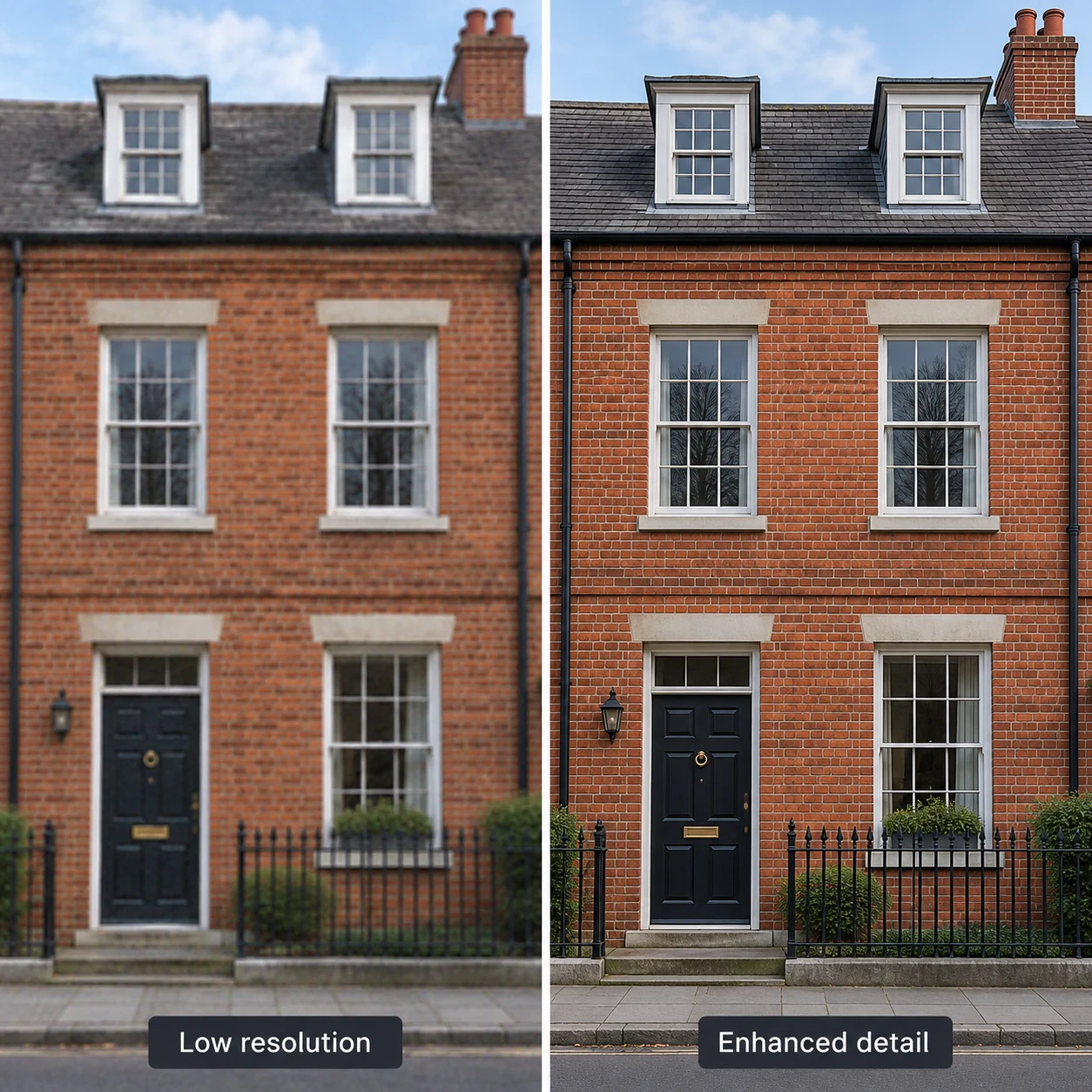
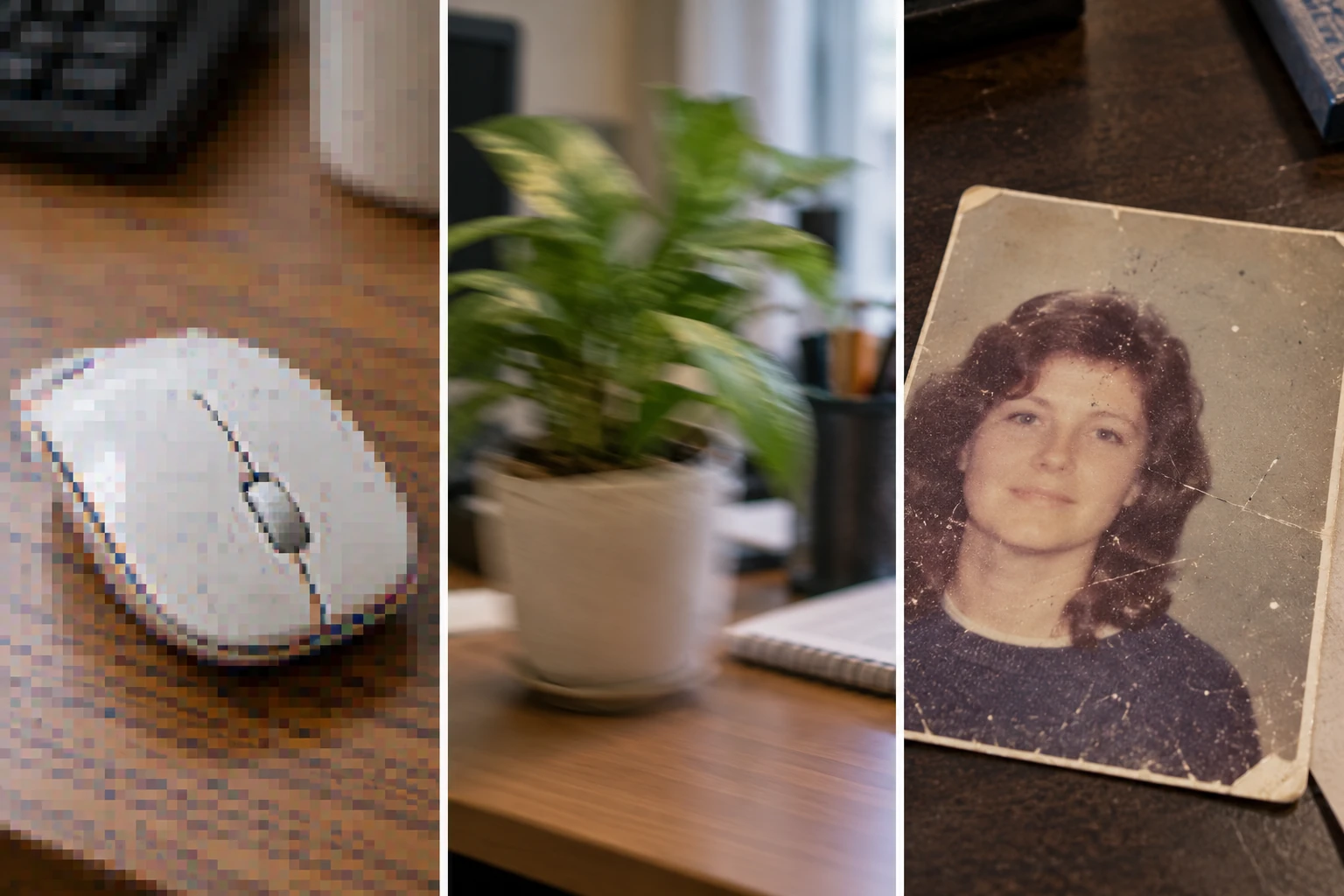
Use the highest-quality original available and keep an unprocessed copy. HD Restoration can improve appearance, but cannot guarantee reconstruction of authentic details in blurry images.
01 Start with the original file
Upload the original and select HD Restoration. Repeatedly shared chat images, social media screenshots, and repeatedly compressed JPEGs usually lose more information. Use the original whenever available.
Try restoration when an image is small but still has clear edges. Increasing output resolution may not fix severe defocus, motion blur, or large obstructions.
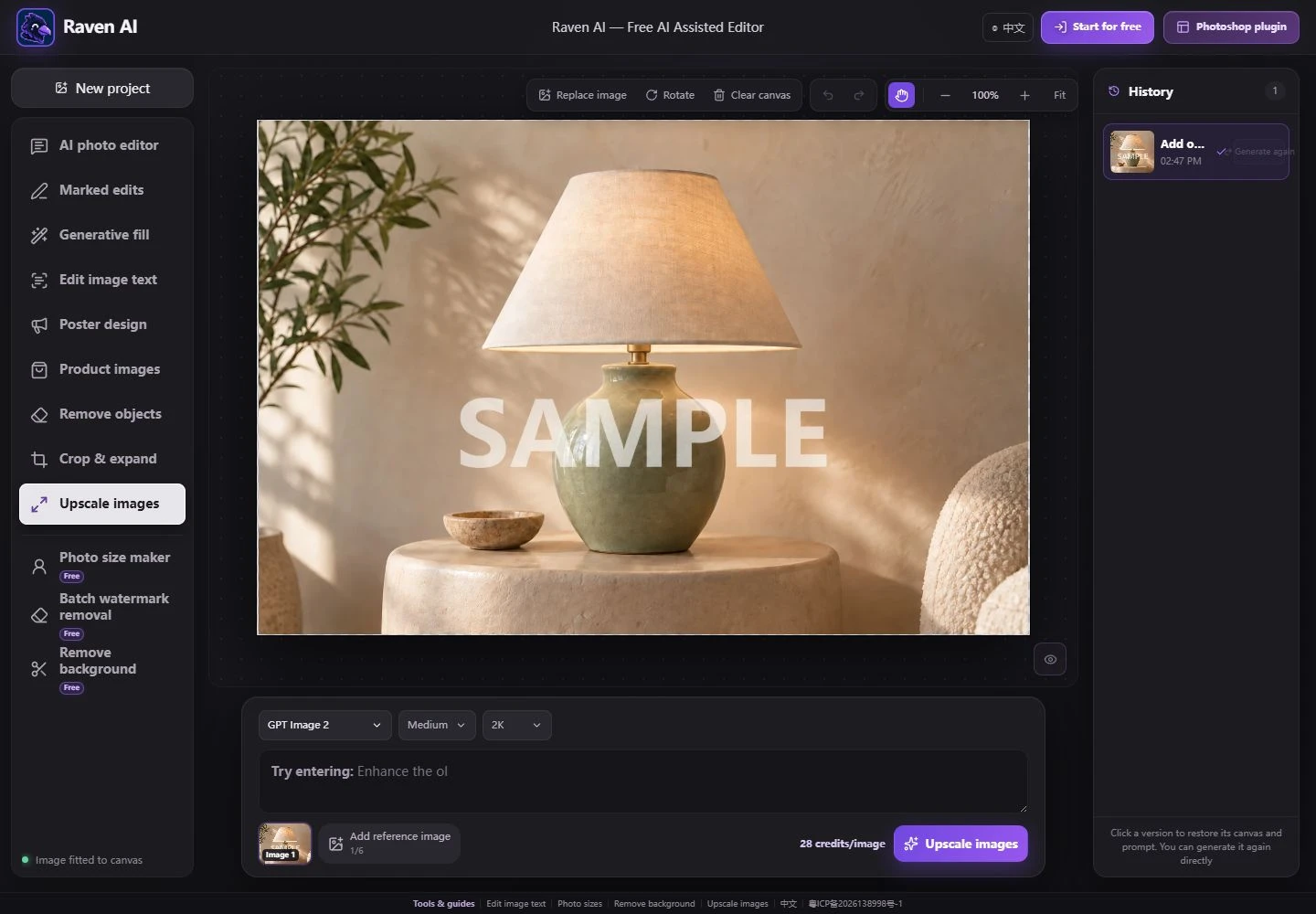
The current desktop interface. Open the screenshot to zoom in; controls may be positioned differently on mobile.
02 Choose resolution and optionally specify details to preserve
Choose an output resolution supported by the current model, confirm estimated credits, then click HD Restoration. A prompt is optional. For a specific focus, write: “Improve hair and clothing details; preserve the person’s facial features, original tones, and natural skin texture.”
Model, quality, and resolution all affect output. Viewing the canvas at 100% does not add source information, and blurry text cannot be promised accurate restoration.
03 Compare natural appearance as well as sharpness
Hold the Compare icon to compare the original and result, focusing on identity-defining facial features, eyes, hair, skin, and fine lines. High sharpness is not enough if skin looks plastic, facial features change, or edges develop halos.
Verify text on IDs, receipts, contracts, and serial numbers against reliable original records. Generated text is not factual evidence. If restoration changes key content, use a clearer original or reduce the requested processing.
Check this list when finished
Check that faces, product logos, and authentic textures are preserved.
Check for sharpening halos, repeated hair strands, artificial pores, or incorrect text.
Inspect the result at its intended use size, rather than only as a thumbnail.
How do I fix a problem?
The image is clearer, but the person looks different
Retry from the original and specify preserving facial features and skin tone. Avoid also requesting beautification or a style change.
The text is clearer, but spelled incorrectly
Do not infer the original text from the restored result. Confirm the content from original records, then use Edit Image Text to replace known text if needed.
PROMPT PLAYBOOK · 10 EXAMPLES
Upscale images: 10 practical prompts with before-and-after comparisons
Each set includes 6 common work scenarios and 4 everyday or creative scenarios, extending the illustrated example's approach to product images, property listings, food and drink, event materials, and more. Follow Preparation to upload and select regions, then copy the relevant prompt ; replace the example subject and target content with your own assets.
High-resolution restoration infers missing details and cannot guarantee recovery of actual textures. Check text, product construction, and identifying features against the original file. Do not use it for evidence collection or precision measurement.
Common work scenariosBefore displaying a low-resolution illustration at a larger size, compare the character's identity, fingers, and cup to ensure added clarity has not changed the character.
PreparationUpload the original low-resolution illustration. Avoid repeatedly enlarging, screenshotting, or sharpening it on your phone first.
Copyable prompt
Reduce pixelation and compression artifacts in this illustration of a teal-haired character holding a white cup. Make the line art, eyes, and hair strands clearer. Keep the same character, pose, clothes, cup, and composition. Do not redraw facial features or add accessories.
Check the resultZoom in and compare the eye shapes, fingers, and cup rim. AI-generated details may not match the original artwork's actual details.
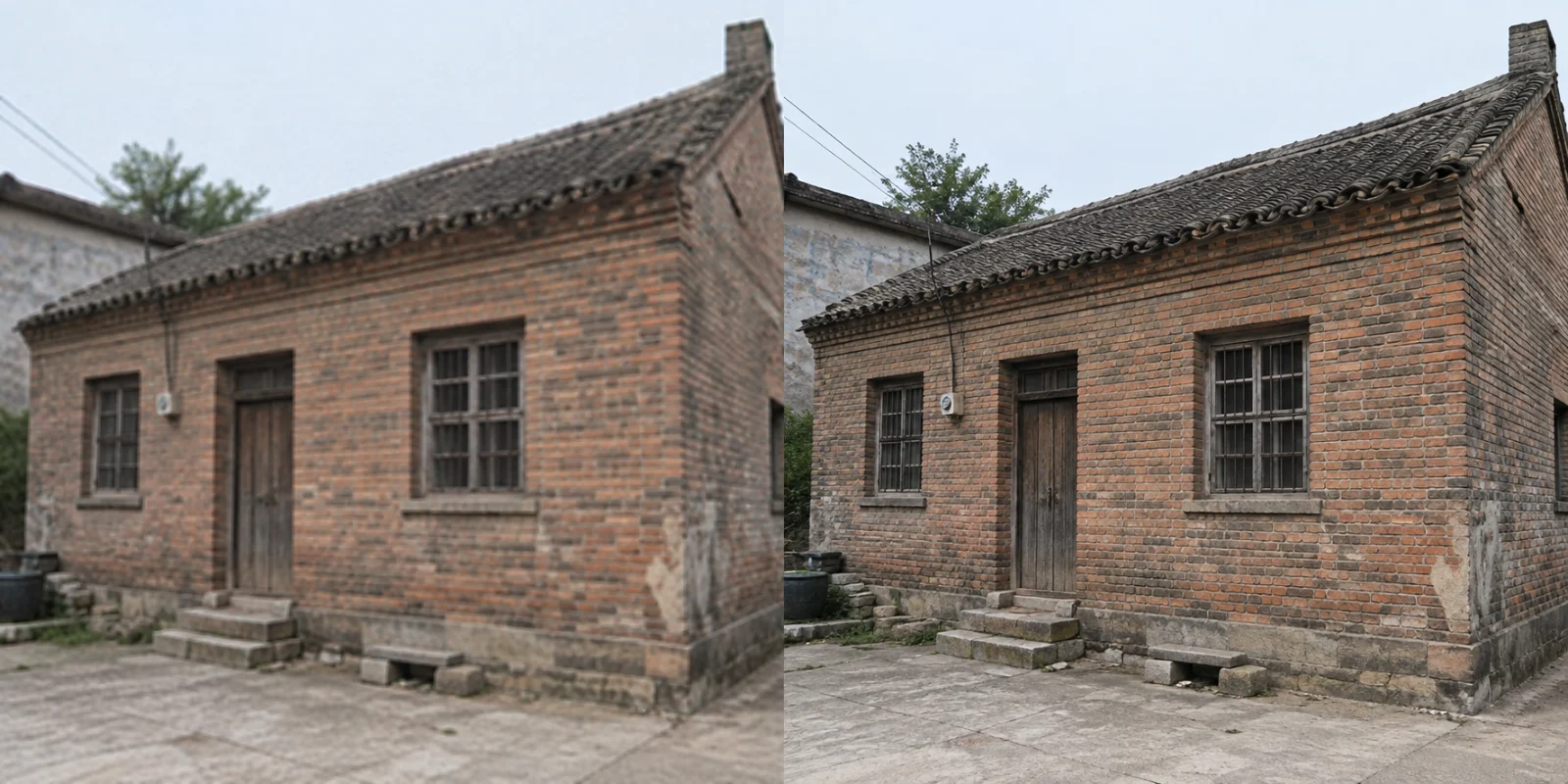
Common work scenariosImprove brick detail in an old building photo for large-screen display without inventing windows.
PreparationKeep the original photo for checking the building's structure.
Copyable prompt
Reduce compression noise in the old building photo and improve the clarity of brickwork and window frames. Keep the door and window counts, structure, tones, and camera angle. Do not invent text or decorations.
Check the resultDo not redesign the door and window counts or brick lines.
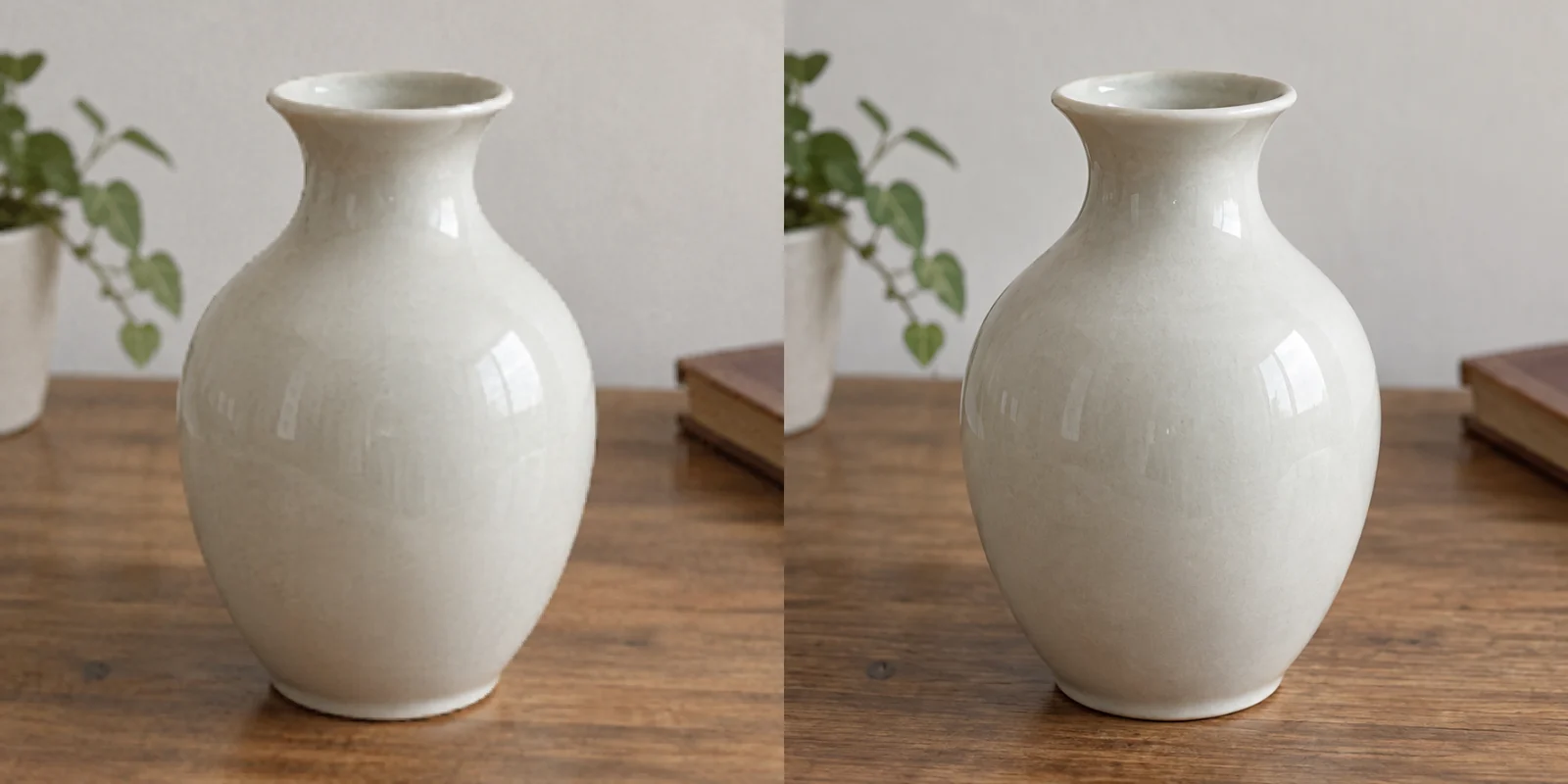
Common work scenariosWhen enlarging a product thumbnail, check the outline and text first. AI-generated details are not product facts.
PreparationUse the original product image. Check the logo and small text manually.
Copyable prompt
Improve the ceramic vase's edges and glaze detail while reducing compression noise. Keep its shape, opening, color, and background. Do not add patterns or white sharpening halos.
Check the resultAn accurate product outline matters more than apparent sharpness.
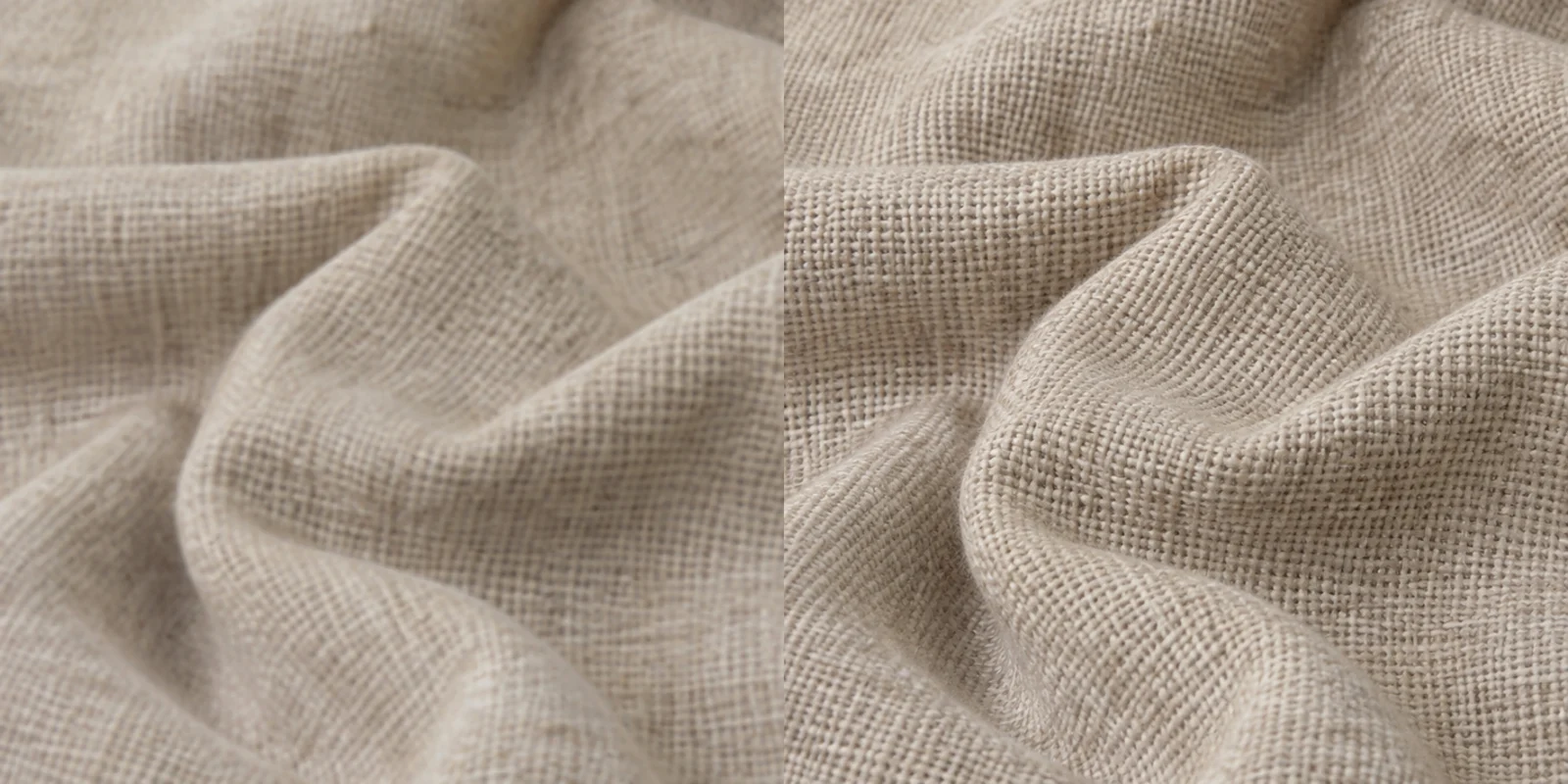
Common work scenariosMake the weave clearer in a fabric photo without generating repeated artificial texture.
PreparationChoose a photo where fabric details are still recognizable.
Copyable prompt
Improve detail and reduce compression artifacts in the linen photo. Keep the original weave direction, folds, and color. Avoid repeated grid patterns or excessive sharpening.
Check the resultDo not use inferred texture as evidence for material testing.
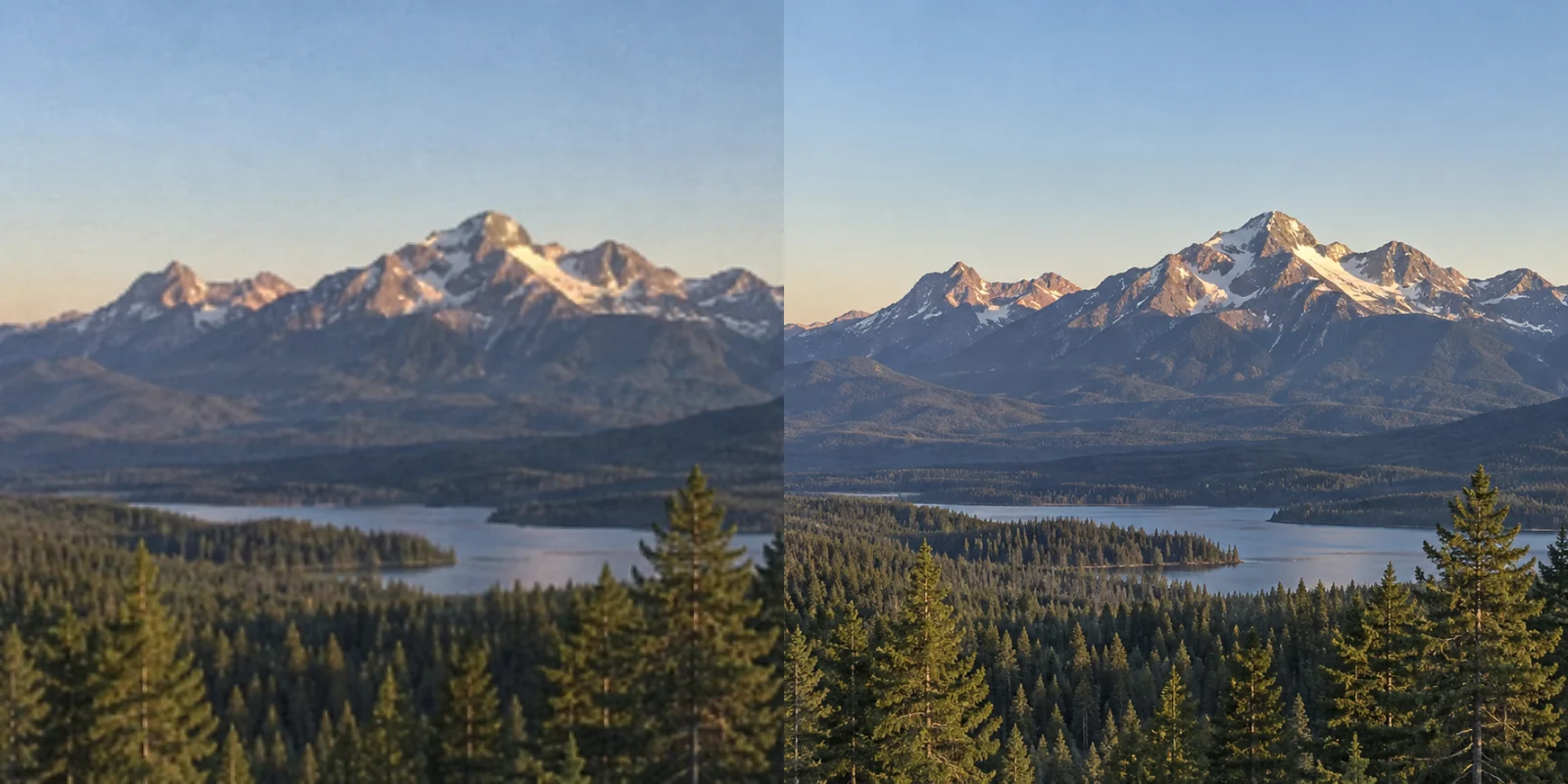
Everyday / creative scenariosImprove tree detail in a heavily compressed landscape without changing the mountain shapes.
PreparationUse the complete original landscape file.
Copyable prompt
Improve detail in the distant mountains and trees and reduce sky noise. Keep the mountain outlines, horizon, and original tones. Make the sky smooth and natural without adding trees or clouds.
Check the resultDetail enhancement should not change the mountain outlines.
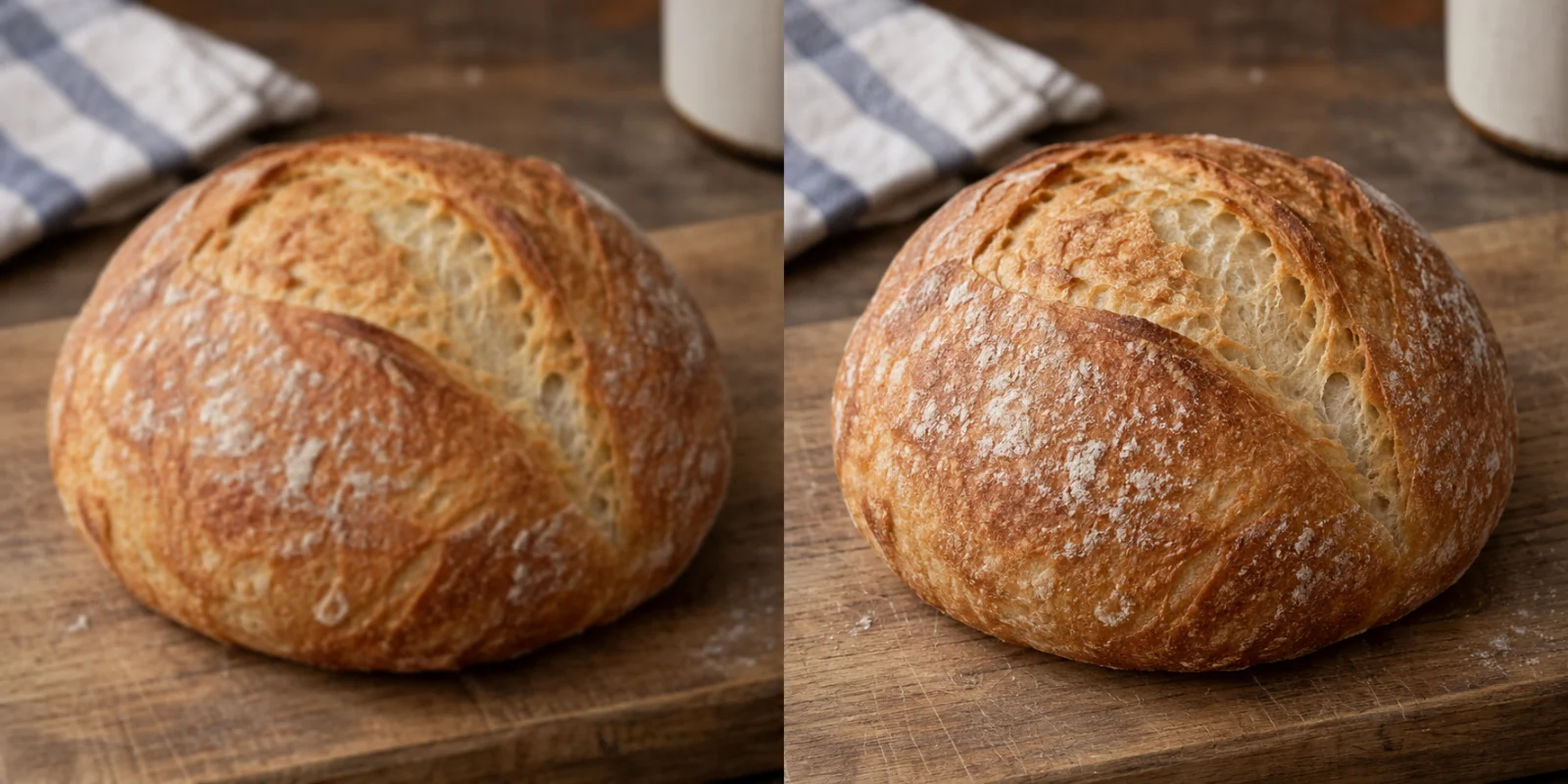
Common work scenariosClarify surface texture in a food photo without inventing toppings or ingredients.
PreparationUse the original food photo and avoid heavy filters.
Copyable prompt
Improve the bread crust's natural texture and photo clarity. Keep the bread's shape, number of score marks, and color. Reduce compression noise without adding sesame seeds or toppings.
Check the resultDo not exaggerate the crust texture or add sesame seeds.
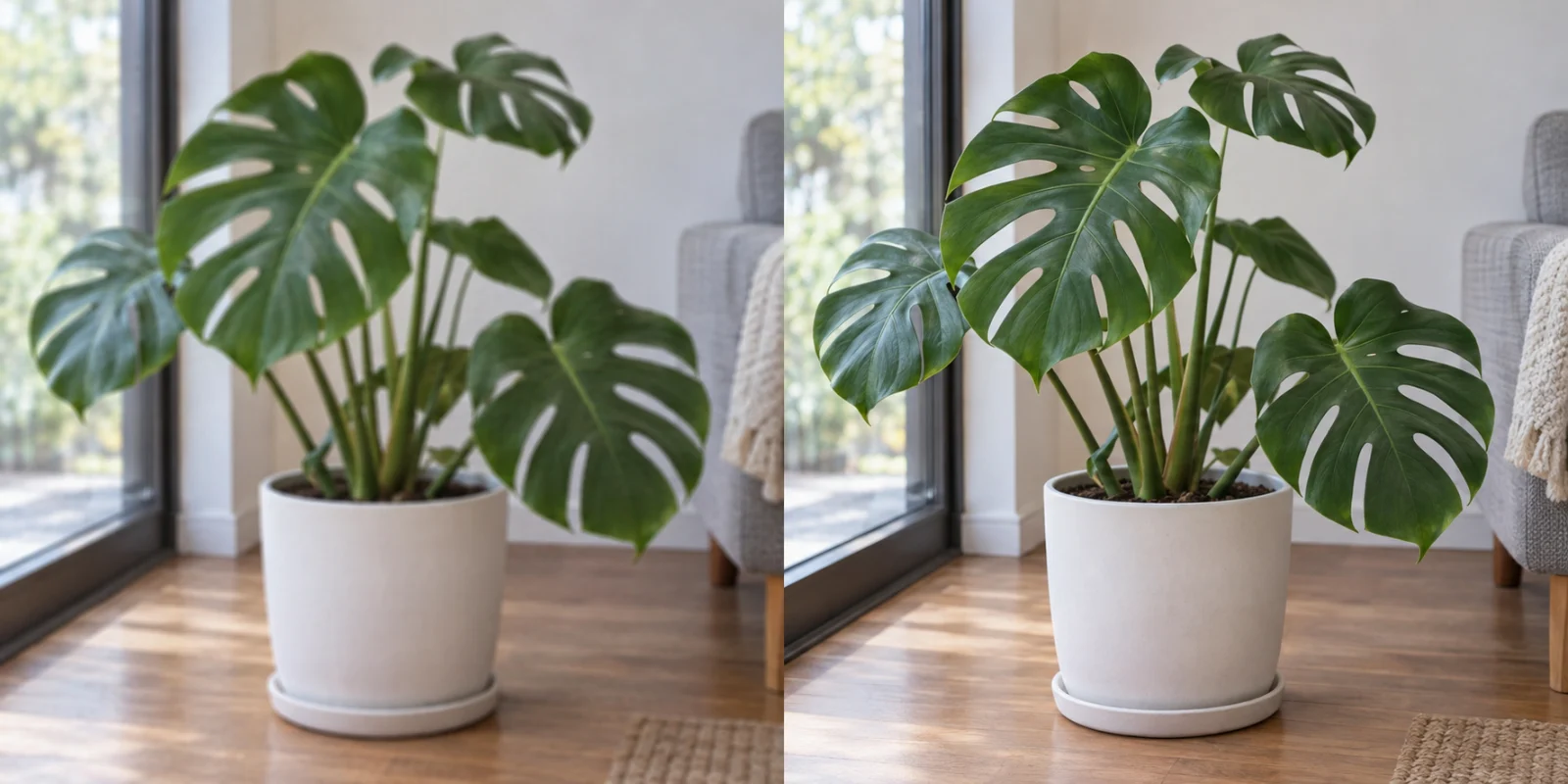
Common work scenariosReduce heavy noise in a low-light interior photo while preserving fabric texture and wood grain.
PreparationUse the original low-light photo file. Avoid applying restoration repeatedly.
Copyable prompt
Reduce color noise in the low-light living room photo. Improve furniture edges while preserving wood grain and fabric texture. Keep the exposure mood and furniture layout, and avoid smoothing away all detail.
Check the resultNoise reduction should not smooth away the whole image or change the light fixtures.
Everyday / creative scenariosImprove clarity in a key close-up, but do not use the tooth shapes for precise assessments.
PreparationUpload the original close-up with clearly recognizable overall shapes.
Copyable prompt
Improve the clarity of the silver keys and reflective metal edges. Keep the key teeth, key ring structure, and tabletop texture. Reduce compression blocks without changing the metal shapes.
Check the resultSmall structures may be inferred. Do not use the result for precise measurements.
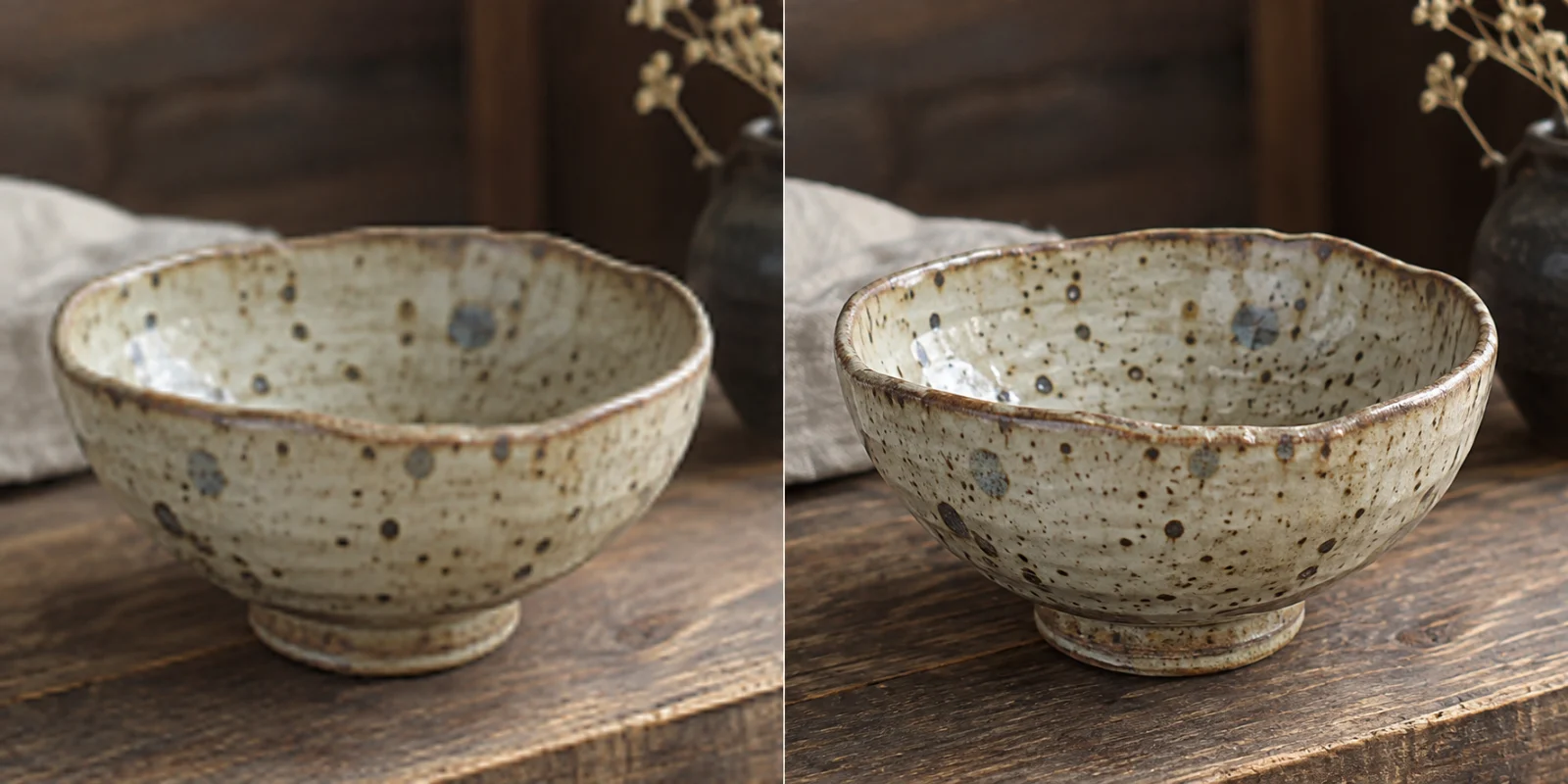
Everyday / creative scenariosEnlarge a handmade ceramic bowl for display without smoothing its authentic irregular rim.
PreparationUse a photo where the glaze and outline are still visible.
Copyable prompt
Improve the handmade ceramic bowl's clarity. Keep its original speckled glaze, irregular rim, and background. Reduce compression noise without turning its handmade texture into smooth plastic.
Check the resultDo not erase handmade imperfections or authentic texture.
Start with an example close to your use case. If the result differs from your expectations, narrow the edit area, specify what to preserve, and generate again. View troubleshooting →
WHEN TO USE IT
When to use it Upscale images?
Try HD Restoration for low-resolution old photos or compressed web images lacking detail. Use the highest-quality original available rather than a screenshot that has been repeatedly shared.
Enlarging an image does not restore authentic detail. AI may infer faces, ID text, and fine lines, so generated details should not be treated as reliable facts.
GOOD TO KNOW
FAQs before you start
Can blurry text be restored accurately?
There is no guarantee. Missing source detail can only be inferred. Manually verify important text in contracts, receipts, IDs, and similar documents.
Will the processed image always be clearer?
Results depend on source clarity and compression. Compare faces, edges, and textures, and choose the more natural result.