If you have an editable source file, change the text layer first. For a flattened JPG or PNG with a short replacement, try AI text editing. For exact brand fonts, long copy or fixed layouts, remove the old text and typeset the replacement manually.
Editing image text is not the same as extracting it. Editing places new words back into the picture and deals with style, perspective and background. Extraction only produces copyable text. Start by checking your source file and the length of the replacement.
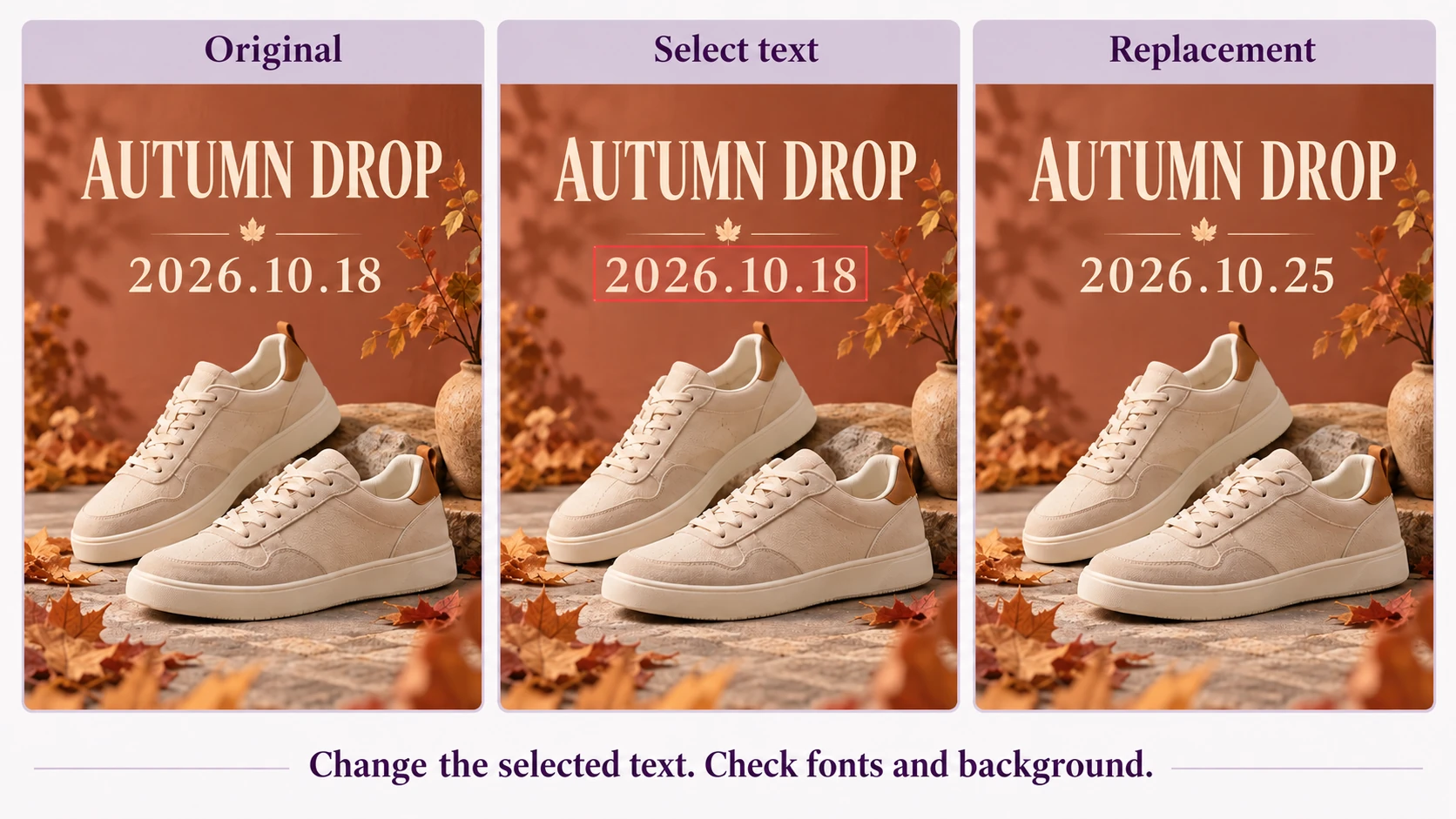
Check the file first: three editing methods
In a design source file, text may be separate from the background. Check whether the target is actually an editable text layer. Having a source file does not mean every word is editable: rasterized or merged text still needs image editing.
Swipe horizontally to see the full table →
| Method | Best fit | Main check |
|---|---|---|
| Edit a text layer | Editable source; exact font, size and layout | Font availability and text-box overflow |
| AI text replacement | Flattened image; short copy, dates or prices | Review letters, numbers and background texture |
| Retouch and typeset | Brand text, longer copy or strict templates | Match font, perspective, lighting and alignment |
Work example: change only a postponed event date
Replace 2026.10.18 with 2026.10.25 while keeping the shoes, heading, leaves and layout. Both dates have the same length, so the task fits local editing. This poster is teaching material, not a customer campaign record.
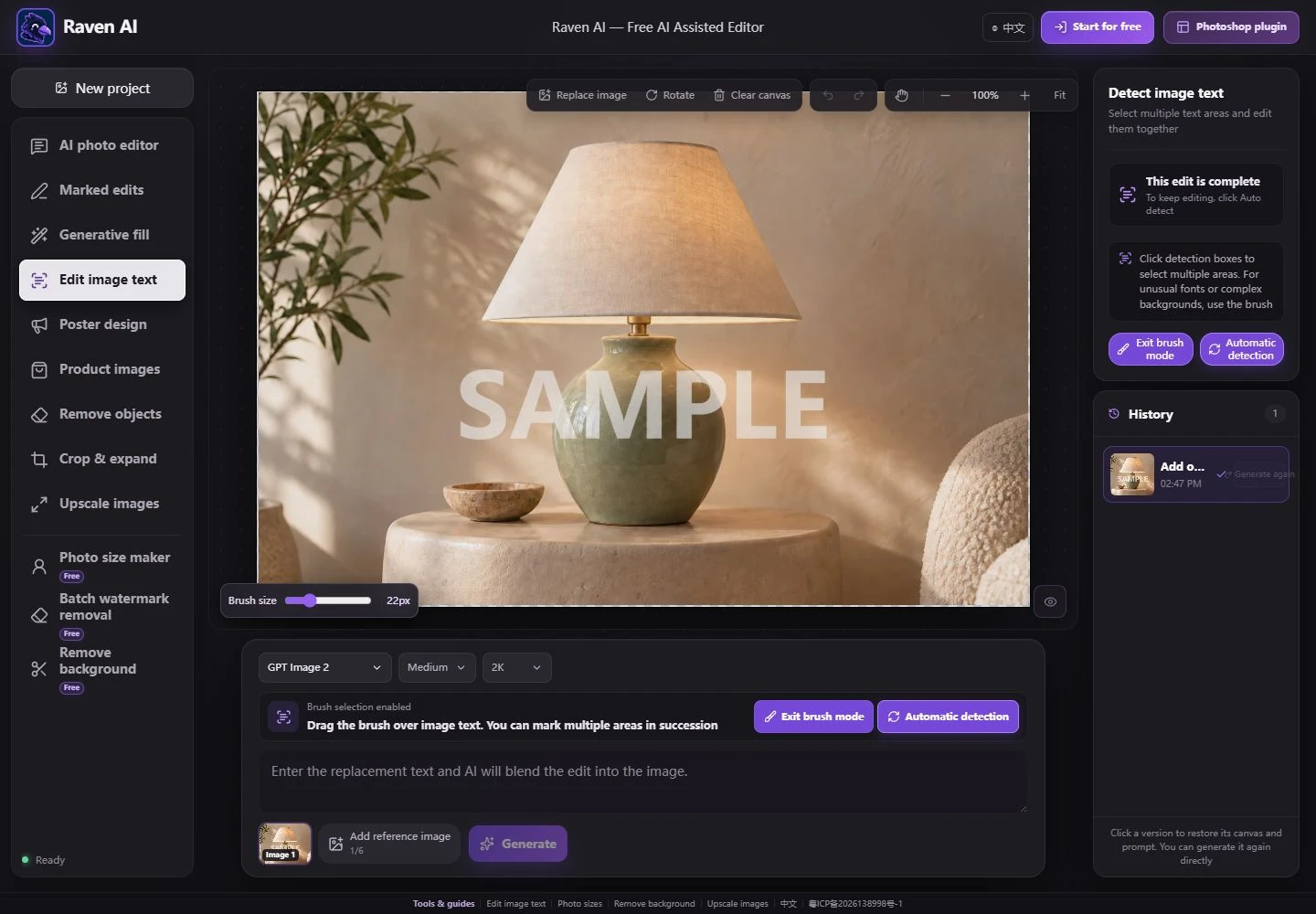
Open Edit image text, upload the poster and select only the date. If detection misses or overselects it, brush over the date itself. Enter the final date, not a change to the entire heading. For multiple separate replacements, use one line per selected area and verify the preview mapping.
2026.10.25
Matching the font: selection and text length matter
AI redraws text using surrounding visual cues; it does not guarantee the original font file. A much longer replacement may change spacing, size or line breaks. Replacing a short heading with two lines of terms is a layout task, not a simple text swap.
Cover the old letters and any outline or shadow that must change, without selecting unrelated objects or text. Check seams on textured backgrounds and color patches on flat ones. Use manual typesetting or the source file when an exact corporate font is required.
- Prices: verify amount, unit and decimal point separately.
- Dates: check year, month, day and weekday together.
- Signs: check perspective, outlines and lighting.
Mobile and desktop: avoid common input mistakes
Use image text editing in a mobile or desktop browser without installing software. Zoom in for small text and handle one area at a time. After entering the replacement, dismiss the keyboard and check that the selection is still on target.
The interface screenshot below shows detection, brush selection and text input. Controls may change across versions; consult the full tool guide. Free access does not mean unlimited use of every model or setting—check the cost shown before generating.
When to change methods instead of regenerating
Switch to editable text layers when repeated outputs have incorrect brand lettering, cramped long copy or distorted fine print. A small background seam may justify a revised selection, but regeneration is not proofreading. Keep the original and an approved final version.
Common questions
Can I edit text if I only have a screenshot?
Try local AI replacement or retouching followed by typesetting. Screenshot text is not an editable layer. Find the clearest original you can and check whether the new copy fits.
Will it identify the exact font name?
No such assumption should be made. AI visually matches the style; that is not the same as identifying and loading the exact font. Check strict brand typography with the source file or manual typesetting.
Does extracting the text automatically fix the image?
Extraction only gives you text. Replacing it in the image and repairing the old area are separate tasks. Use OCR when you need copyable content; use an editing workflow to change the picture.
Open the right tool, then review the result at full size.