
Remove objects

Online AI Object Eraser: Remove People, Clutter and Unwanted Objects

Mark unwanted bystanders or clutter on the canvas to try removing them. AI reconstructs the background using the surrounding image.

Remove objects: illustrative workflow board
Raven AI · Remove objectsIllustrative workflow
THREE SIMPLE STEPS

Remove objects How does it work?

Follow the steps from upload to download

  1. 01

    Upload the image to clean up.

  2. 02

    Choose Smart Removal, then brush over or draw a selection around the object to remove.

  3. 03

    After generation, zoom in to check background textures and edge transitions.

✳ Usage tips

If the object obscures an important subject or complex texture, you may need to adjust the selection and generate again.

After processing, view the current canvas in the editor, compare before and after, and download the result as needed.

Prompt example library View Remove objects — 10 prompt examples with source and result illustrations
ILLUSTRATED USER GUIDE

Remove objects Illustrated guide

Raven AI product guide · Updated

Before you start

Identify the object to remove and the subjects to preserve. AI infers the replacement background; it is not a factual record of the hidden area.

01 Cover the entire object, including edges and shadows

Upload a photo and open Smart Removal. Brush over the object or use a selection box. The brush suits small objects with complex outlines; boxes suit areas separated from nearby subjects. The screenshot only demonstrates marking; cover the entire object you want to remove.

Mark reflections, shadows, or connected lines too if they need removal. Avoid the main subject’s face, clothes, and edges to preserve. Check for overlap when targets are close together.

Smart Removal interface with a translucent red brush, brush size controls, and Generate button below
The current desktop interface. Open the screenshot to zoom in; controls may be positioned differently on mobile.

02 Prompts are optional; clear selections are essential

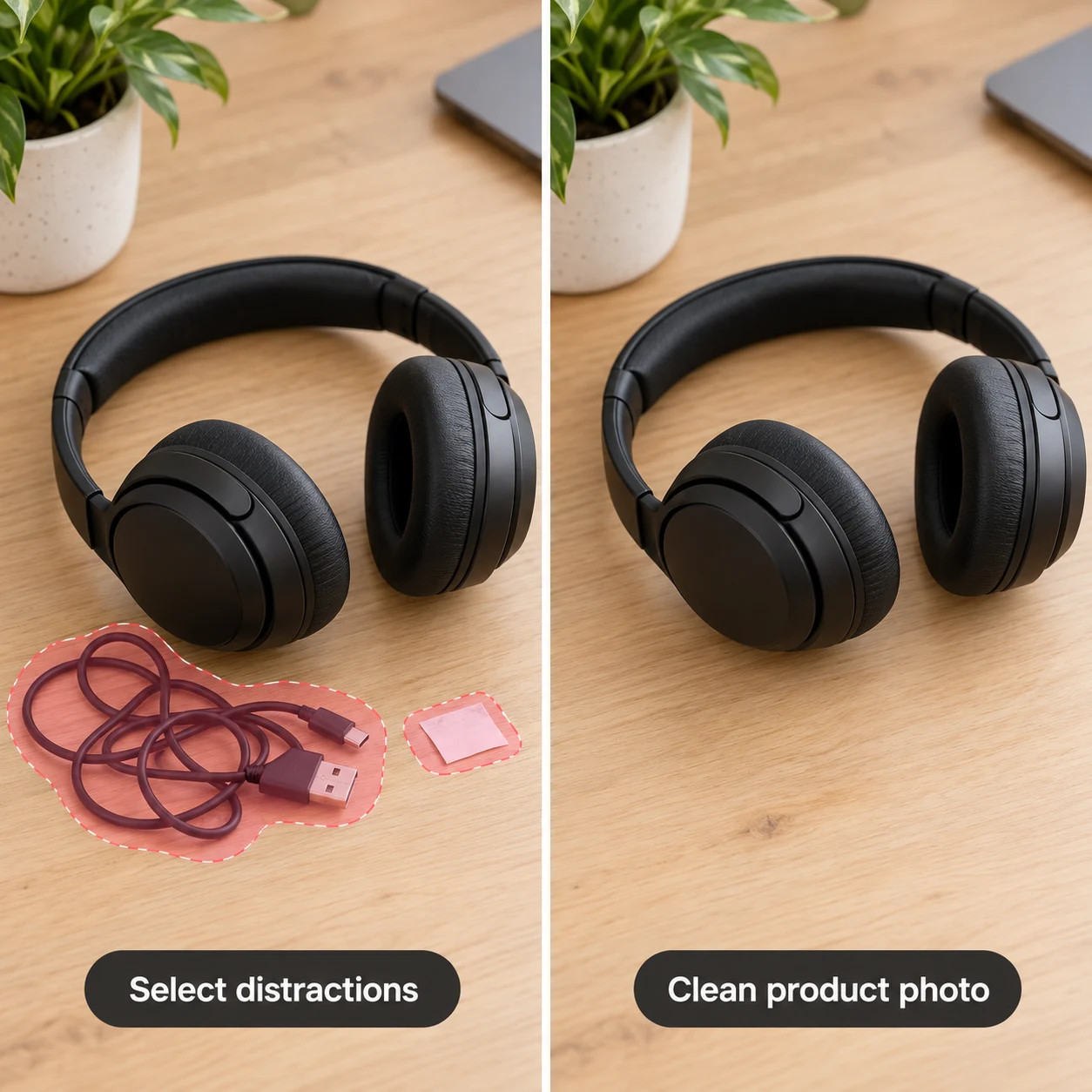
With an accurate selection, you can generate without a prompt. To specify background treatment, add: “Remove the marked object and continue the tabletop wood grain behind it. Preserve the headphones on the right and existing shadows.”

If an object covers a large area of railing, text, or architecture, the model can only infer from its surroundings; it cannot know what was actually behind it. Keep the original and clearly distinguish edited versions of photos used as factual records.

03 Check for remnants and repeating textures

Check outline edges for remnants, then inspect ground textures, brick joints, and railings for abrupt repetition or breaks. Expand the selection if shadows remain. If an important subject changes, reduce the selection and specify what to preserve.

When comparison is available, hold the bottom-right icon to see the earlier image and release to see the result. Zoom in on complex textures before downloading; a thumbnail alone is not enough to judge success.

Check this list when finished

  • Check that the target and any shadows intended for removal are completely gone.
  • Check that background lines, textures, and perspective remain continuous.
  • Make sure the main subject, genuine markings, and text to preserve were not removed.

How do I fix a problem?

The object is gone, but its shadow remains

Include the shadow in the object selection and explicitly request shadow removal in the prompt.

Repeating textures appeared in the background

Include the repeated texture or seam in the repair area, avoid oversized selections, and work in stages if needed.

PROMPT PLAYBOOK · 10 EXAMPLES

Remove objects: 10 practical prompts with before-and-after comparisons

Review the steps ↑

Each set includes 6 common work scenarios and 4 everyday or creative scenarios, extending the illustrated example's approach to product images, property listings, food and drink, event materials, and more. Follow Preparation to upload and select regions, then copy the relevant prompt ; replace the example subject and target content with your own assets. The translucent area on the left shows where to select or brush. The right image illustrates the result.

Remove passersby from a travel promo portrait

The approach shown in the demo#
Source image illustrationResult illustration
Remove passersby from a travel promo portrait · Selection and result
Remove passersby from a travel promo portrait AI tutorial comparison: the original on the left marks the area to edit; A sunset travel portrait with three bystanders behind the foreground person.on the right, The foreground person remains unchanged, the bystanders are gone, and steps and buildings are naturally filled in.

The overlay on the left indicates the area to select. The right shows an illustrative editing outcome.

Enlarge the image to see the source markings ↗

Common work scenariosRemove several passersby behind a destination promo portrait. Brush over each separately and reduce the brush size near the main subject's outline.

PreparationBrush over each of the three bystanders and their ground shadows behind the person. Use a smaller brush near the main subject’s hair and dress edges.

Copyable prompt
Remove the marked bystanders and ground shadows, filling in the white buildings, steps, and stone path behind them. Preserve the foreground person’s face, hair, floral dress, pose, sunset, and original composition. Add no other visitors.

Check the resultCheck hair edges, shoulders, and step seams carefully. Previously hidden scenery is inferred by AI.

Remove a data cable from a computer product photo

#
Source image illustrationResult illustration
Remove a data cable from a computer product photo · Selection and result
Remove a data cable from a computer product photo AI tutorial comparison: the original on the left marks the area to edit; A laptop and coffee cup on a wooden desk with a loose black data cable beside them.on the right, The laptop and cup stay in place, with the black cable removed.

The overlay on the left indicates the area to select. The right shows an illustrative editing outcome.

Enlarge the image to see the source markings ↗

Common work scenariosRemove a visible data cable and plug from a desk product photo while keeping the computer.

PreparationBrush along the cable, including its connectors.

Copyable prompt
Remove the marked cable and connectors, filling in continuous wood grain. Preserve the laptop on the left, coffee cup, and lighting.

Check the resultDo not mistake the laptop’s edge for cable and remove it.

Remove litter from a lawn

#
Source image illustrationResult illustration
Remove litter from a lawn · Selection and result
Remove litter from a lawn AI tutorial comparison: the original on the left marks the area to edit; A stone path beside a lawn with a small piece of white scrap paper on the grass.on the right, The same grass is clean, with the paper removed and stone path preserved.

The overlay on the left indicates the area to select. The right shows an illustrative editing outcome.

Enlarge the image to see the source markings ↗

Everyday / creative scenariosRemove litter from grass in an outdoor photo, restoring the grass blades and shadows afterward.

PreparationBrush over the scrap paper and its contact shadow on the grass.

Copyable prompt
Remove the marked white scrap paper from the grass and restore natural grass blades and small shadows. Preserve the nearby stone path and add no flowers or objects.

Check the resultGrass blades should not form repeated patches.

Remove wall stickers from a property listing photo

#
Source image illustrationResult illustration
Remove wall stickers from a property listing photo · Selection and result
Remove wall stickers from a property listing photo AI tutorial comparison: the original on the left marks the area to edit; A round colored sticker beside wooden-framed artwork on a light gray wall.on the right, The same wall with the round sticker removed and artwork preserved.

The overlay on the left indicates the area to select. The right shows an illustrative editing outcome.

Enlarge the image to see the source markings ↗

Common work scenariosRemove temporary wall stickers from a room photo without affecting the wall art.

PreparationSelect only the temporary sticker, avoiding existing wall decorations.

Copyable prompt
Remove the marked round colored sticker. Restore the light gray wall’s subtle texture and lighting gradient, preserving the wooden-framed artwork and wall corner.

Check the resultCheck for remaining sticker outlines or color marks.

Remove a tissue from a food photo

#
Source image illustrationResult illustration
Remove a tissue from a food photo · Selection and result
Remove a tissue from a food photo AI tutorial comparison: the original on the left marks the area to edit; A crumpled used white tissue beside a plate and silver cutlery.on the right, The same table with the tissue removed and plate and cutlery preserved.

The overlay on the left indicates the area to select. The right shows an illustrative editing outcome.

Enlarge the image to see the source markings ↗

Common work scenariosRemove a used tissue at the edge of a meal photo while preserving the food on the plate.

PreparationBrush over the tissue and its shadow, avoiding plate edges.

Copyable prompt
Remove the marked crumpled tissue and restore the tablecloth’s fine weave. Preserve plates, cutlery, and food, keeping food quantities unchanged.

Check the resultPlate edges should remain intact and the tablecloth texture should look natural.

Remove a plastic stool from a courtyard photo

#
Source image illustrationResult illustration
Remove a plastic stool from a courtyard photo · Selection and result
Remove a plastic stool from a courtyard photo AI tutorial comparison: the original on the left marks the area to edit; A courtyard with a potted plant on the left and a blue plastic stool on the right, in front of a white wall.on the right, The same courtyard with the plant preserved and blue stool removed.

The overlay on the left indicates the area to select. The right shows an illustrative editing outcome.

Enlarge the image to see the source markings ↗

Common work scenariosRemove a temporary plastic stool from a courtyard photo, filling in the wall and ground behind it.

PreparationSelect the entire plastic stool and its ground shadow.

Copyable prompt
Remove the marked blue plastic stool and continue the stone ground and white wall behind it. Preserve the potted plant on the left and keep ground perspective consistent.

Check the resultCheck shadows from the stool legs and reflected color on the wall.

Remove packaging scraps from a main product image

#
Source image illustrationResult illustration
Remove packaging scraps from a main product image · Selection and result
Remove packaging scraps from a main product image AI tutorial comparison: the original on the left marks the area to edit; Kraft paper scraps scattered on the surface beside a white ceramic vase.on the right, The vase remains unchanged and the surface is free of paper scraps.

The overlay on the left indicates the area to select. The right shows an illustrative editing outcome.

Enlarge the image to see the source markings ↗

Common work scenariosRemove packaging scraps beside a product without changing the product outline.

PreparationSelect the loose packaging paper without including the product.

Copyable prompt
Remove the marked kraft paper scraps and restore a clean light gray surface. Preserve the white ceramic vase and its shadow, without changing the product outline.

Check the resultProduct edges and the original product shadow must remain.

Remove a small item by a window

#
Source image illustrationResult illustration
Remove a small item by a window · Selection and result
Remove a small item by a window AI tutorial comparison: the original on the left marks the area to edit; A set of metal keys beside a flowerpot on a wooden windowsill.on the right, The same windowsill with the keys removed and flowerpot preserved.

The overlay on the left indicates the area to select. The right shows an illustrative editing outcome.

Enlarge the image to see the source markings ↗

Everyday / creative scenariosRemove keys from a windowsill close-up while preserving the plant pot and wood grain.

PreparationBrush over the keys on the windowsill.

Copyable prompt
Remove the marked keys and restore the windowsill’s wood grain and natural reflections. Preserve the pot, window frame, and outside view.

Check the resultCheck for remnants of metallic reflections.

Remove a discarded plastic bottle from a beach

#
Source image illustrationResult illustration
Remove a discarded plastic bottle from a beach · Selection and result
Remove a discarded plastic bottle from a beach AI tutorial comparison: the original on the left marks the area to edit; A beach close-up with shells and a discarded plastic bottle, with waves in the distance.on the right, The same beach with the bottle removed, preserving shells and the wave edge.

The overlay on the left indicates the area to select. The right shows an illustrative editing outcome.

Enlarge the image to see the source markings ↗

Everyday / creative scenariosRemove a discarded plastic bottle from a beach travel photo while preserving the sand texture and shells.

PreparationSelect the discarded plastic bottle and its shadow on the sand.

Copyable prompt
Remove the marked plastic bottle and restore fine sand grains and natural contours. Preserve shells, the wave edge, and the sea. Add no footprints.

Check the resultFine sand texture should not look uniformly smoothed.

Remove a cardboard box at the image edge

#
Source image illustrationResult illustration
Remove a cardboard box at the image edge · Selection and result
Remove a cardboard box at the image edge AI tutorial comparison: the original on the left marks the area to edit; An empty box at the bottom right beside a wooden chair in a minimalist room.on the right, The same room with the box removed and the wooden chair and floor intact.

The overlay on the left indicates the area to select. The right shows an illustrative editing outcome.

Enlarge the image to see the source markings ↗

Everyday / creative scenariosRemove a cardboard box at the edge of a room photo. Avoid changing the chair legs when restoring the floor.

PreparationSelect the box at the bottom right, avoiding chair legs.

Copyable prompt
Remove the marked empty box and its shadow at the bottom right, continuing the floor texture. Preserve nearby chair legs, the baseboard, wall, and room layout.

Check the resultFloor joints and chair legs must stay aligned.

WHEN TO USE IT

When to use it Remove objects?

Mark and remove bystanders in travel photos, litter on the ground, or small background objects. For large obstructions, the system must infer unseen backgrounds, so the result may differ from the real scene.

Check the continuity of brick joints, railings, text, and people’s outlines. If textures repeat, try a smaller or larger selection and generate again.

GOOD TO KNOW

FAQs before you start

Will removal exactly restore the hidden background?

No guarantee. Hidden areas have no source pixels, so the result is inferred from the surrounding image. Verify important factual information separately.

Should I brush over the object’s edges?

Cover the entire object and a little of its shadow or edges to avoid remnants. Keep the brush away from subjects you want to preserve.

Go beyond the basic steps

Desk-cable removal teaching comparison: cable on the left and intended clear desk on the right
Object eraser · Troubleshooting

AI Object Removal Left a Trace? Check Edges, Shadows and Backgrounds

Troubleshoot leftover shadows, cable fragments and repeated texture after object removal. Use a desk-cable example to plan selections, describe the background and review local edits.

Read article ↗