A+ / detail page

Create product detail pages and Amazon A+ images

A detail page should answer a series of purchase questions. Select hero, feature, use-case, material, and specification modules to turn factual product information into visual sections. For Amazon, choose A+ creation presets, then review and download each image.
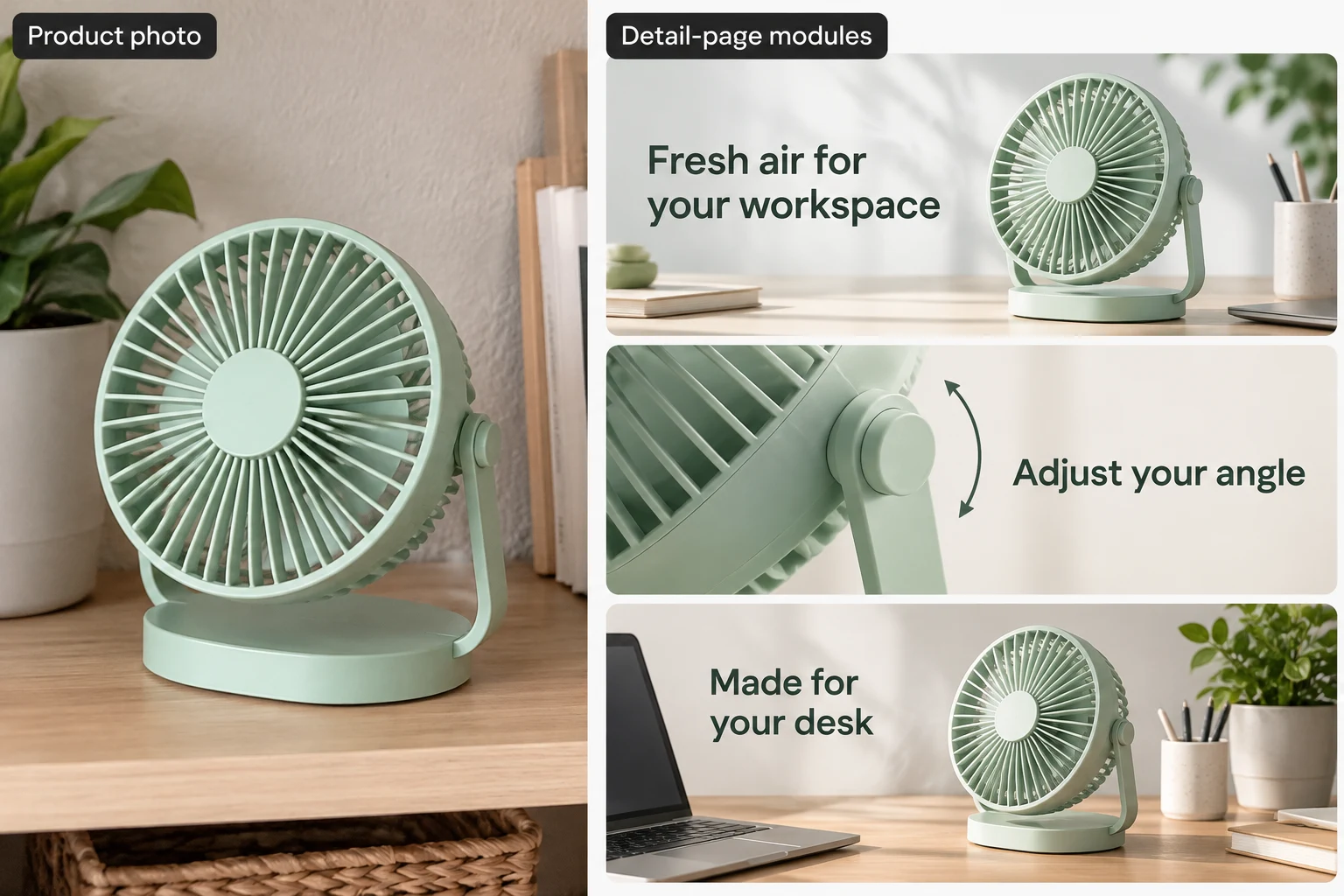
Illustrative detail-page board: a mint desk fan with hero, adjustable-angle detail and desk-use modules
Raven AI · A+ / detail pageIllustrative design example
DESIGN FOR THE PLACEMENT

Product images for Amazon, Shopify, Etsy and global stores

Raven AI separates five jobs: product listing sets, SKU / variant images, product-page sections, reference layouts and clothing model photos. Choose your sales platform, target market and image copy language separately. The platform selector guides the design; it does not upload, publish or approve the result.

Choose the destination and image role before generating
DestinationUseful starting pointCheck before publishing
AmazonProduct-only main image; separate lifestyle and detail images. Use the actual A+ module size for content sections.Main listing images need a white background. Review category rules; added logos and labels are not a substitute for product photography. Amazon image requirements ↗
Shopify / WooCommerceConsistent gallery ratios and one image per actual variant; separate banners and page sections.Shopify recommends 2048 × 2048 px for square product images. Preview your theme’s gallery on mobile. Shopify media guide ↗
EtsyKeep the actual item visible in square and landscape thumbnail crops.Etsy recommends at least 2000 px in both dimensions and generally requires original photos of the actual product. Image sizes ↗ · Original-photo policy ↗
eBayClear views of the actual condition and included items.Avoid text, border and logo overlays on listing photos. Check the current listing rules. eBay listing pictures ↗
Walmart Marketplace / TikTok ShopKeep product galleries distinct from promotional creatives.Review current country and category standards in your seller account. A vertical campaign graphic is not a universal listing format.

SKU image or main listing image?

A SKU image identifies the real color, size or bundle being sold. Match each variant to its own source photo and verify labels and quantities. Logo cards can work in permitted brand or promotional placements; for product-only marketplace slots, turn off labels and logo overlays and keep a white background.

Aspect ratio is not resolution

1:1 describes a square canvas, not a fixed pixel size. Choose the resolution separately and inspect the downloaded file. Amazon A+ presets create specific module-sized images, while store-page sections use the selected canvas ratio. Do not stretch an image to make it fit.

THREE SIMPLE STEPS

A+ / detail page How does it work?

Follow the steps from upload to download

  1. 01

    Choose E-commerce Images → A+ / Detail Pages. Upload product assets and enter verified information. First decide what your audience most needs to know.

  2. 02

    Choose the platform, market, and copy language, then select the detail modules you need. For Amazon, also choose Basic or Premium A+ and the corresponding creation options.

  3. 03

    Review estimated credits and start creating. Completed sections appear vertically. Check their order, copy, and visual transitions, then download each image and use it in the appropriate seller-account module.

✳ Usage tips

Prepare actual specifications before selecting specification, dimension, or accessory modules. Omit modules without supporting information rather than generating professional-looking but unverifiable figures.

After processing, view the current canvas in the editor, compare before and after, and download the result as needed.

ILLUSTRATED USER GUIDE

A+ / detail page Illustrated guide

Raven AI product guide · Updated

Before you start

Organize accurate product information, plan the reading order from the hero section to specifications, then select the modules you need. Detail sections are generated and downloaded separately; they are not automatically published to your store.

A PRACTICAL WORKFLOWOpen this workflow ↗

A clear detail page for a desk fan

Break a product story into useful modules: a hero, a visible feature and a real use scene. Check Amazon module dimensions before uploading.

A clear detail page for a desk fan: illustrated design example
Illustrated example · Use your own product photos and confirmed copy.

Suggested setup

Workflow
A+ / detail page
Image language
English
Modules
Hero, detail, use scene
Amazon output
Choose the exact standard or Premium A+ module size shown in your account

Before you generate

Upload your own clear, authorized materials. Replace sample copy with your confirmed information. Review the model, quality, size and estimated credits shown in the tool.
A clear detail page for a desk fan: actual English workspace and settings
English desktop workspace · Open to zoom in. The screenshot shows controls, not a submitted generation task.

Copy this example, then adjust the facts

Use the uploaded mint desk fan. Show the visible adjustable stand and a natural office-desk setting. Use the headings “Fresh air for your workspace”, “Adjust your angle” and “Made for your desk”. Preserve the product structure. Do not invent battery life, airflow measurements, power specifications or certifications.

What each setting does

Expand the options below for their purpose and practical tips. The available settings depend on the selected workflow and model.

Product Name, Key Features, and Factual Information

The name identifies the task; factual information guides the copy and product content. Both still require clear assets.

Product name

Identify products and creation records.

Tip: Use a short name without keyword stuffing. Each SKU name is entered separately and is required.

Product benefits and factual details

Enter verifiable uses, materials, structure, dimensions, and included items.

Tip: Organize it as Uses / Visible structure / Verified specifications / Not included. Do not let the model guess capacity, certifications, or therapeutic effects.

Additional instructions

Describe the background, composition, details to preserve, and elements to exclude.

Tip: Specify three or four key constraints at once. Preserve the color and clips; add no accessories is easier to verify than Make it more premium.

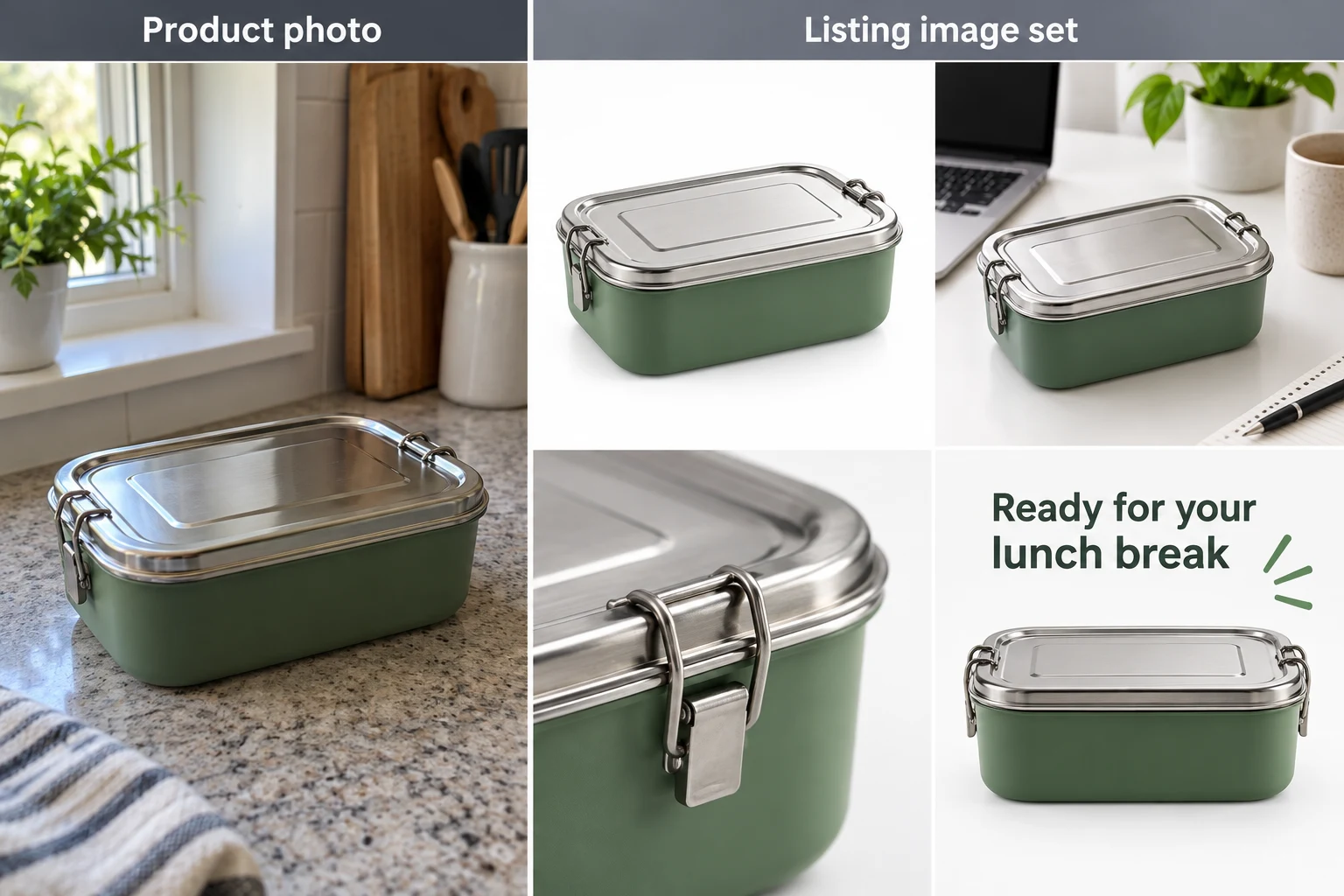
In this example: Lunch box: two visible side clips; the interior is not shown. The example supplies no material or capacity data, so omit those claims. Do not add cutlery or imply it is included.

Sales platform

Choose the destination before designing the image. A platform preset guides creation; it does not publish the image or certify compliance.

Online store

General product galleries and promotional layouts.

Tip: Choose the ratio for the actual placement, not just the product category.

Amazon

Product listing sets and Basic or Premium A+ modules.

Tip: Main images and A+ content have different rules. Match the exact module in Seller Central; a logo SKU card is not a main listing image.

Shopify

Consistent product galleries, variant images and product-page sections.

Tip: For square product images Shopify recommends 2048 × 2048 px. Select a suitable resolution and preview your theme’s crops on mobile.

Etsy

Plan listing compositions and supporting product visuals.

Tip: Etsy recommends images at least 2000 px in width and height and generally requires original photos of the actual product. Do not substitute an AI rendering for required original photography.

eBay

Show condition, angles and actual included accessories.

Tip: Use accurate product photos without added text, borders or logo overlays; confirm current category rules.

Walmart Marketplace

Product-only main images and supporting gallery content.

Tip: Verify your category’s current image standards, actual dimensions and included items before uploading.

TikTok Shop

Product listing visuals and separate promotional creatives.

Tip: Square listing images and vertical promotional content serve different placements; do not assume 9:16 is a listing rule.

WooCommerce

Product and variant galleries for a WordPress store.

Tip: Keep ratios consistent and check the active theme’s cropping and mobile gallery.

In this example: For a Shopify variant gallery, start with 1:1 and English copy. For Amazon’s main listing image, use a product-only white background without added labels or a logo.

Target market

Set the intended audience separately from the language inside the image.

Global

Guide context for an international audience.

Tip: Use verified units, pricing and product facts. The market selector does not perform legal checks or automatic currency conversion.

United States

Guide context for United States shoppers.

Tip: Use verified units, pricing and product facts. The market selector does not perform legal checks or automatic currency conversion.

United Kingdom

Guide context for United Kingdom shoppers.

Tip: Use verified units, pricing and product facts. The market selector does not perform legal checks or automatic currency conversion.

Canada

Guide context for Canada shoppers.

Tip: Use verified units, pricing and product facts. The market selector does not perform legal checks or automatic currency conversion.

Australia

Guide context for Australia shoppers.

Tip: Use verified units, pricing and product facts. The market selector does not perform legal checks or automatic currency conversion.

European Union

Guide context for European Union shoppers.

Tip: Use verified units, pricing and product facts. The market selector does not perform legal checks or automatic currency conversion.

Japan

Guide context for Japan shoppers.

Tip: Use verified units, pricing and product facts. The market selector does not perform legal checks or automatic currency conversion.

Southeast Asia

Guide context for Southeast Asia shoppers.

Tip: Use verified units, pricing and product facts. The market selector does not perform legal checks or automatic currency conversion.

In this example: United States audience with English copy; metric measurements may still be useful when your verified product specifications use them.

Image copy language

Choose the language for generated text, independently of platform and audience.

English

Use English for image copy.

Tip: Supply approved wording and check spelling, numbers and product claims. Preserve the real product’s own markings.

Spanish

Use Spanish for image copy.

Tip: Supply approved wording and check spelling, numbers and product claims. Preserve the real product’s own markings.

French

Use French for image copy.

Tip: Supply approved wording and check spelling, numbers and product claims. Preserve the real product’s own markings.

German

Use German for image copy.

Tip: Supply approved wording and check spelling, numbers and product claims. Preserve the real product’s own markings.

Italian

Use Italian for image copy.

Tip: Supply approved wording and check spelling, numbers and product claims. Preserve the real product’s own markings.

Portuguese

Use Portuguese for image copy.

Tip: Supply approved wording and check spelling, numbers and product claims. Preserve the real product’s own markings.

Japanese

Use Japanese for image copy.

Tip: Supply approved wording and check spelling, numbers and product claims. Preserve the real product’s own markings.

Korean

Use Korean for image copy.

Tip: Supply approved wording and check spelling, numbers and product claims. Preserve the real product’s own markings.

Thai

Use Thai for image copy.

Tip: Supply approved wording and check spelling, numbers and product claims. Preserve the real product’s own markings.

Malay

Use Malay for image copy.

Tip: Supply approved wording and check spelling, numbers and product claims. Preserve the real product’s own markings.

No text

Create an image without added marketing copy.

Tip: Supply approved wording and check spelling, numbers and product claims. Preserve the real product’s own markings.

In this example: English for a product benefits graphic; No text for a clean listing image.

Image size / aspect ratio

Controls the output format, not the canvas zoom level.

1:1

Square product images and variant thumbnails.

Tip: Leave enough margin to avoid cropping the product in square thumbnails.

3:4/2:3/9:16

For portrait content. Choose from the available values.

Tip: 9:16 is narrower and taller, so shorten wide headings. SKU images support only 1:1, 3:4, and 4:3.

4:3/3:2/16:9

For landscape scenes and placements. Choose from the available values.

Tip: Allow enough width for the layout. Available ratios in a mode vary by platform; not every feature offers every ratio.

970×600/970×300

Amazon Basic A+ creation presets.

Tip: Available only in the corresponding detail mode. Match it to the target module in your seller account before use.

1464×600/600×450

Premium A+ desktop / mobile creation presets.

Tip: Device combinations and custom aspect ratios are separate approaches. Check the downloaded file's actual pixel dimensions.

In this example: For this tumbler SKU workflow, request separate 1:1 image. Choose detail-module dimensions for the desk fan according to the intended publishing slot. The combined illustration board is not an individual upload-ready SKU or A+ module.

Visual style

Sets a consistent photography style, palette, and spacing without overriding product facts. Hidden when SKU images follow a reference layout.

Refined minimalism · Soft lighting · Clean white space

Emphasize the product outline and a clean background.

Tip: Verify color and structure first. A refined look does not call for extra accessories.

Fresh and natural · Everyday lifestyle · Warm tones

For home, gardening, and everyday settings.

Tip: Distinguish scene props from included items.

Professional tech · Cool lighting · Clear hierarchy

For clearly presenting structure and specifications.

Tip: Do not invent ports or technical features to fit the style.

Youthful energy · Bright colors · Playful layout

Emphasize color and a lively mood.

Tip: Use a bright background without tinting the product's actual color.

Elegant luxury · Dark backdrop · Directional lighting

For a dark mood and material-focused presentation.

Tip: Dark products can blend into the background. Specify rim lighting to keep the outline visible.

In this example: Use Minimal and Refined for the lunch box and Fresh and Natural for the watering can. Change only the style to compare its effect.

Generation Model, Quality, and Resolution

The model determines available settings, quality guides generation, and resolution sets the output level. Use the cost shown in the current interface.

Generation Model

Choose a model currently available in the interface.

Tip: Test product fidelity and text with a few images first. This tutorial does not fix model versions, prices, or capability guarantees.

Generation Quality (If Available for the Current Model)

Choose a quality level supported by the model.

Tip: Some models do not offer this control. A higher level does not guarantee correction of inaccurate facts or product structures.

Output resolution

Choose a level supported by the current model for the final display size.

Tip: Review a lower-cost draft before creating the final version. Viewing the canvas at 200% does not double the file's pixel dimensions.

In this example: Finish one lunch box concept and confirm its color and clips before increasing settings for the final version. Check estimated credits before submitting.

Create, Pause, Continue, Records, and Downloads

Manage tasks and downloads without changing the images' intended uses.

Start Creating / Create Selected SKUs / Submit New Task

Create a new task from a snapshot of the current assets and settings.

Tip: Asset changes affect only new submissions, not existing tasks. Check the image count and credits first.

Pause Queued Tasks

Stop queued items that have not yet been submitted.

Tip: Submitted items may still finish. Later SKU images wait until the first image is complete.

Continue Unfinished Tasks / Continue Checking

Resume the queue or check existing tasks.

Tip: Checking existing tasks does not resubmit them. If submission status is unknown, check records before retrying repeatedly.

Generate again

Failed items may be resubmitted and incur new charges.

Tip: First check whether the task already has a taskId and read the interface guidance. Regeneration is not a free refresh.

Download Image / Download SKU ZIP

Save the current image or a ZIP of completed SKU results.

Tip: The ZIP excludes unfinished items. Truncated name displays do not change the actual filenames.

Project History, Clear Canvas, Zoom, and Pan

Switch records, organize previews, and zoom in to inspect.

Tip: Clearing the current view does not delete tasks or creation records. Zoom, Fit, and detail-page Fit Width / Overview do not change downloaded pixel dimensions.

In this example: If only two of three organizer variants are complete, download those two first. After resuming, check the third.

Product Assets, Detail Type, and Device

Up to 6 assets. Selecting Amazon enables Basic / Premium A+.

Product page sections

Create separate image sections for the selected modules.

Tip: Plan the sequence first. More modules are not necessarily better.

Amazon Basic A+ content

Use Basic preset sizes or supported aspect ratios.

Tip: Check the actual target module in your seller account.

Amazon Premium A+ content

Choose Premium presets and generate for the selected device, or choose a custom aspect ratio.

Tip: Selecting desktop and mobile increases the image count. It does not enable account eligibility.

Desktop / Mobile

Use 1464×600 and 600×450 presets respectively.

Tip: This differs from choosing one fixed aspect ratio. If you select both devices, review both sets of results.

In this example: Start this fan example with three general detail sections, then resize for confirmed A+ modules.

Detail Modules: Presentation, Features, and Use Cases

Generate in the module order shown in the interface, not the order you click them.

Hero image

Introduce the product.

Tip: Keep the main heading short and avoid repeating it in later sections.

Key benefits

Explain verified benefits.

Tip: For the fan, describe only the visible grille and desk use. Do not invent airspeed, quiet-operation, or battery-life claims.

Use cases

Explain how to use the product.

Tip: This example shows the fan on an office desk.

Multiple product views

Show the front, back, and sides clearly.

Tip: Provide photos from each angle; do not ask AI to invent an unphotographed back view.

Lifestyle setting

Show the setting where the product is used.

Tip: Props and backgrounds must not appear to be included accessories.

Material details

Show textures and construction visible in the photo.

Tip: Do not infer material composition from an image.

Brand story

Present the brand information supplied by the user.

Tip: Without a supplied story, do not invent brand history or awards.

Dimensions and capacity

Explain the actual dimensions and capacity.

Tip: Provide accurate values and units.

Product comparison

Show differences supported by evidence.

Tip: Do not invent competitor performance or make disparaging claims.

Specifications

List verified specifications, such as model and weight.

Tip: Skip this option without data; do not estimate specifications from appearance.

Craftsmanship

Explain verified manufacturing techniques.

Tip: Do not create cutaway views without manufacturing photos and documentation.

In this example: First complete the three sections with available assets: hero → usage → details. Leave the rest unselected by default.

Product-detail sections: additional information and suitability

Keep choosing sections based on available evidence; each selected section adds a task.

Included accessories

Explain what is included with the purchase.

Tip: Do not list desk props as free gifts.

Product collection

Show the supplied information about products in the same range.

Tip: Do not invent other colors or models.

Ingredients and materials

Present actual material or composition data.

Tip: Appearance does not establish material percentages.

After-sales information

State the actual after-sales policy.

Tip: Do not add lifetime warranties or return and exchange promises.

Usage tips

Explain operation and precautions using the user's documentation.

Tip: Do not invent assembly, disassembly, or hazardous procedures. This does not replace the actual instruction manual.

In this example: Add dimensions and capacity once verified data is available. Do not select every section just to make the page longer.

Workflow: choose the detail page type and modules

Choose A+ / Product Detail Pages, upload the product, and enter accurate information. Select the platform and detail type for your channel. Check Amazon Basic, Premium, and device presets against the modules actually available in your seller dashboard.

Scroll down to select hero, selling-point, use-case, and other modules. After generation, review the vertical canvas and use module navigation to check each section. Download individual images and upload them in your store dashboard as required. The preview arrangement is not a published detail page.

Module settings: select only content backed by information

Plan content order, select the required modules, and check their count. Specifications, accessories, ingredients, and after-sales information must be factual. Avoid selecting everything merely to make the page longer.

Check the module combination and estimated cost before starting. Deselect unsupported content and create it once the information is complete. Module roles are explained later.

Check this list when finished

  • Modules follow a logical reading order, and specifications and claims are supported by facts.
  • Product colors, layouts, and text hierarchy are consistent across sections.
  • Headlines are readable on mobile, and downloaded dimensions match the actual dashboard requirements.

How do I fix a problem?

The download is not one long image

The tool currently provides separate module images. If you need a long image, combine them separately according to the target platform’s rules.

The seller dashboard rejects my A+ image upload

Compare the downloaded dimensions with the selected dashboard module’s requirements. Tool presets do not fit every module.

WHEN TO USE IT

When to use it A+ / detail page?

Domestic store detail pages: supplement existing listing images with clear use, material, and specification information. Arrange modules in the order buyers make decisions to avoid crowded long images and repeated headings.

International A+ content: prepare module images around the product story, usage, and distinguishing features. The tool creates images; account access, module selection, and publishing remain in your seller account.

Content Order: Introduce the Product, Then Add Details

Start with the product name, a clear product image, and one key message. Follow with key features and use cases, then materials, dimensions, specifications, accessories, or service information. Every module should add new information; omit repetitions.

For the mint desk fan, use a full-product hero, a visible stand/pivot detail and a natural desk-use scene. These are the three tasks illustrated on the board. Include power, battery-life or noise claims only when supported by actual product data.

Module Selection: Match Content to Available Information

Modules include Hero Image, Key Features, Use Cases, Multiple Views, Lifestyle Mood, Material Details, Brand Story, Dimensions and Capacity, Comparison, Specifications, Workmanship, Accessories, Product Range, Composition, After-Sales Service, and Usage Tips. Check that accurate supporting information is available before selecting each one.

Clothing needs factual garment shape, fabric, and sizing information. Electronics need ports, accessories, and reliable specifications. Home goods can focus on placement and dimensions. Merchants must substantiate brand stories, service promises, and comparison claims; do not invent them.

Keep the background palette and heading hierarchy consistent across the detail set, while adapting each composition to its content. Leave enough text space for specifications and make use cases clear in lifestyle modules. Avoid repeating the same hero layout everywhere.

Amazon A+ Content: Check Both Tool Presets and Seller Central Requirements

Selecting Amazon enables Basic A+, Premium A+, and desktop and mobile options for Premium A+. Current Basic presets include 970×600 and 970×300. Premium presets include 1464×600 for desktop and 600×450 for mobile. These are tool presets, not universal upload standards for all A+ modules.

Before creating, confirm available modules, account eligibility, and image requirements in Seller Central, then match the tool options. The tool does not enable A+ eligibility or automatically create or publish seller-account content. For placements requiring exact pixels, check downloaded file dimensions.

For international copy, check translations, units, and product names separately. Tiny text does not make extra information useful. Shorten and reorganize headings and descriptions that are unreadable in a phone preview.

Input Example: Separate Product Facts from Design Instructions

Use this structure: Product: [name]; Materials and specifications: [verified information]; Use cases: [actual uses]; Included accessories: [actual list]; Preserve: [logo, color, structure]; Design: [background, spacing, copy language]. This separates product facts from visual style.

For an off-white canvas bag, describe commuting use, the actual bag opening, and the photographed print. Without load-test data, do not request an exceptional load capacity claim. If you want images without text, select No Text and add descriptions in your seller account.

Section Downloads: Transitions, Readability, and Publishing

Current detail results are separate module images, displayed vertically on the canvas and downloaded individually. They are not automatically packaged into a published store page, and a stitched long-image export is not guaranteed. Upload them according to your store's module workflow.

Review all sections in sequence for consistent product color, repeated headings, and abrupt background changes, then read the copy at phone size. Verify comparison, composition, and after-sales information separately. A clear image does not prove factual accuracy.

GOOD TO KNOW

FAQs before you start

How do product image sets differ from detail pages?

Product image sets allocate white-background, feature, lifestyle, and detail images for listings and promotional assets. Detail pages organize a sequence of content modules to explain uses, specifications, and product information.

Will it generate one downloadable long detail image?

Currently, it generates separate module images arranged vertically on the canvas for individual download. If you need a long image, stitch them separately according to the target platform's requirements.

Does selecting Premium A+ enable Amazon Premium A+ access?

No. This is an image creation option and does not affect account permissions. Confirm eligibility and available modules in Seller Central first.

Can I create a specification module without product specifications?

It is not recommended. Provide accurate specifications first or omit the module for now. The generator cannot infer capacity, material composition, or technical specifications from appearance.

Can I create detail images in English or without text?

Yes. Choose the copy language or No Text. Proofread foreign-language results, especially units, proper names, and descriptions that may affect purchase decisions.