AI Product Retouch

AI Product Photo Retouching: From Phone Snapshot to Studio-Quality Shot

AI product retouch is built for e-commerce and brand product photos. It removes dust, fingerprints and smudges, tidies reflections and lighting, corrects color casts and refines materials such as metal, glass, leather and fabric. The product's structure, proportions, color and printed text are locked, never redesigned, and the background can be kept, cleaned up or replaced with solid white.

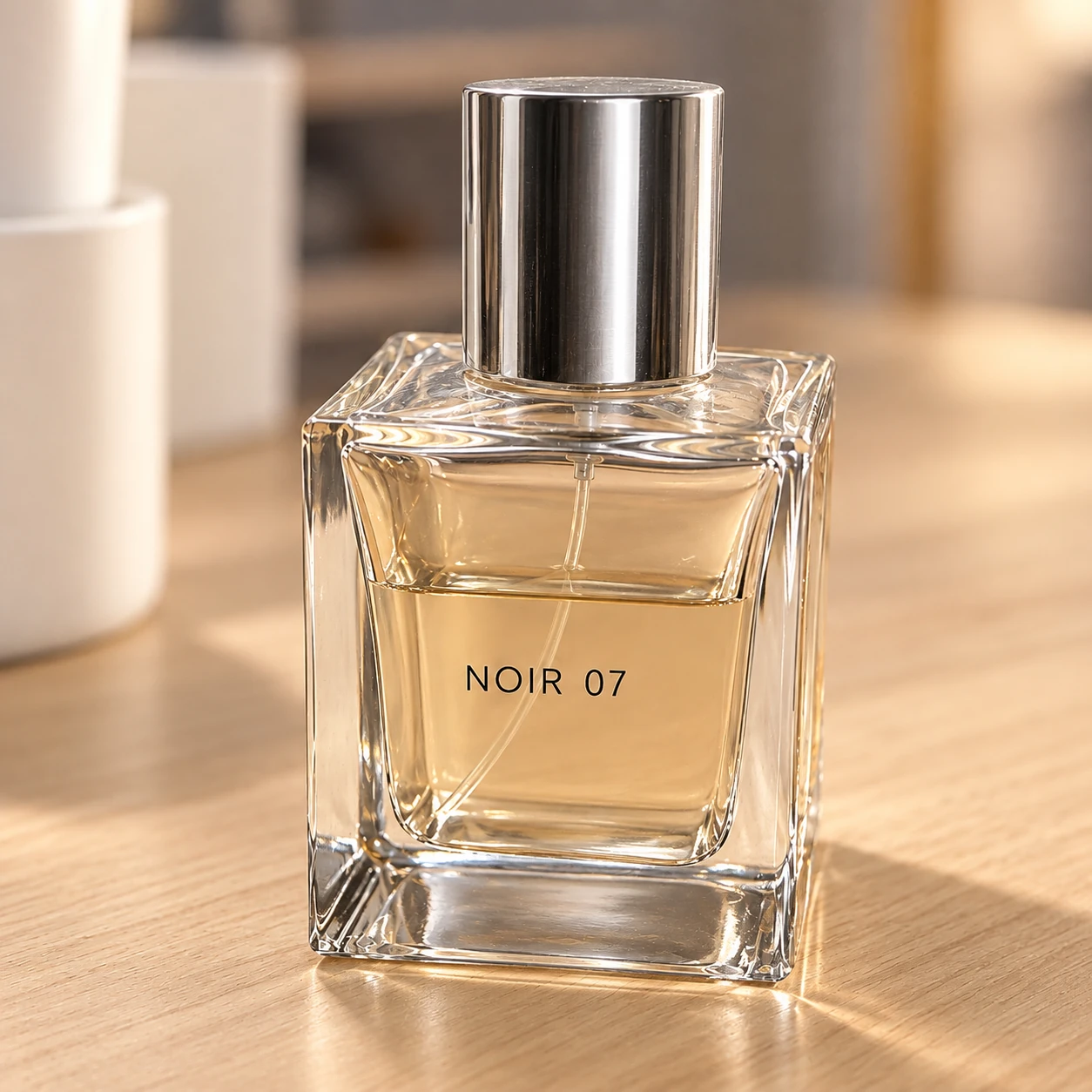
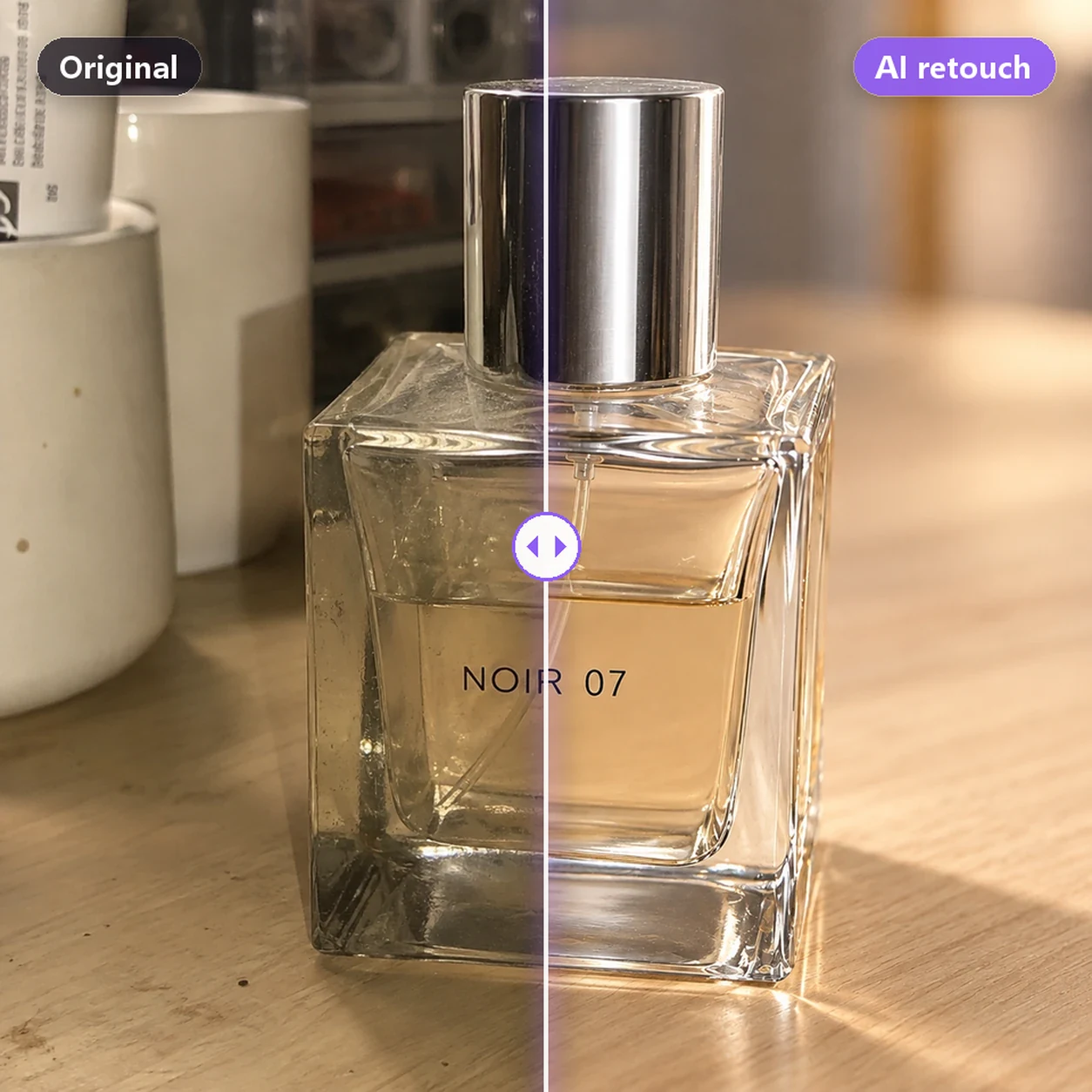
AI product photo retouching before and after: a casual perfume snapshot turned into a clean, crisp commercial product photo
EditRaven AI · AI Product RetouchIllustrative workflow
THREE SIMPLE STEPS

AI Product Retouch How does it work?

Follow the steps from upload to download

  1. 01

    Upload product photos and open AI product retouch. To process several at once, tick them in the thumbnail strip below.

  2. 02

    Choose the product material and an output (Retouch full image, Product only, Retouch cutout or Background color), then pick Natural, Commercial or Texture focus.

  3. 03

    To fix just one part, circle it with Local retouch. Click Retouch, compare with the original, and use Brush to restore for any area you want back.

✳ Usage tips

The clearer the original, the better the result: shoot straight on, in focus, with the whole product in frame. Retouching doesn't change the product itself, so reshoot photos that are badly distorted, blocked or blurry, and check color, logo and text against the real item before listing.

After processing, view the current canvas in the editor, compare before and after, and download the result as needed.
REAL-WORLD WORKFLOW

Example: a phone snapshot of perfume, retouched into a commercial product photo

Material: glass. Output: Retouch full image (product and background together). Details: Commercial. The sample images are AI-generated to illustrate the before and after.

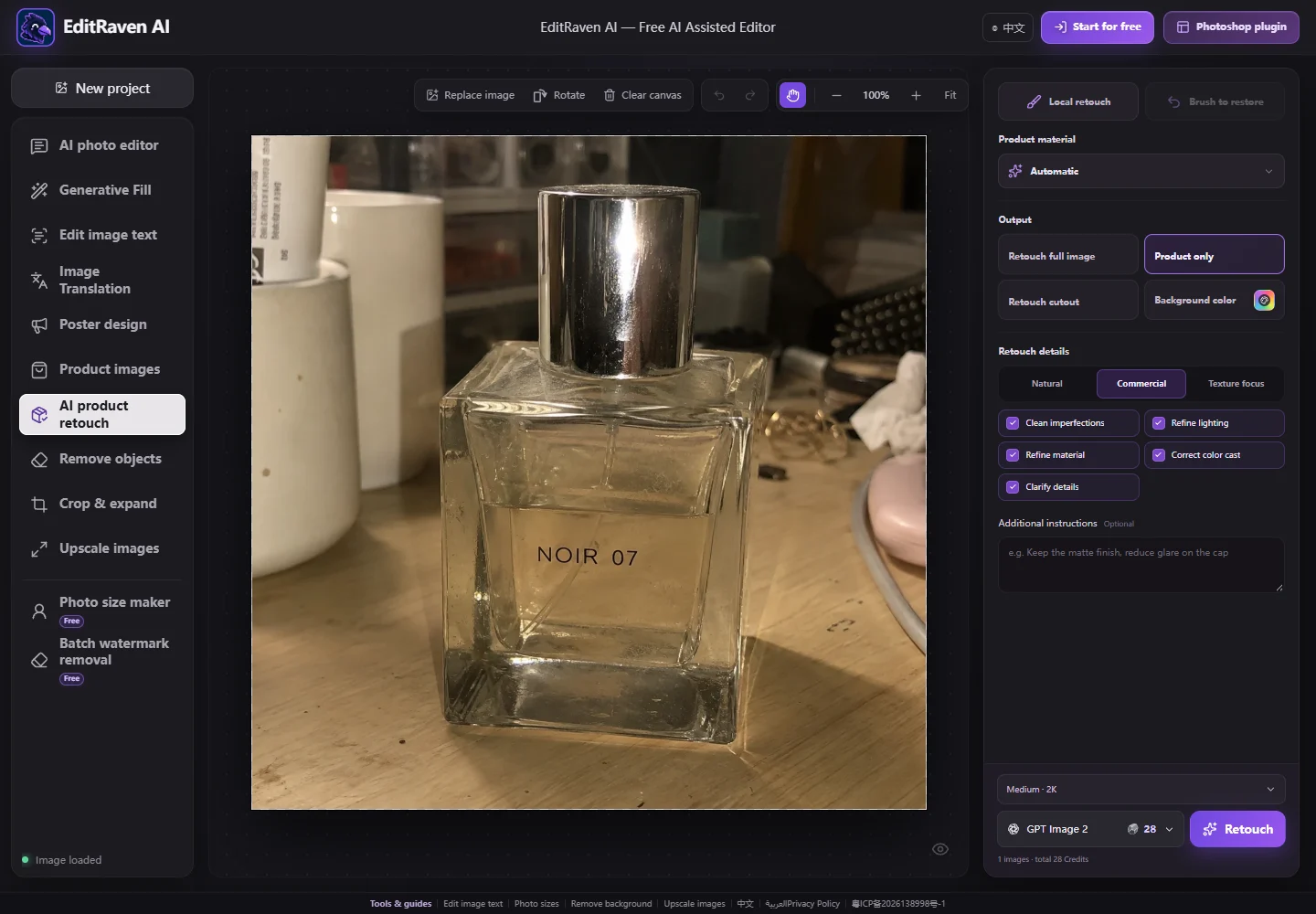
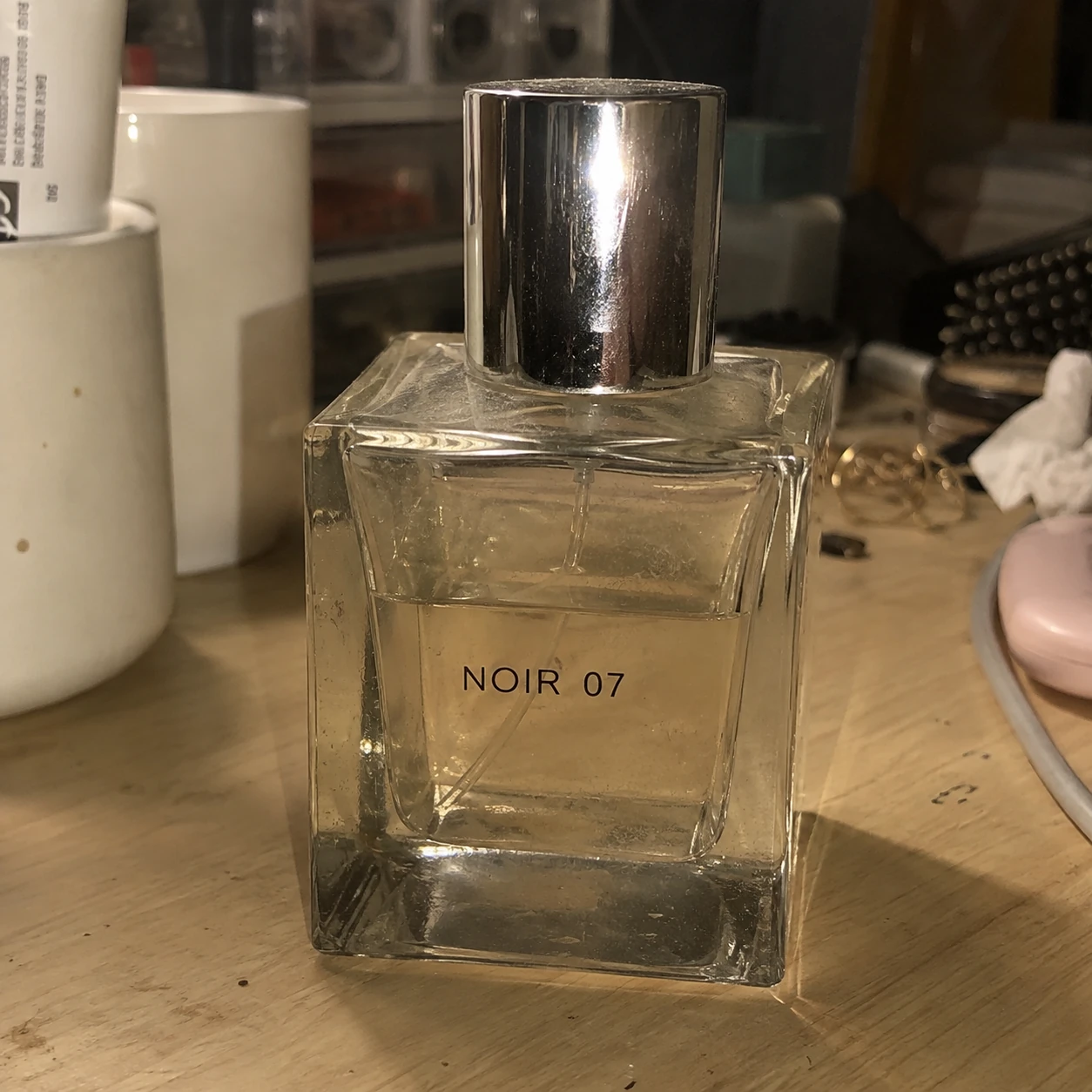
Original product photo: a square glass perfume bottle on a desk with dust, fingerprints, flash glare, a yellow cast and a cluttered background01 · Original
Original

Dust and fingerprints on the bottle, harsh flash glare on the cap, a dull yellow cast and a cluttered background.

Retouched result: the same perfume, clean and clear, with crisp glass edges, a refined metal cap and a simple background02 · AI retouch
AI retouch

Dust and fingerprints are gone, the glass is clear with clean edge highlights and the silver cap looks refined. The NOIR 07 text and bottle shape are unchanged, and the background is a soft blur.

Key checks for beginners
  1. 1Compare with the original: bottle shape, proportions, cap and logo text are unchanged.
  2. 2Check the color is true to the real product, not over-beautified.
  3. 3Zoom in on edges and glass refraction for smearing or lost detail.
ILLUSTRATED USER GUIDE

AI Product Retouch Illustrated guide

EditRaven AI product guide · Updated

Before you start

Prepare a clear photo with the whole product in view: focused on the product, not blocked by hands or clutter, ideally from the front or your usual display angle. A phone photo is fine; dust, glare, color casts and messy backgrounds are what the retouch fixes. Reshoot photos that are badly blurred or distorted. Retouching needs you to sign in and uses credits per image.

01 Upload the original photo and choose the material

Choose AI product retouch on the left and upload your photos; you can add several at once and tick the ones to retouch in the thumbnail strip. The first setting is Product material: metal, glass, leather and jewelry handle reflections and texture differently, so the right material gives more realistic highlights and surfaces.

If a product mixes materials, such as a glass bottle with a metal cap, choose Automatic and AI treats each part separately.

AI product retouch workspace: a dusty perfume photo with glare on the canvas; the right panel shows product material, output and retouch details
The current desktop interface. Open the screenshot to zoom in; controls may be positioned differently on mobile.

02 Choose the output and retouch details

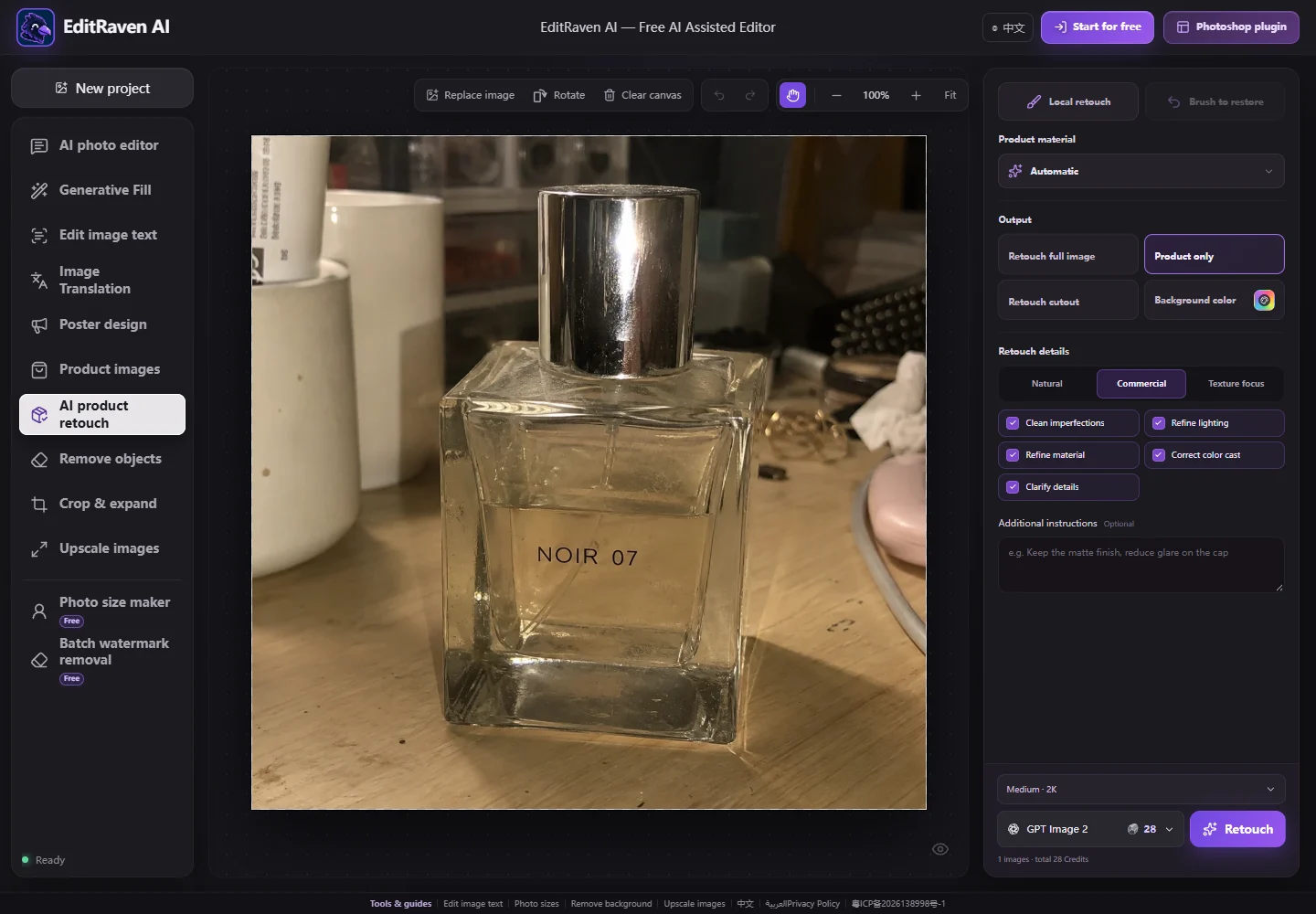
The output decides what happens to the background: Retouch full image improves the product and background together; Product only retouches the product and leaves the background as it is; Retouch cutout gives a transparent background; Background color swaps in a solid color, so choose white for an e-commerce white background.

Three presets set the level: Natural only cleans up and corrects color, staying closest to the original; Commercial gives a full product polish; Texture focus emphasizes lighting and material. You can also tick Clean imperfections, Refine lighting, Refine material, Correct color cast and Clarify details individually. Put special requests in Additional instructions, for example “keep the matte finish, reduce glare on the cap”.

AI product retouch settings: four outputs (Retouch full image, Product only, Retouch cutout, Background color), three presets (Natural, Commercial, Texture focus) and five retouch details
The current desktop interface. Open the screenshot to zoom in; controls may be positioned differently on mobile.

03 Local retouch and Brush to restore

To work on one part only, such as glare on a watch crystal or a mark on a bottle, click Local retouch and circle the area on the canvas. The retouch applies only inside the selection and the rest stays the same.

After retouching, if a small area looks worse than the original, paint over it with Brush to restore to bring that part back, without retouching the whole image again.

04 White-background example: replace a messy backdrop

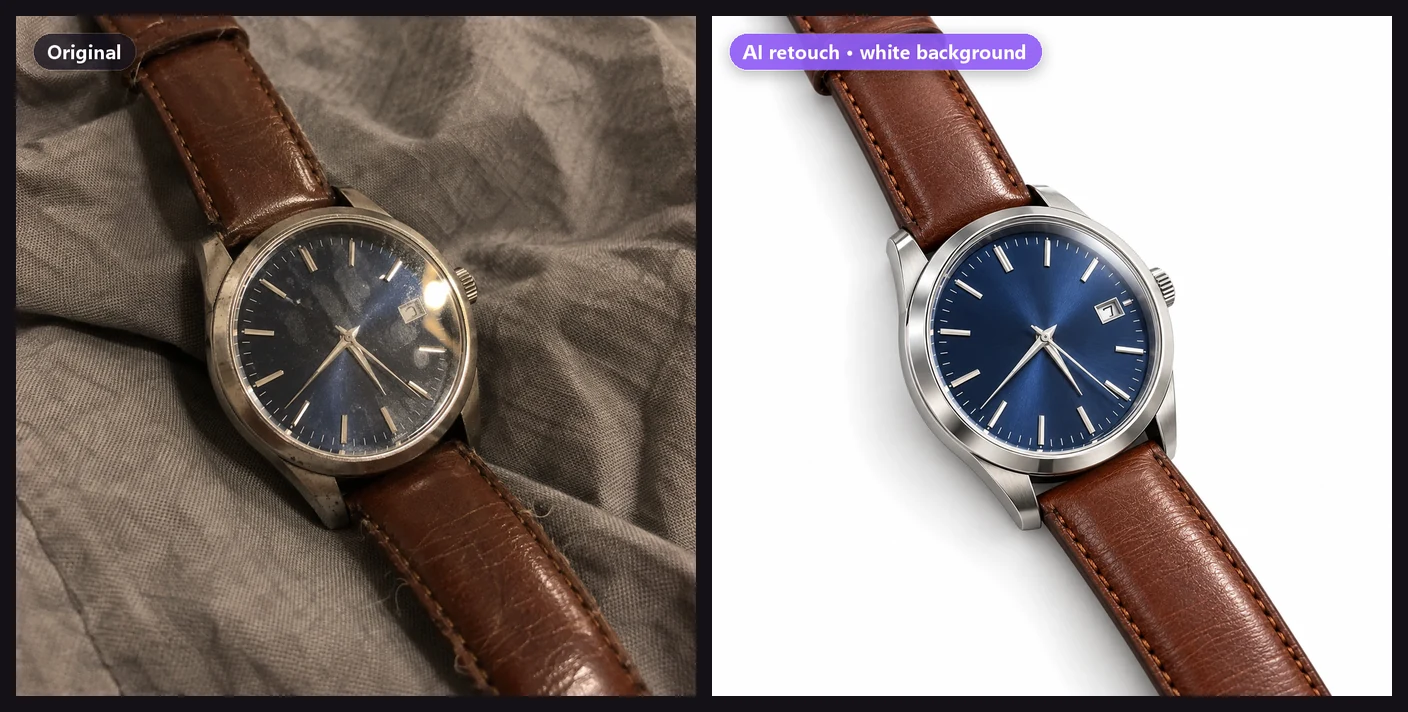
In this example the watch sits on creased fabric, with fingerprints on the crystal and yellow lighting. With Background color set to white and the material set to metal, the case shows brushed and polished contrast, the crystal keeps a single clean highlight, the leather strap keeps its real grain, and a natural contact shadow remains underneath.

White backgrounds suit marketplace main images and comparison listings. When you want atmosphere, use Product only or Retouch full image to keep the setting.

White-background retouch example: a watch photographed on creased fabric, retouched into a pure-white e-commerce main image with dial and leather strap details kept
AI-generated sample images illustrating a white-background retouch. Actual results depend on your photo and settings.

05 Check against the original, then download

When it's done, hold the compare icon to see the original. Check that the shape, proportions and structure haven't changed, the logo and printed text are crisp and accurate, the color is true to life, and nothing looks plastic or over-smoothed.

When you're happy, download from the top right. In a batch, check each image and re-retouch or use Brush to restore on any that need it.

Check this list when finished

  • The product's shape, proportions, structure and angle match the original.
  • Logos, printed text and labels are crisp and accurate, not rewritten or blurred.
  • Colors are true to the real product, with no cast or oversaturation.
  • Dust, fingerprints and smudges are gone, reflections look natural, with no plastic look or smearing.
  • The background suits its use: white backgrounds are clean and even, and scenes have no new clutter.

How do I fix a problem?

The retouched color doesn't match the real product

Switch to the Natural preset, or describe the real color in Additional instructions (for example “the liquid is pale champagne”). If it's still off, use Brush to restore on that area.

There's still a lot of glare

Make sure Refine lighting is ticked and the right material is chosen. If glare completely hides details, they can't be recovered, so reshoot from another angle or with soft light.

The product text or logo became blurry

Retouch again with Product only or a higher resolution, and use Brush to restore on specific areas. If the text was unclear in the original, run Image enhancement first.

Something new appeared in the background

Choose Product only to keep the background as it is, or use Background color for a solid background.

WHEN TO USE IT

When to use it AI Product Retouch?

New listings: turn seller-shot product photos into polished images for listings, detail pages and social media, or straight into white-background main images.

Hard-to-shoot materials: glass, metal, jewelry and leather pick up glare and look dull or dirty easily. The matching material setting cleans up highlights and texture.

GOOD TO KNOW

FAQs before you start

How is this different from a regular photo editor or beauty filter?

Regular editors and beauty filters mostly adjust brightness, color or skin. AI product retouch is made for product photos: it recognizes the material, removes dust and fingerprints, tidies reflections and lighting, corrects color and refines texture, while locking the product's structure, color and text.

Will retouching change how the product or its text looks?

It's designed not to. The retouch keeps the product's shape, proportions, color, logo and printed text, without redesigning it. AI can still introduce small differences, so zoom in and compare with the original and the real item before listing, and use Brush to restore for any area that changed.

Which materials are supported?

Automatic, metal, glass/transparent, plastic/silicone, fabric/apparel, leather, wood/rattan, ceramic/stone, jewelry/gems, paper/packaging and food/fresh produce. For mixed materials, choose Automatic and each part of the product is handled on its own.

Can I switch to a white background?

Yes. Set the output to Background color and choose white for a white-background product photo with a natural contact shadow. You can also keep the scene, retouch the product only, or use Retouch cutout for a transparent background.

Can it fix messy reflections and yellow color casts?

Refine lighting softens harsh flash glare and tidies stray highlights, and Correct color cast removes yellow or dark tints for neutral color. If glare completely hides part of the product, that detail can't be recovered from the photo, so reshoot from another angle or with soft light.

Can I retouch several product photos at once?

Yes. Upload several images, tick the ones to retouch in the thumbnail strip and click Retouch; each is submitted in turn and charged separately by model and resolution. Failed tasks are refunded automatically.

Is AI product retouch free? Does it work on phones?

It works in any phone or desktop browser, with no photo-editing software to install. AI product retouch uses credits based on the model and resolution you choose, and signing in each day gives you free credits. The exact cost is shown before you start.